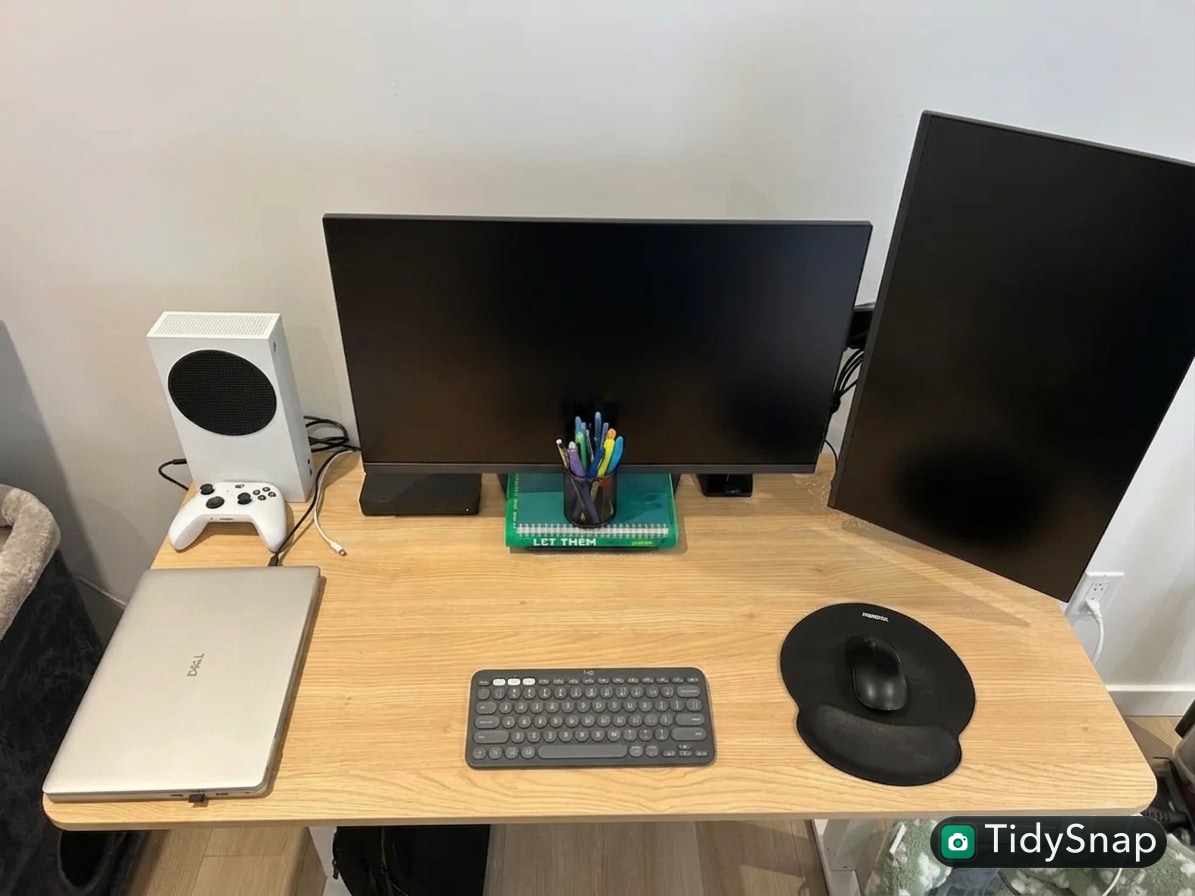
How to Organize a Workspace for Writing and Computer Work Without Splitting Your Focus
A workspace that has to handle both writing and computer work usually gets messy in a very specific way.
The laptop or monitor takes over the center. A notebook stays open longer than it needs to. Papers drift under the keyboard. Pens, chargers, sticky notes, and reference material start collecting in the same few spots because each one feels useful enough to leave out. The desk still works, but it stops feeling calm.
That is what many people really mean when they search for ways to organize your workspace or think, “I need to organize my office.” They are not trying to build a perfect minimalist setup. They want one desk that can support focused screen work, active writing, and quick transitions between the two.
TidySnap helps at exactly that point. You can upload a real photo of your workspace and turn general advice into a visual plan based on your actual desk size, writing tools, computer setup, and the clutter patterns that keep returning.
Quick Answer
If you want to organize a workspace for writing and computer work, start here:
- decide what belongs in the center when you are typing versus writing
- keep only one active notebook or paper set on the desk at a time
- group pens, reference items, and small tools into one support zone
- stop the area under the monitor from becoming storage
- keep cables and chargers out of the writing path
- give in-progress notes a defined home instead of leaving them open-ended
- reset the desk back to one default layout at the end of the day
For most people, that does more than adding another organizer.
What People Usually Mean by Writing and Computer Work
This kind of desk is hard to manage because it supports two different work modes.
Writing work often needs:
- room for a notebook, pad, or printed draft
- a place to rest your hands and think
- a little visual quiet
- access to one or two reference items
Computer work often needs:
- a clear keyboard and mouse path
- a stable screen position
- chargers, headphones, or a dock nearby
- enough open surface to keep tech from crowding the front edge
The tension comes from trying to do both at once on one surface.
If nothing has a boundary, the desk starts holding half-finished notes, open tabs in physical form, and tools from both modes all day long.
Why This Type of Workspace Gets Cluttered Quickly
A writing-and-computer desk often feels messy even when it is not packed with stuff.
That is because the clutter is usually layered, not dramatic.
You may have:
- one notebook from today’s work
- one older notebook you still want nearby
- loose notes or printed pages
- pens and markers
- a laptop or monitor setup
- charging cables
- headphones
- a mug
- one or two reference books
None of those items feels unreasonable on its own. The problem is that they compete for the same visual center.
Protect the Center for the Work You Are Doing Now
The center of the desk should support your current mode, not every possible mode.
If you are typing, the center usually needs to belong to:
- keyboard
- mouse or trackpad
- main screen line
- one current note or notebook at most
If you are writing, the center usually needs to belong to:
- notebook, pad, or draft pages
- comfortable hand space
- one pen or pencil set
- enough room to think without pushing against devices
A useful rule is to stop asking the desk to show everything at once.
| Work mode | What belongs in the center | What should shift aside |
|---|---|---|
| typing | keyboard, mouse, one active note | extra notebooks, papers, pens, chargers |
| writing | notebook or draft, one pen, clear hand space | backup tech, headphones, loose cables |
| switching between both | one computer setup plus one active writing item | everything not needed for the next hour |
That one distinction makes the desk easier to read and easier to reset.
Use One Writing Support Zone Instead of Paper Spread
A lot of mixed-use desks fail because writing tools are allowed to spread wherever there is space.
That often means:
- pens near the front edge
- sticky notes below the monitor
- notebooks stacked beside the keyboard
- printed pages drifting under the laptop
- reference material parked in back corners
A better setup is one writing support zone on one side of the desk.
That zone can hold:
- one closed notebook or task pad
- one pen cup or tray
- one thin stack of active reference pages
- one small place for sticky notes or index cards
The goal is not to hide writing tools. The goal is to stop them from colonizing the whole surface.
Keep the Area Under the Monitor Clear
On many desks, the space below the monitor becomes a catch-all for mixed work.
That is where people often leave:
- half-used notes
- loose paper
- extra pens
- receipts
- charging cables
- headphones
- small reference books
Once that zone fills up, the desk stops feeling usable even if the rest of the room looks fine.
If your screen sits above a pile of background work, the workspace will keep feeling heavier than it needs to.
Separate Active Notes From Background Notes
One of the biggest problems with writing-and-computer work is that every note feels active.
But most desks work better when notes are split by status:
| Note type | Best home | Why |
|---|---|---|
| active note for current task | on the desk | supports the work you are doing now |
| notes for later today | one tray or one closed notebook | keeps them close without spreading |
| reference notes | side holder, shelf, or drawer | stays accessible without blocking the desk |
| old notes | archive, scan, or discard | reduces visible residue |
If every note stays open, your workspace starts carrying yesterday’s thinking into today’s work.
Make Cables and Tech Respect the Writing Zone
Writing gets harder when cables and devices keep intruding into hand space.
A better default is:
- keep charging lines to one side only
- route monitor and power cables behind the screen line
- move backup adapters off the desk
- avoid letting headphones, chargers, and dongles live where your notebook needs to open
| Item | Better location | Why it helps |
|---|---|---|
| daily charging cable | one reachable side corner | keeps the front edge clear |
| monitor and power cables | rear edge | reduces visual noise |
| headphones | one hook, stand, or side zone | stops drop-and-leave clutter |
| adapters and spare tech | drawer, tray, or shelf | keeps support gear from taking writing space |
If your writing hand keeps working around tech, the layout is still doing too much.
A Better Layout for Common Mixed-Use Workspaces
Small desk
Best approach:
- keep only one notebook visible
- protect the keyboard zone when not writing
- move reference material off the surface quickly
- avoid using the whole back edge as storage
If your real challenge is size, read How to Organize Your Workspace When Your Desk Is Too Small.
Home office desk with monitor
Best approach:
- decide whether writing happens below the screen or beside it
- keep one support cluster for pens, notes, and tools
- stop paper from living under the monitor line
- keep cables routed away from the active writing side
Shared or multi-purpose desk
Best approach:
- keep writing materials easy to close or stack fast
- leave only one active paper item visible
- group small tools into one movable container if needed
- make the reset simple enough to repeat every day
Where TidySnap Helps
This is where people often get stuck. They understand the advice in theory, but when they look at their own desk they still wonder:
- what is actually making this space feel busy?
- should the notebook stay in the center or move to one side?
- which notes are active, and which ones are just lingering?
- where should the writing tools live so they stay useful without spreading?
TidySnap helps from a real photo of your actual workspace. It can help you:
- identify mixed zones that are holding both writing and tech clutter
- separate active notes from background paper
- protect your main working surface
- reduce visual noise around the screen line
- build a layout you can repeat instead of re-deciding every day
A 10-Minute Reset for Writing and Computer Work
| Minute | Action | Goal |
|---|---|---|
| 0-2 | remove cups, trash, and obvious non-work items | clear visual noise fast |
| 2-4 | close or stack every notebook except the active one | reduce paper spread |
| 4-6 | return pens, sticky notes, and small tools to one support zone | stop item drift |
| 6-8 | clear the area below the screen and route cables back to one edge | reopen usable surface |
| 8-10 | set the desk for tomorrow’s first task only | make the restart easier |
Common Mistakes
The most common ones are:
- keeping multiple notebooks open because they all feel important
- letting the monitor area become a paper shelf
- mixing active writing tools with backup supplies
- leaving chargers and headphones in the writing path
- treating the entire desk as a holding area between tasks
- resetting the desk visually without deciding what is still active
Final Takeaway
If you want to organize a workspace for writing and computer work, the goal is not to make the desk look empty. The goal is to make it easier to shift between thinking, typing, and note-taking without carrying visual friction all day.
That usually means:
- one clear center
- one writing support zone
- one place for in-progress notes
- one cable path that stays out of the way
- one repeatable reset at the end of the day
And if you want help applying that to your actual desk, TidySnap can turn one workspace photo into a practical layout plan you can use right away.
FAQ
How do I keep writing tools from taking over my desk?
Keep them in one support zone instead of letting them spread across the front edge, under the monitor, and beside the keyboard.
What should stay visible on a mixed writing-and-computer desk?
Usually your main computer setup, one active notebook or draft, and one small cluster of daily-use tools. Everything else needs a reason to stay out.
Should I keep multiple notebooks open while I work?
Usually no. Keep one active notebook open and give the rest a closed, defined home so the desk does not feel permanently mid-task.
Why does my desk still feel busy even after I tidy it?
Usually because active notes, background notes, tech accessories, and writing tools are still mixed together. A desk feels calmer when each category has a clear boundary.