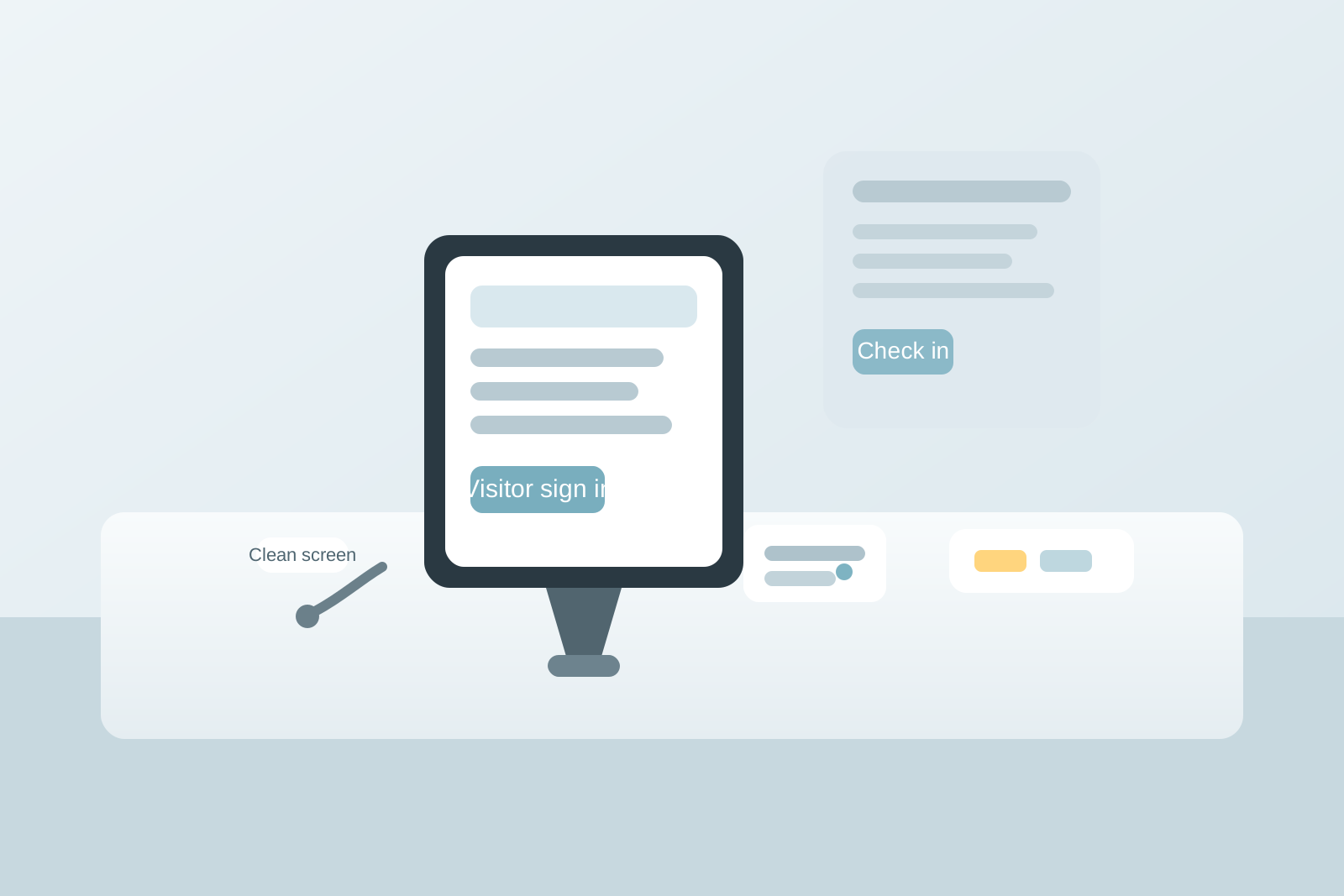
Office Visitor Check-In Tablet Stand Organization for Chargers, Styluses, and Sign-In Flow
A visitor check-in tablet creates a very specific kind of front-desk clutter.
It is not a full reception desk problem, and it is not the same as managing a shared device charging station. The mess usually builds in a much smaller footprint. A charging cable gets swapped because someone needed it elsewhere. The stylus walks away after a signature. A backup badge sleeve lands beside the stand because it felt related. Screen wipes, sign-in instructions, and privacy notes all hover around the same small area until the tablet stand stops looking like a simple check-in point and starts acting like a tiny catch-all.
If you want to organize your office entry without making visitor check-in slower, the goal is not adding more accessories around the tablet. The goal is making the stand easy to use, easy to recharge, easy to reset, and easy to trust during the busiest few minutes of an arrival.
Quick answer
An office visitor check-in tablet stand usually works better when you:
- keep the tablet, charger, stylus, and sign-in prompt in one tightly defined footprint
- separate visitor-facing tools from staff-only backup items
- protect one charging path that does not get borrowed for other devices
- create a fast reset step for fingerprints, low battery, and missing accessories
- move badges, forms, and exception handling off the stand unless they are needed in the next thirty seconds
That usually helps more than adding another tray near reception while the actual tablet setup still mixes live check-in tools with backup supplies and leftovers.
Why tablet check-in points get messy faster than expected
A check-in tablet stand looks like it should stay simple because there are only a few items involved.
In practice, those few items carry several jobs at once:
- the tablet has to stay powered and readable
- the stylus or signature tool has to stay attached or easy to spot
- the screen has to feel clean enough for visitor use
- the instructions have to be obvious without cluttering the stand
- the nearby staff member still needs a way to handle exceptions when someone cannot complete the normal flow
When all of that gets handled in one tiny area without boundaries, the stand turns into a micro-workstation nobody meant to build. The result is small but constant friction. Visitors hesitate. Staff lean over to explain the same step again. The charger disappears. The screen looks messy even when the rest of the reception area is under control.
Start by defining what belongs on the stand
The stand should only hold what directly supports the next visitor.
For most offices, that is:
- the tablet itself
- one dedicated charging cable or dock
- one stylus if signatures are part of the process
- one very short instruction cue if the app is not self-explanatory
That is it.
If badge stock, spare pens, lanyards, clipboards, delivery notes, and extra forms are parked around the tablet because they are all “front desk things,” the tablet stand will always feel crowded. Those items may belong nearby, but they do not belong in the live check-in footprint.
A simple rule helps: if an item is not needed for the next normal sign-in, move it off the stand.
Separate visitor-facing tools from staff-only support
This is the difference that keeps the setup from feeling chaotic.
Visitor-facing tools are the things a guest should be able to understand instantly. Staff-only support items are the things needed when the normal check-in flow breaks.
Visitor-facing items might include:
- tablet on stand
- attached stylus
- short sign-in instruction
- small privacy reminder if needed
Staff-only support items might include:
- backup charging cable
- spare stylus tip or extra stylus
- cleaning cloths and screen-safe wipes
- printed fallback sign-in sheet
- troubleshooting note for Wi-Fi or app issues
Keep those support items close, but not on the stand itself. A nearby drawer, cubby, or side bin works better than letting every backup item live beside the screen. The stand should signal “start here,” not “search here.”
Protect the charging setup from becoming shared cable storage
This is one of the most common failure points.
A visitor tablet charger looks convenient, so someone borrows it for a phone. Or a cleaner unplugs the dock and tucks the cable behind the stand. Or a second cable gets added because nobody is sure which one still works. Soon the tablet is sometimes powered, sometimes not, and nobody wants to find out the battery is dead during the morning rush.
A better setup usually includes:
- one charger that belongs only to the check-in tablet
- one cable path that stays routed behind or under the stand
- one fast visual cue that confirms whether the device is charging
- one backup power option stored nearby, not mixed into the main cable path
The goal is not fancy cable management. It is preventing the check-in device from turning into just another outlet negotiation.
Keep the stylus with the workflow, not in a random pen cup
If your sign-in process needs a stylus, treat it like part of the device, not like a writing tool.
A stylus dropped into a shared pen holder will disappear into normal office use almost immediately. It may still be somewhere nearby, but that is enough to slow down every other check-in. The better move is to keep it physically tied to the stand, docked in a dedicated holder, or placed in one obvious repeatable spot that is not shared with other pens.
If you do not actually need a stylus because finger input works fine, remove it entirely. An unnecessary stylus often creates more maintenance than convenience.
Give problem cases their own path instead of crowding the stand
Reception setups get messy when exception handling starts happening inside the main check-in zone.
Maybe a guest needs help because the QR code will not scan. Maybe the screen is asking for a field they do not know how to fill in. Maybe a badge needs to be issued manually. Maybe someone refuses to use the tablet and needs a paper fallback.
Those are real needs, but they should not be solved by piling more tools around the tablet stand.
Instead, decide where exception handling goes:
- a side counter for manual forms
- a drawer for fallback supplies
- a badge station nearby for identity items
- a staff-facing note for common app issues
That keeps the main stand optimized for the normal case while still letting staff handle the unusual case quickly.
Use a reset routine that takes less than one minute
A visitor check-in point does not need a big cleanup. It needs a tiny reliable reset.
A good reset usually covers four things:
- confirm the tablet is charged or charging
- return the stylus to its spot
- wipe obvious fingerprints if the screen looks distracting
- remove unrelated items that landed near the stand
This is especially useful after lunch, after a busy visitor block, and before the end of the day. Small front-desk tools drift constantly. A short reset catches the drift before the stand starts looking unreliable.
What to keep nearby, but not on the stand
Most offices still need a few support items close to the check-in point. The key is giving them a separate home.
Good nearby support storage might include:
- spare charger or wall adapter
- backup stylus
- disinfecting wipes safe for screens
- printed visitor instructions for outages
- extra badge sleeves or passes
- one troubleshooting card for staff
If you can store those in a labeled drawer or a small staff-side bin, the tablet area stays readable while still being easy to support.
Mistakes that make the stand feel busier than it is
A few small choices create most of the visual noise:
- leaving two or three unused pens near the stand just in case
- storing badge clips beside the tablet because visitors use both
- stacking paper instructions under the stand base
- letting returned badges or delivery slips rest there temporarily
- adding multiple cables without removing dead ones
- parking cleaning supplies in open view all day
None of those items is dramatic on its own. Together, they make the stand feel less trustworthy and more improvised.
A practical layout that works in many offices
If your office uses a simple reception counter, try this pattern:
- Center: tablet stand only
- Immediate side zone: stylus holder or tether point
- Below or behind: dedicated charging path and power
- Staff-side drawer or bin: wipes, backup charger, fallback form, spare stylus
- Separate nearby zone: badges, passes, or manual check-in materials
This keeps the sign-in point visually simple while still supporting the small problems that come up during a real workday.
When the issue is not organization but the workflow itself
Sometimes the tablet stand looks messy because the check-in process asks too much of one spot.
If visitors always need to sign, wait, ask for a badge, review a map, and fill out an extra form, then the stand may be carrying too many steps. In that case, organizing the area still helps, but the bigger win may be splitting the flow into a clear first step and a separate follow-up step.
That might mean:
- tablet for initial arrival only
- badge handoff at a separate badge zone
- maps or visitor packets stored off the stand
- special instructions handled by staff after sign-in
That change keeps the tablet stand from turning into a miniature front desk with six jobs.
Final thought
A visitor check-in tablet stand does not need much space, but it does need a clear job.
When the tablet, charger, stylus, and sign-in prompt stay together and everything else gets pushed into support zones, the whole reception area feels calmer. Visitors know where to start. Staff spend less time hunting for one missing accessory. And the stand stops acting like a tiny clutter magnet in the middle of the office.
If you want to organize your office entry in a way that feels practical, start by making the tablet stand easy to trust for the next arrival, not by surrounding it with more check-in stuff.