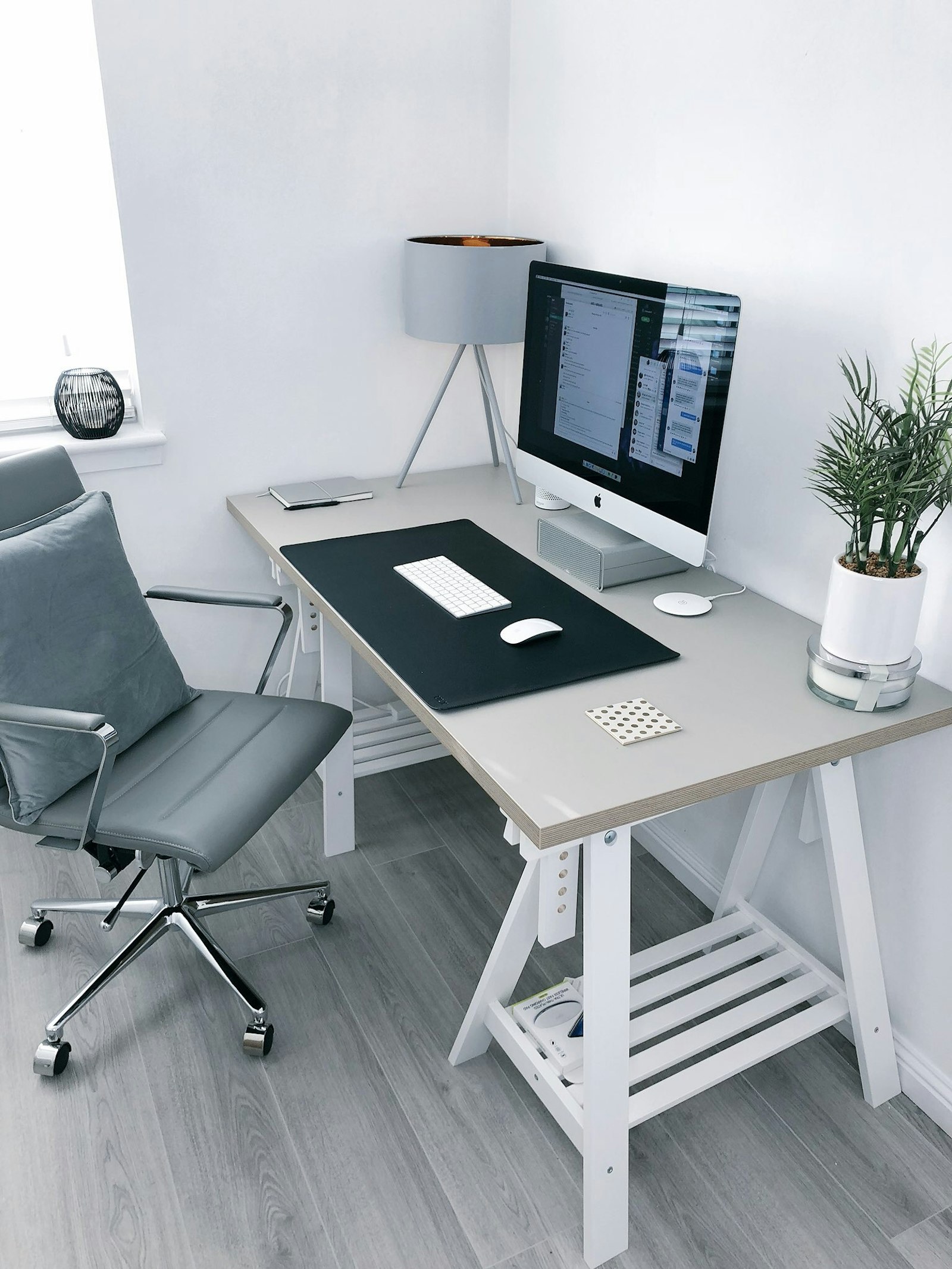
How to Organize Your Workspace for Better Video Calls Without Redoing the Whole Room
A lot of people think their video calls look messy because they need a better camera or a more stylish office. Usually the real problem is simpler than that.
The desk is carrying too many categories at once. Paper stays visible behind the laptop. Chargers creep into the frame. Background shelves become overflow storage. The chair, lamp, and wall behind you were never set up to work together on camera, so every meeting starts with a small wave of visual distraction.
That is what many people really mean when they search for ways to organize your workspace or think, “I need to organize my office.” They do not want a showroom. They want a desk and background that look calm, professional, and believable on a normal work call.
TidySnap helps at exactly that point. You can upload a real photo of your desk or office corner and turn general organization advice into a visual plan based on your actual surface, cables, paper, lighting, and background clutter.
Quick Answer
If you want better video calls without overhauling the room, start here:
- clear anything that should not appear in the camera zone
- keep the desk surface limited to current work and a few daily-use tools
- simplify the background so one or two intentional objects stay visible
- move paper piles and backup tech out of frame
- route visible cables away from the desk edge and floor behind you
- check what the camera actually sees before every major reset
- build a setup you can return to in two or three minutes
For most people, those changes do more for call quality than buying new accessories.
What People Usually Mean by Better Video Calls
Most people are not asking for a perfect Zoom backdrop. They are trying to solve one of these practical problems:
- the space behind them looks busier than it feels in real life
- the desk looks cluttered the second the camera turns on
- paper, boxes, or extra gear keep drifting into view
- the background looks distracting on client calls or team meetings
- the workspace works for daily tasks, but not for being seen on screen
So the goal is not to make the office look fake. It is to make the visible part of the workspace feel clear, intentional, and easy to maintain.
Why Video Calls Expose Workspace Problems Faster
A room can feel acceptable in person and still look chaotic on camera.
That happens because video calls flatten the scene. Items that feel minor in real life suddenly stack together visually:
- cords crossing the back edge of the desk
- paper piles sitting just outside your main work zone
- too many small objects on shelves
- bright packaging or random household items in the background
- an awkward lamp, chair, or storage bin sitting right behind you
On camera, all of that becomes one message: unfinished.
That is why organizing your workspace for video calls is less about decorating and more about reducing visual noise inside the frame.
Start With the Camera View, Not the Whole Room
A common mistake is trying to reorganize the whole office before checking what meetings actually show.
Instead, open your call app or laptop camera and look at three things first:
- what is visible behind you
- what appears at the desk edge or side of frame
- what looks more distracting on camera than it does in person
This gives you a much better starting point than tidying the entire room blindly.
A lot of people discover that the problem is not the whole office. It is one paper stack, one open shelf, one cable path, or one overloaded corner that keeps landing in view.
The Best Rule: Active, Support, and Background
If you want a workspace that works both for real tasks and for video calls, sort what you see into three groups.
| Group | What belongs there | Where it should live |
|---|---|---|
| Active | laptop, keyboard, mouse, one notebook, one current document | main desk work zone |
| Support | headphones, charger, pen cup, small task notebook, water bottle if space allows | one side cluster |
| Background | extra paper, backup tech, storage bins, shipping materials, loose accessories | off-camera shelf, drawer, cabinet, or another room zone |
This matters because cameras are unforgiving to mixed categories. If background items have no real boundary, they become visual clutter even when the desk itself is mostly usable.
Step-by-Step: How to Organize Your Workspace for Better Video Calls
1. Clean the area the camera can actually see
Start with the visible zone, not the hidden zone.
Remove things like:
- packaging
- shopping bags
- extra chairs holding clothes
- open storage bins
- random paperwork
- empty cups and bottles
- backup accessories that do not support today’s work
This gives you the fastest improvement because it changes the frame immediately.
2. Clear the desk edge and the area behind your shoulders
A lot of call setups look messy because clutter sits in the transition zone between desk and background.
Pay special attention to:
- the back corners of the desk
- the side table beside you
- the shelf directly behind your chair
- the floor visible below the desk or behind the chair
Those are common camera traps. They often hold useful items, but they also create the impression that the office is crowded.
3. Keep the desktop in “current task” mode
Your desk does not need to be empty. It does need clearer limits.
A better video-call desk usually keeps only:
- your main computer setup
- one active notebook or pad
- one small tool cluster
- one drink if there is room
- one or two intentional objects at most
If backup chargers, unopened mail, extra notebooks, and paper stacks stay out all day, the desk starts reading as storage instead of workspace.
4. Simplify the background instead of decorating it harder
People often react to a messy background by adding more styling. Usually that makes things worse.
A stronger rule is:
- keep one plant, print, or lamp if it helps the space feel warm
- keep shelves partly empty instead of fully filled
- remove tiny scattered objects that create visual noise
- avoid mixing office supplies, personal storage, and decor in the same visible area
The most professional backgrounds usually look calm because they contain fewer competing signals, not because they contain more design elements.
5. Move paper out of the frame first
Paper is one of the fastest ways to make a workspace look unfinished on camera.
Use this rule:
| Paper type | Best place during calls | Why |
|---|---|---|
| active notes | one notebook or one neat stack | looks intentional and stays usable |
| paperwork that needs action | one tray or folder outside the camera zone | keeps it accessible without broadcasting clutter |
| reference paper | drawer, file holder, or side shelf | protects desk space and the background |
| finished paper | archive or recycle | prevents buildup |
The goal is not to hide work. It is to stop paper from becoming your visual backdrop.
6. Route cables away from visible edges
Cables create more visual mess on calls than people expect.
The fastest fixes are:
- keep monitor and power lines behind the screen line
- stop charging cables from hanging into view
- avoid cable loops on the floor behind your chair
- keep only one active charging line near the desk if needed
- move spare adapters and hubs out of sight
When the cable paths calm down, the whole office usually looks more organized with very little effort.
7. Check lighting and contrast after you declutter
A clean background can still look awkward if the lighting makes clutter stand out.
After you reset the space, check whether:
- a window behind you is blowing out the frame
- a dark corner behind you looks heavier on camera than it does in person
- bright objects in the background are pulling attention
- the desk lamp or floor lamp creates a cleaner visual balance
This is not about creating a studio. It is about making the organized version of your office read clearly on screen.
Better Video-Call Layouts for Common Workspace Types
Small home office corner
Best approach:
- keep the visible wall or corner simple
- limit the desk to true daily-use items
- use one lamp or plant instead of several small decor pieces
- keep bags, boxes, and extra storage off the floor behind the chair
Multi-use office or guest room
Best approach:
- make the camera background one controlled slice of the room
- move non-work room items out of that slice before meetings
- keep one quick reset basket or drawer for overflow
- avoid letting household items drift into the desk backdrop
Desk facing a wall or corner
Best approach:
- use one or two clean visual anchors like a lamp, framed print, or plant
- avoid pinning too many notes directly behind the screen
- keep the side edges of the desk clear enough that the camera frame looks open
- reduce cable visibility near the wall line
Where TidySnap Helps
This is where people often stall. They understand the advice in theory, but once they look at their real setup they still wonder:
- what is actually making my calls look messy?
- which objects should stay visible because they look natural?
- what should move out of frame, even if it stays nearby?
- is the problem the desk, the shelf, the floor, or the wall behind me?
TidySnap helps from a photo of your actual space. Instead of only giving generic office tips, it helps you:
- identify the parts of the desk that look overloaded on camera
- separate daily-use items from background overflow
- spot paper and cable paths that create visual noise
- simplify what sits behind your chair or beside the screen
- build a repeatable setup that looks calmer on your next call
That makes it easier to organize your workspace in a way that feels professional without becoming stiff or artificial.
A 10-Minute Video-Call Reset
| Minute | Action | Goal |
|---|---|---|
| 0-2 | remove obvious clutter from the camera zone | cut immediate distractions |
| 2-4 | clear the desk edge and visible side surfaces | make the frame feel lighter |
| 4-6 | contain paper and extra tech | stop the desk from looking overloaded |
| 6-8 | route visible cables and floor clutter | reduce background mess |
| 8-10 | check the camera and fine-tune one or two objects | leave a believable, professional setup |
This works because it improves the part of the office other people actually see, while still supporting real work afterward.
Common Mistakes
The most common mistakes are:
- organizing the whole room instead of the camera view first
- leaving paper visible because it feels temporary
- filling shelves and walls with too many small items
- keeping backup gear in frame just because it is nearby
- treating cables like a minor detail
- trying to make the background impressive instead of calm
A good video-call workspace does not look good because it is fancy. It looks good because it is clear.
Final Takeaway
If you want to organize your workspace for better video calls, start by making the visible part of the office easier to read.
That usually means:
- clear the camera zone
- keep the desktop in current-task mode
- reduce paper and backup tech in frame
- simplify the background
- route cables away from visible edges
- check what the camera actually sees
You do not need a fake office. You need a workspace that looks calm, usable, and real.
That is exactly the kind of practical reset TidySnap can help you build from one honest photo.
FAQ
How do I make my office look cleaner on video calls?
Start with what the camera actually shows. Remove paper piles, extra storage, visible cables, and unrelated room items from the frame. Then keep the desk limited to your current task and a few daily-use tools.
What should stay visible behind me on a work call?
Usually one or two intentional elements are enough, such as a lamp, plant, framed print, or tidy shelf. The goal is to look calm and professional, not heavily decorated.
Do I need to buy new decor for a better call background?
Usually no. Most people get a better result by removing excess items, containing paper, and simplifying what is already visible instead of adding more things.
Why does my workspace look messier on camera than in person?
Video calls flatten the scene and make multiple objects compete in one frame. Small piles, cables, and scattered background items often appear busier on screen than they feel in real life.