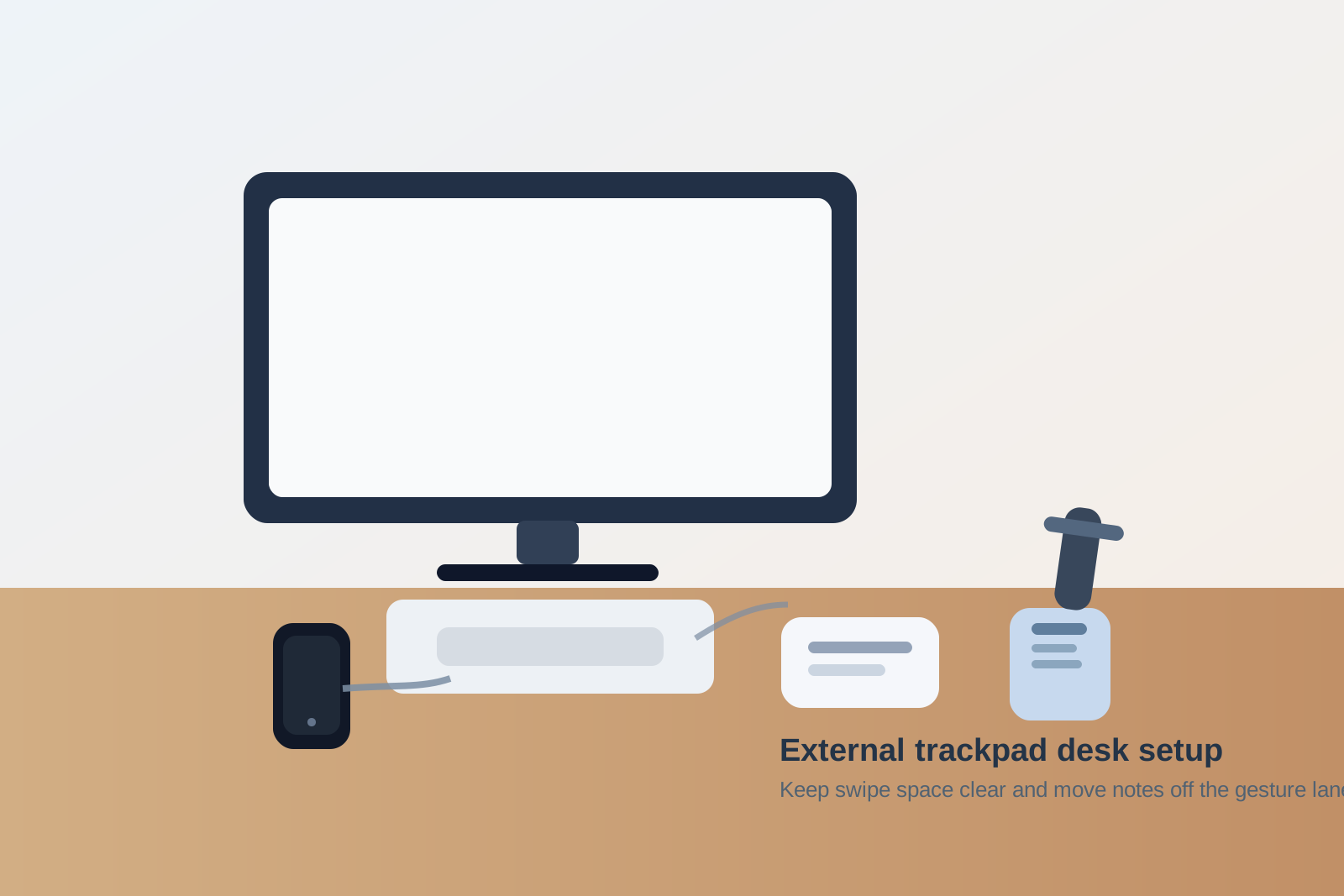
How to Organize an External Trackpad Setup Without Sacrificing Swipe Space
The problem with an external trackpad is not the device itself. It is the invisible space your hand expects around it.
A trackpad looks compact. It does not need a large mouse mat. It can sit neatly beside a keyboard or below a monitor. That makes it easy to underestimate. Then a phone gets parked on the same side between calls. A sticky note lands partly over the corner because it is flat. A charging cable droops across the front edge. A pen gets set down for a minute. Suddenly the gesture area still technically exists, but every swipe feels slightly interrupted.
If you want better desk organization for an external trackpad setup, the goal is not just finding somewhere the trackpad fits. The goal is protecting a smooth gesture lane so taps, swipes, scrolling, and palm placement still feel effortless during real work.
Quick answer
A desk with an external trackpad usually works better when you:
- protect one clear gesture lane around the trackpad
- keep drop items like phones and badges off the same side
- move notes and pens to their own writing zone
- route charging cables behind the keyboard line instead of across the swipe path
- decide whether the trackpad is your full-time pointer or a task-specific tool
The best setup usually feels slightly emptier than you think it needs to because a trackpad depends on uninterrupted hand movement, not just a small device footprint.
Why external trackpads get crowded so easily
A mouse claims its territory visibly. A trackpad does not.
That is why clutter builds around it in a different way. People see a flat rectangle and assume the nearby inches are still available. They start using the same area for little temporary items because the trackpad looks neat and self-contained.
The usual drift looks like this:
- a phone lands next to the trackpad during a call
- a charging cable crosses the near edge because it seems harmless
- one reminder note gets tucked beside it
- earbuds or a badge get dropped there when you sit down
- a snack wrapper or receipt ends up in the same corner because it still feels reachable
None of those things needs much room. But the trackpad experience depends on smooth, repeatable contact. Even small interruptions make the desk feel less comfortable.
Start by defining a gesture lane, not a gadget spot
The trackpad should not be treated like one more accessory on the desk. It should be treated like an active movement lane.
That means the important space is not only the glass or touch surface itself. The important space also includes:
- the place where your hand lands before a swipe
- the front edge where your fingers approach
- the side area your wrist or palm passes through
- the short exit path after a gesture finishes
If another object makes you shorten a swipe, change your wrist angle, or hover awkwardly before touching the pad, it is already too close.
This is the biggest mental shift. You are not organizing around a small device. You are organizing around a motion pattern.
Decide whether the trackpad is your main pointer or a secondary tool
Not every desk uses an external trackpad the same way.
Some people use one all day because they prefer gestures or want less shoulder movement. Others use a trackpad only for certain tasks such as timeline scrubbing, gesture-heavy navigation, or switching between a laptop and external keyboard setup.
That difference matters.
If the trackpad is your main pointer:
- give it a permanent daily home
- protect the same side of the desk consistently
- build the rest of the layout around repeatable hand travel
If the trackpad is a secondary tool:
- give it one predictable landing spot when active
- give it one off-duty home when not in use
- avoid the half-state where it lives on the desk but never has a clear role
Many desks feel messy because the trackpad is always present, but the workspace is not actually arranged for it.
Keep the writing zone separate from the gesture zone
A lot of trackpad clutter is really note-taking clutter.
People often place notes near the trackpad because it feels like an active area. Then the note needs a pen. Then one more note overlaps the first one. Soon the same corner is trying to support both finger gestures and quick handwriting.
A better setup gives writing tools their own zone.
Good options include:
- a notebook on the opposite side of the keyboard
- one narrow note area above the keyboard line
- a small upright holder for reference notes
- one pen cup behind the main hand area instead of beside the trackpad
The trackpad side should answer, Where does my hand move? The note side should answer, Where do temporary thoughts go?
When those two questions share one surface, both tasks get worse.
Stop using the trackpad side as a phone parking spot
Phones are one of the biggest reasons external trackpad setups lose their rhythm.
The phone feels flat enough to belong near another flat object. It seems convenient to set it beside the trackpad during a call, while charging, or after checking a code. But a phone changes the whole feel of the area fast. It blocks approach space, attracts its own cable, and invites more objects into the same side pocket.
If your phone keeps migrating there, create a better answer one step away:
- one charging spot behind the monitor line
- one stand on the non-trackpad side
- one tray near the back corner of the desk
The trackpad side should not have to compete with a device that is constantly arriving, leaving, lighting up, and dragging a cable behind it.
Route cables for hand movement, not just visual neatness
A cable can be visually tidy and still be annoying to use around a trackpad.
What matters is whether the line interferes with your hand path.
Common problems include:
- a phone charger crossing the front of the trackpad
- keyboard slack looping into the same side pocket
- headphone cables settling along the wrist edge
- a laptop cable dropping into the swipe lane from above
A better default is simple:
- send cables behind the keyboard or along the rear desk edge
- keep the near edge in front of the trackpad as empty as possible
- avoid letting any spare loop rest against the trackpad side
- move temporary charging to another zone entirely
The trackpad area should feel boring in use. If cables keep showing up there, the desk is asking one corner to do too many jobs.
Choose the right side on purpose
External trackpads often end up wherever there was room first, not where they work best.
That can be fine temporarily, but long term it helps to choose the side intentionally.
Questions to ask:
- Do you write notes with the other hand while navigating?
- Do you switch between keyboard shortcuts and trackpad gestures constantly?
- Do you need the trackpad near a laptop or centered under a monitor?
- Does one side already carry your drink, notebook, or docking gear?
For some desks, the best move is putting the trackpad on the non-writing side and protecting that whole lane. For others, the best layout is a centered trackpad below the keyboard for short, deliberate use sessions. The point is not one universal placement. The point is deciding based on workflow instead of letting the trackpad inherit leftover space.
What should stay away from the trackpad corner
The easiest way to keep the setup usable is to be strict about what does not belong there.
Usually remove:
- phones
- badges
- earbuds cases
- sticky note stacks
- pens and highlighters
- snack wrappers
- charging bricks
- USB adapters you are not using right now
- receipts, appointment slips, or mail fragments
These are all small enough to feel excusable. That is exactly why they accumulate.
A layout that works well for most desks
If you want a simple default, try this:
| Area | Best use | Keep out |
|---|---|---|
| trackpad lane | trackpad plus clear approach and exit space | phones, pens, notes, cable slack |
| keyboard center | typing and shortcuts | paper stacks, chargers |
| opposite side zone | notebook, pen, one small tray | extra tech overflow |
| rear edge | dock, charging path, low-touch cables | daily hand movement |
This works because it gives the trackpad a true movement role instead of treating it like a neutral flat surface.
A fast reset that keeps swipe space usable
Trackpad clutter usually returns through tiny decisions, so the reset can stay tiny too:
- remove anything resting beside or partly over the trackpad
- move the phone back to its real charging or parking spot
- return notes and pens to the writing zone
- pull cable slack behind the keyboard line
- test one full swipe with your normal hand position
That last step matters. If one natural gesture still feels cramped, the area is not reset yet.
Where TidySnap helps
Trackpad problems are easy to miss because the desk may still look mostly tidy in a wide photo. The friction shows up when one corner is carrying too many tiny decisions.
TidySnap helps you spot whether the trackpad side is really a gesture lane, whether your note zone is leaking into it, and whether phone charging or cable routing is quietly stealing the smoothest part of the desk.
Final thought
A good external trackpad setup should feel almost invisible.
When swipe space stays clear, notes live somewhere else, and the phone stops borrowing the same corner, the desk feels easier immediately. That is the real test. You should be able to drop your hand onto the trackpad and use it without first clearing a path.