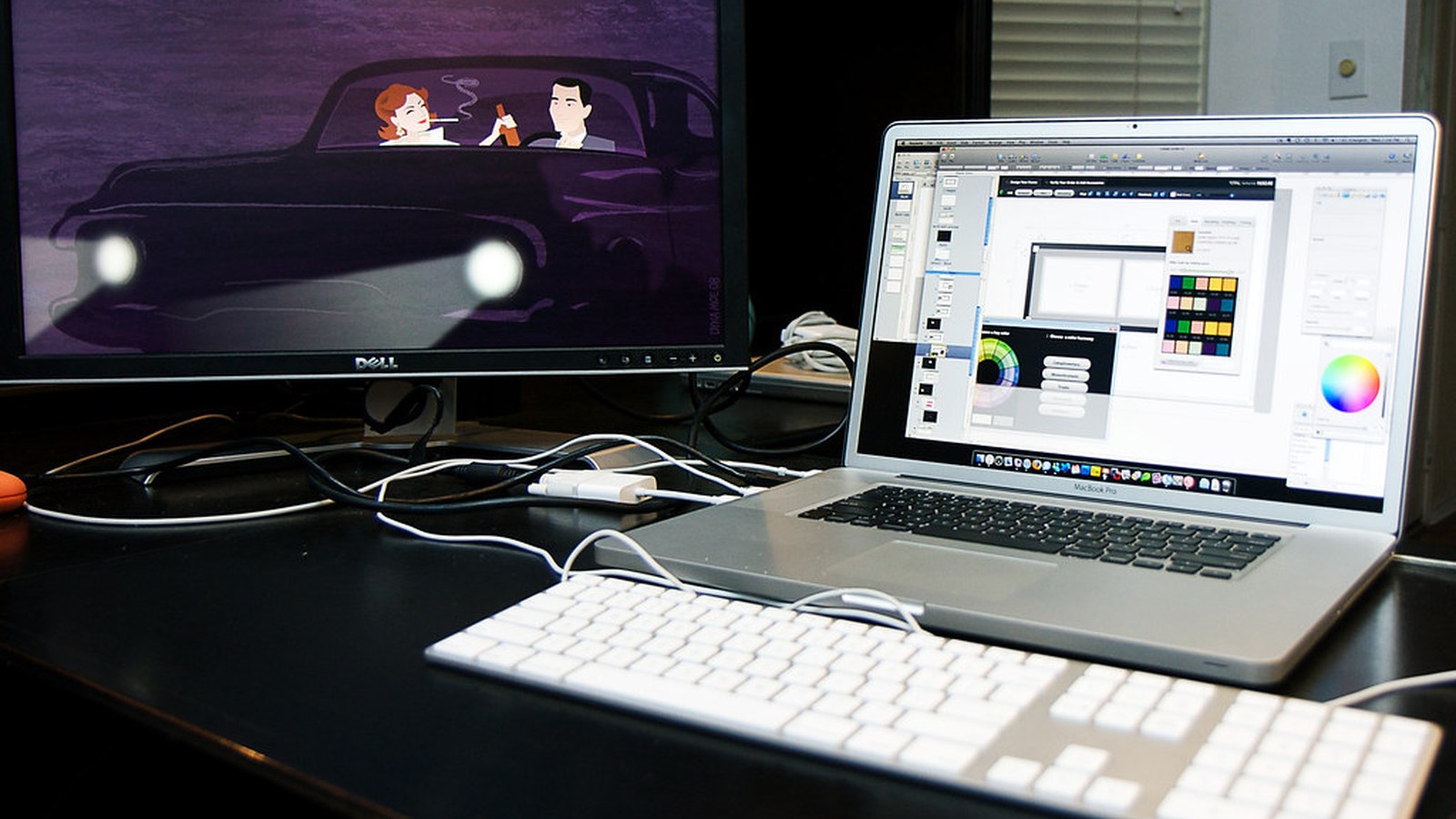
How to Organize a Laptop-and-Monitor Desk Without Losing Elbow Room
The tension in this setup is simple: two important devices want the same space. Without a clear hierarchy, elbow room disappears and the desk starts feeling cramped even when it looks organized at first glance.
TidySnap is useful when a desk technically has enough room but still feels harder to use than it should. Looking at a real photo of the setup can make it easier to spot which zone, accessory cluster, or cable path is creating the friction.
Quick Answer
To organize laptop and monitor desk setup, focus on a layout that supports the main task first and keeps support items from spreading across the surface:
- decide which screen is primary
- keep the keyboard and mouse path open
- avoid letting both devices claim the center
- group charging and adapters to one side
- limit secondary-device accessories
- protect one writing patch
Why This Setup Starts Feeling Cluttered
The tension in this setup is simple: two important devices want the same space. Without a clear hierarchy, elbow room disappears and the desk starts feeling cramped even when it looks organized at first glance. The fix is usually not adding more storage. It is making the workspace easier to read at a glance and easier to reset after each work block.
Choose a primary screen position
Your main screen should define the center of the layout. The laptop should support that position instead of forcing you to split attention and body position equally between two screens.
Keep the hand path clear
Laptop corners, monitor stands, docks, and chargers often crowd the area where your hands actually move. Open space in that path matters more than squeezing in extra accessories.
Push support gear out of the middle
Adapters, charging blocks, headphones, and small devices should live on one side so the monitor-laptop pair does not become a wall of hardware.
Protect one note or writing area
Even if most work is digital, you still need a place for short notes, signatures, or quick review. If that zone disappears, the whole setup feels more cramped.
Reduce visual competition
A laptop-and-monitor setup works best when the two screens feel coordinated. Once cables and accessories fill the space between them, the desk becomes harder to scan and harder to use.
A Fast Reset That Keeps the Layout Working
Use this short reset at the end of the day:
- close or dock the secondary device cleanly
- clear the hand path
- return adapters to one side
- leave one open writing patch
- remove anything that makes the two-screen area look busier than necessary
A repeatable reset matters because these setups usually drift in predictable ways. When you return each zone to the same baseline, the desk feels easier to start using again tomorrow.
Where TidySnap Helps
TidySnap helps when you want to organize the desk around the way you actually work instead of copying a generic inspiration photo. A quick image review can highlight where your active zone is too crowded, which support items should move out of sight, and where a cleaner reset point should be.
Final Thought
A well-organized setup is not the one that stores the most. It is the one that keeps the surface clear enough for the work you do most often and simple enough to reset without effort.