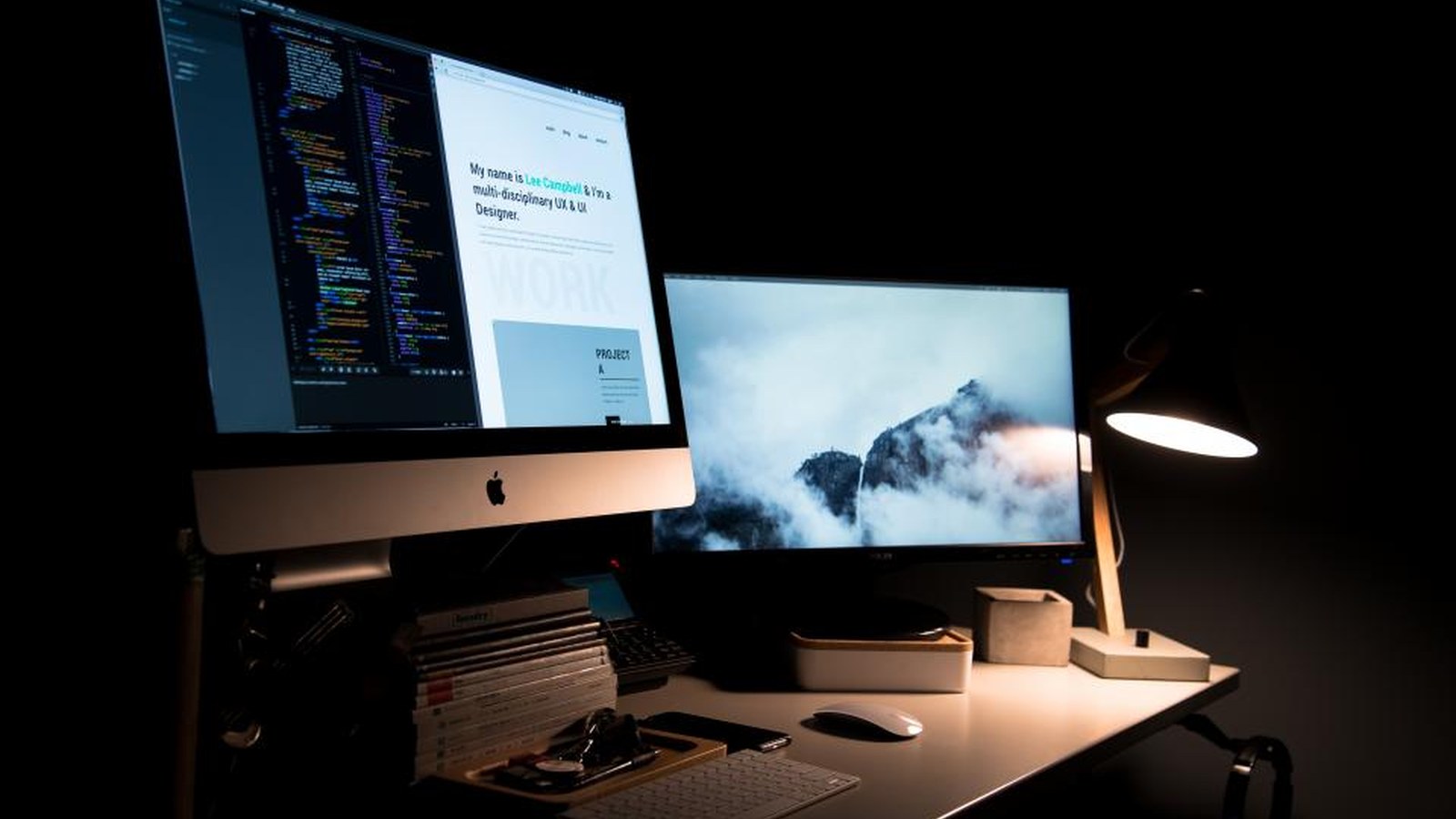
How to Organize a Dual-Monitor Workspace Without Visual Overload
Two monitors already create a strong visual wall. When accessories, paper, and cables gather below them, the desk starts to feel mentally crowded before it is physically full.
TidySnap is useful when a desk technically has enough room but still feels harder to use than it should. Looking at a real photo of the setup can make it easier to spot which zone, accessory cluster, or cable path is creating the friction.
Quick Answer
To organize dual monitor workspace, focus on a layout that supports the main task first and keeps support items from spreading across the surface:
- simplify everything below the screens
- decide what belongs between the monitors and what does not
- move accessories to one support edge
- use one cable route behind the displays
- keep paper out of the screen footprint
- leave an open work lane in front
Why This Setup Starts Feeling Cluttered
Two monitors already create a strong visual wall. When accessories, paper, and cables gather below them, the desk starts to feel mentally crowded before it is physically full. The fix is usually not adding more storage. It is making the workspace easier to read at a glance and easier to reset after each work block.
Calm the area below the screens
The strip directly under dual monitors shapes how the whole desk feels. Keep it focused on keyboard, mouse, and one active note surface rather than support gear.
Reduce the number of objects in the screen footprint
Anything sitting between or directly under the monitors competes with what you are trying to look at. That is why dual-monitor desks need stricter boundaries than simpler setups.
Group support tools to one side
Headphones, chargers, a dock, and small accessories should share one edge or one tray instead of forming separate mini-clusters under both screens.
Route cables as one system
Two screens can create twice the cable clutter unless the lines meet one rear path and disappear together.
Keep analog work slim
A dual-monitor desk can still handle notes and paperwork, but only if paper stays contained. Loose stacks below the screens make visual overload much worse.
A Fast Reset That Keeps the Layout Working
Use this short reset at the end of the day:
- clear the area beneath both monitors
- return support tools to one side
- contain paper to one slim stack or none
- straighten the rear cable path
- leave one clean work lane for the next session
A repeatable reset matters because these setups usually drift in predictable ways. When you return each zone to the same baseline, the desk feels easier to start using again tomorrow.
Where TidySnap Helps
TidySnap helps when you want to organize the desk around the way you actually work instead of copying a generic inspiration photo. A quick image review can highlight where your active zone is too crowded, which support items should move out of sight, and where a cleaner reset point should be.
Final Thought
A well-organized setup is not the one that stores the most. It is the one that keeps the surface clear enough for the work you do most often and simple enough to reset without effort.