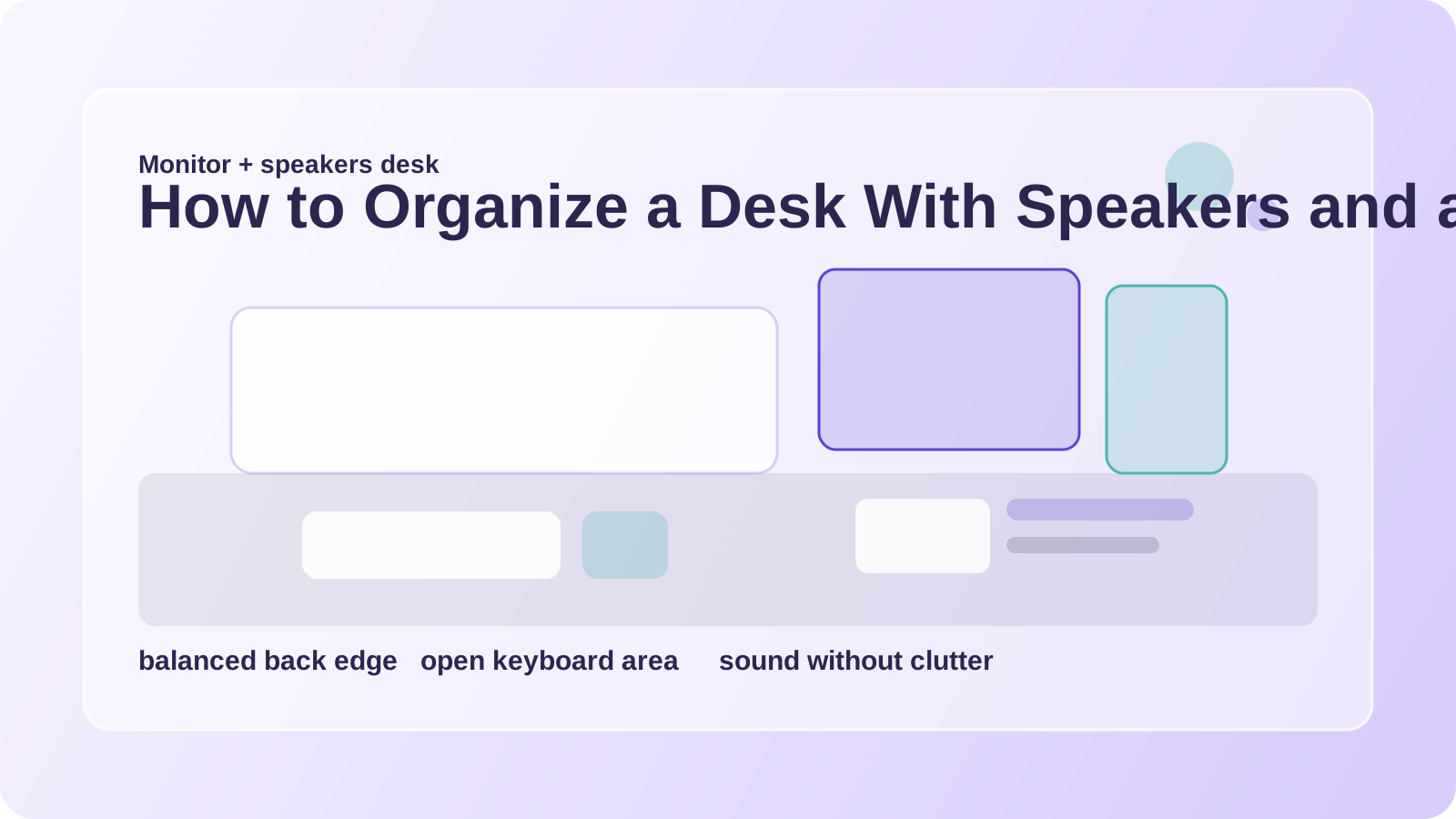
How to Organize a Desk With Speakers and a Monitor
A monitor-and-speakers setup can feel polished, but it can also make the back half of the desk crowded faster than expected.
The monitor base needs room. The speakers need placement that still sounds balanced. Then power cords, audio cables, notebooks, and everyday desk items start fighting for the same line of space. The result is often a desk that looks close to organized but feels packed in daily use.
The goal is not to remove every audio item. It is to stop the screen and speakers from crowding the part of the desk where you actually think, type, and write.
TidySnap can help when the setup seems almost right but still feels visually noisy. One photo can show whether the issue is speaker spacing, cable spread, monitor placement, or too many extras living under the screen line.
Quick answer
To organize a desk with speakers and a monitor:
- center the monitor around your actual seating position
- keep speakers symmetrical when possible without overfilling the desk
- protect the space below the monitor for hands and notes
- move small accessories off the audio line
- send power and audio cables behind the setup
- keep the back edge from becoming a storage strip
A desk with speakers feels better when the audio gear supports the setup instead of framing clutter.
Why this layout gets crowded
Speakers create a subtle problem: they make the back edge feel spoken for. Once the left and right sides are occupied, everything else tends to land under the monitor or in front of the speakers.
Common trouble spots include:
- a monitor base surrounded by notebooks and gadgets
- cables looping forward instead of staying behind
- speakers too large for the remaining desk depth
- drinks, pens, or chargers parked between the speakers
- one side of the desk carrying both a speaker and a support pile
The setup feels cleaner when the screen line and the support zone stop overlapping.
Start with the monitor, then fit speakers around it
The monitor should usually lead the layout.
That means:
- centered to your chair
- enough space below it for the keyboard zone
- not pushed back so far that cables and accessories fill the gap in front
Then fit the speakers around that screen line. If the speakers are too large to do that comfortably, it may be better to move one accessory off the desk rather than squeezing everything tighter.
Keep the area below the screen open
Many desks fail here. The space below the monitor becomes a mini shelf for:
- sticky notes
- drives
- a phone
- paper stacks
- chargers
- spare headphones
But that area is prime working space. It should stay available for:
- keyboard and mouse movement
- one active notebook
- quick reading or signing tasks
- comfortable hand placement
When the under-monitor zone stays open, the whole desk feels less compressed.
Give small tech one different home
Speakers and monitors already create a strong visual line. Do not add more small visual noise to the same strip.
Move items like these into one side tray or drawer nearby:
- adapters
- earbuds
- chargers
- USB drives
- pens
- miscellaneous desk tools
That keeps the audio setup from looking busier than it is.
Simplify the cable route behind the scene
Monitor-and-speaker desks often have more cables than they appear to. Keep them disciplined:
| Cable type | Best route |
|---|---|
| monitor power and video | straight to rear edge |
| speaker power | along the back line |
| audio cable | shortest clean path behind gear |
| daily charging cable | one side corner only |
If cables spill forward between the speakers, the whole setup starts feeling messy.
Use the side zones carefully
It is tempting to put a speaker on one side and then use the remaining little patch as a storage corner. That usually creates imbalance.
Instead, keep side zones narrow and intentional:
- one speaker
- maybe one lamp or one small tray
- no deep pile of notebooks or mail
If the side space needs to hold more than that, some support items should move off the desk.
Where TidySnap helps
Audio setups are easy to live with and still subtly dislike. TidySnap can help you see:
- whether the speakers are crowding the useful desk depth
- where cable noise is most visible
- what is making the monitor area feel packed
- how to balance the setup without losing function
That can turn a decent setup into one that feels easier to use every day.
FAQ
Should speakers sit on both sides of the monitor?
Usually yes if space allows, but only if that still leaves enough open room below and in front of the monitor.
What belongs under a monitor with speakers?
As little as possible beyond what supports active work. That space is more valuable than it looks.
Why does my desk feel crowded even though the gear is aligned nicely?
Because the back edge may be full, forcing daily work items into the center and front zones.
A desk with speakers and a monitor works best when the back line stays clean, the monitor remains central, and the audio gear does not push everyday work into awkward leftover space.