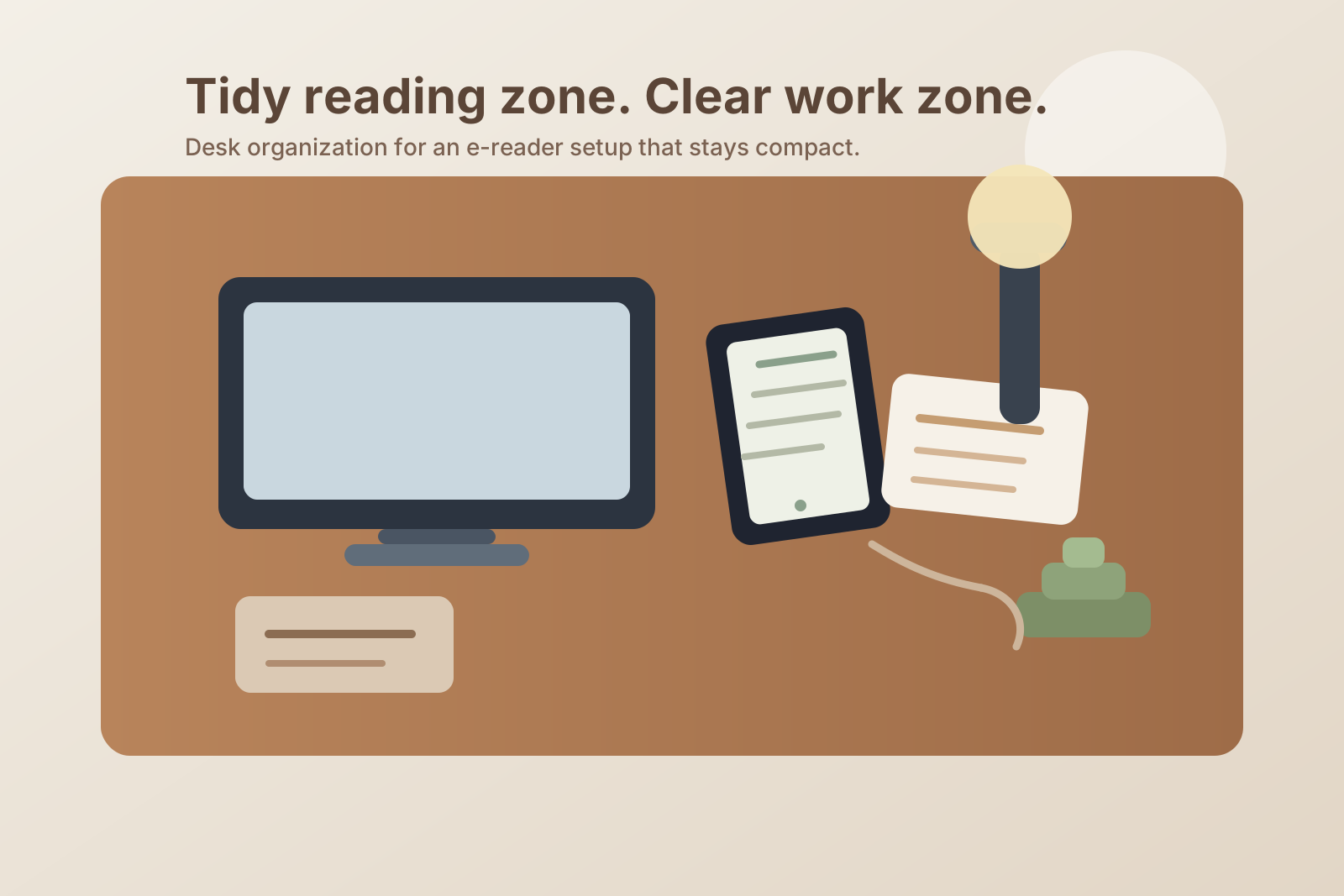
How to Organize a Desk With an E-Reader Without Letting Reading Mode Take Over
An e-reader looks like a small, simple desk tool.
That is exactly why it can create a surprising amount of clutter.
It slips onto the desk for one chapter, one saved article, one PDF, or one quick review session. Then it stays there. A charging cable gets left nearby. A notebook appears because you want to capture a few ideas. A pen joins the same corner. Printed pages, sticky flags, or a second device start collecting around the reader because that side of the desk now feels like the reading zone.
If you want to organize a desk with an e-reader, the goal is not building a perfect study nook inside your workspace. The goal is keeping reading mode compact enough that you can switch into it, use it well, and switch back to normal desk work without leaving a second setup behind.
Quick answer
To organize a desk with an e-reader, give it one defined parking spot outside your main typing lane, keep charging separate from your active work surface, pair it with only one capture tool for notes, and clear reading leftovers as soon as the session ends. An e-reader works best when it supports focused reading without turning one side of the desk into a permanent article pile.
Why e-reader setups get messy in a specific way
An e-reader creates a different kind of clutter than a laptop or a stack of books.
A laptop already claims obvious space. A stack of books looks large enough to notice. An e-reader feels light and temporary, so the surrounding clutter grows quietly. The mess usually is not the device itself. It is the little support items that start orbiting around it:
- one charging cable
- a notebook or note card
- a pen or highlighter
- sticky tabs
- printed pages you want to compare with what you are reading
- a mug or coaster because the reading corner starts feeling separate from the rest of the desk
That is why the desk can still look mostly tidy while feeling harder to use. The problem is a small mode shift that never fully resets.
Treat reading mode as a temporary task block
The fastest way to keep an e-reader desk under control is to stop treating reading mode as a background state.
If the reader stays half-active all day, the desk starts holding two work patterns at once:
- your normal typing, planning, and meeting setup
- your reading, highlighting, and note-capture setup
That overlap is what creates visual drag.
A better rule is simple: reading mode should have a start, a working position, and an end. When the reading block ends, the extra pieces leave with it. That includes the notebook, loose reference pages, and any power cable you pulled forward just for the session.
Give the e-reader a parking spot, not a floating presence
A floating e-reader almost always creates clutter.
If it moves between the keyboard, the notebook area, the monitor base, and the side edge depending on the hour, the rest of the desk never settles. The nearby support items do not settle either.
A better setup is one repeatable parking spot:
- beside the monitor if you use the reader for short reference checks
- on the non-mouse side if you read in longer blocks
- on a slim stand at the back corner if you need the text visible but not inside your hand space
The exact location matters less than consistency. Once the e-reader has a real home, it stops behaving like an object that can land anywhere.
Keep the typing lane and the reading lane separate
An e-reader often causes trouble when it lives too close to your main keyboard path.
The device itself is small, but the reading posture it invites is not. You angle toward it. You pull in a note card. You rest your hand nearby. You start leaving comparison pages close to the screen. Soon the front-center of the desk is carrying more than one active job.
Try to protect one clear rule: the center typing lane belongs to normal work, not to reading support.
That usually means keeping these items out of the middle:
- the e-reader itself
- its charging cable
- article printouts
- sticky flags
- reading notes that are no longer active
If reading materials need to stay visible, they should stay to one side or slightly behind the keyboard line, not inside your main work lane.
Use one note-capture method, not three
A lot of e-reader clutter comes from duplicated capture tools.
People often keep the reader open, a notebook beside it, sticky flags on the desk, and a phone nearby for quick photos or saved links. None of those items looks large on its own, but together they turn one reading session into a multi-surface setup.
Pick one primary capture method for most sessions:
- one slim notebook
- one small note pad
- digital highlights only
If you truly need a second method for a specific project, bring it in for that block and remove it afterward. The desk feels calmer when the reading process has one companion tool instead of a whole support cast.
Do not let charging become part of the visual setup
An e-reader does not need to live on charge the way a desk lamp or monitor does.
When the cable stays visible full time, the device starts reading visually like permanent desk equipment. That makes it easier to leave it out all day, and then the note tools and reading leftovers stay out too.
If possible, charge the e-reader in one of these ways:
- at the edge of the desk, not in the center
- in a back corner during a dedicated charge window
- off the desk entirely if battery life allows
The less the charging cable participates in the visual desk layout, the easier it is to keep reading mode from spreading.
Keep comparison materials on a limit, not an open pile
E-reader desks get messy when one reading task quietly becomes a reference archive.
Maybe you are comparing a report to a printed form. Maybe you are reading a long article while checking handwritten notes. Maybe you are moving between a PDF on the reader and open tabs on your monitor.
That can work well, but only if the comparison materials stay limited.
A practical rule is to allow:
- one active reader
- one active note surface
- one active comparison document
Anything beyond that usually belongs in a nearby file tray, folder, or stack away from the main desk. Otherwise reading mode starts leaving a breadcrumb trail that never gets cleared.
Make the parking spot easy to reset in under a minute
A good e-reader setup should be easy to close down quickly.
At the end of a reading block, you should be able to:
- put the e-reader back in its home
- remove or coil the charging cable
- close the notebook or return the note card
- clear any loose comparison page
- reopen the center of the desk for the next task
If that reset takes more than a minute or two, the setup is probably carrying too many reading accessories on the surface.
A simple desk layout that works for most e-reader setups
If you want a practical default, try this:
| Zone | What belongs there | What stays out |
|---|---|---|
| center work lane | keyboard, mouse, one normal task surface | the e-reader, charging cable, reading piles |
| reading side zone | e-reader during active use, one note tool | mugs, extra stationery, unrelated gadgets |
| back edge | temporary charge point or slim stand if needed | paper stacks and loose adapters |
| nearby off-desk storage | finished notes, extra printouts, spare cables | anything you are tempted to keep beside the reader just in case |
This works because it keeps reading support available without letting it become a second permanent desk layout.
How TidySnap helps when a reading corner keeps spreading
Sometimes a desk with an e-reader does not look messy at first glance. It just feels like one side never fully clears.
That is where TidySnap can help.
Take one photo of the whole desk and you can see whether the e-reader is stealing your typing lane, whether reading notes are lingering longer than they should, and whether the charging setup is making the device look more permanent than it needs to be. It is an easy way to spot when a small reading tool has quietly become a second workspace.
FAQ
Should my e-reader stay on my desk all day?
Only if you use it throughout the day and it has a clear home outside your main work lane. Otherwise it is usually better to park it nearby and bring it forward only for reading blocks.
Where should I charge an e-reader at my desk?
The cleanest option is usually a back corner or side edge, not the center of the desk. If you do not need constant access while it charges, off-desk charging is even better.
What if I read and take notes constantly for work?
Then treat the reader as a true work tool and give it a stable side zone. The key is still limiting the support clutter around it so your notes, printouts, and cables do not spread into the main desk lane.
Is an e-reader better than printed pages for desk organization?
It often reduces paper volume, but it can still create clutter if it brings along a permanent note pile, charging cable, and comparison stack. The advantage only shows up when the whole reading setup stays compact.
Final thought
A desk with an e-reader does not usually fail because the device is too big. It fails because reading mode never fully ends.
If you give the reader one home, keep the support items limited, and reset the setup after each block, the desk stays easier to use for both reading and everything else.