How to Organize a Desk With a Vertical Mouse Without Losing Your Mouse-Side Landing Zone
A vertical mouse changes desk clutter in a way that is easy to underestimate.
At first, it looks like a simple ergonomic swap. You replace the old mouse, your hand sits in a more natural handshake position, and the setup feels a little more intentional.
Then the mouse side of the desk starts changing around it.
Because the device stands taller and looks more self-contained, people start treating the nearby inches like flexible spare space. A phone lands beside it between calls. A charging cable loops behind it. A sticky note gets parked near the knuckle side because it seems close but not in the way. A pen, badge, snack wrapper, or USB adapter joins the same area because the mouse no longer looks like a flat lane that needs protecting.
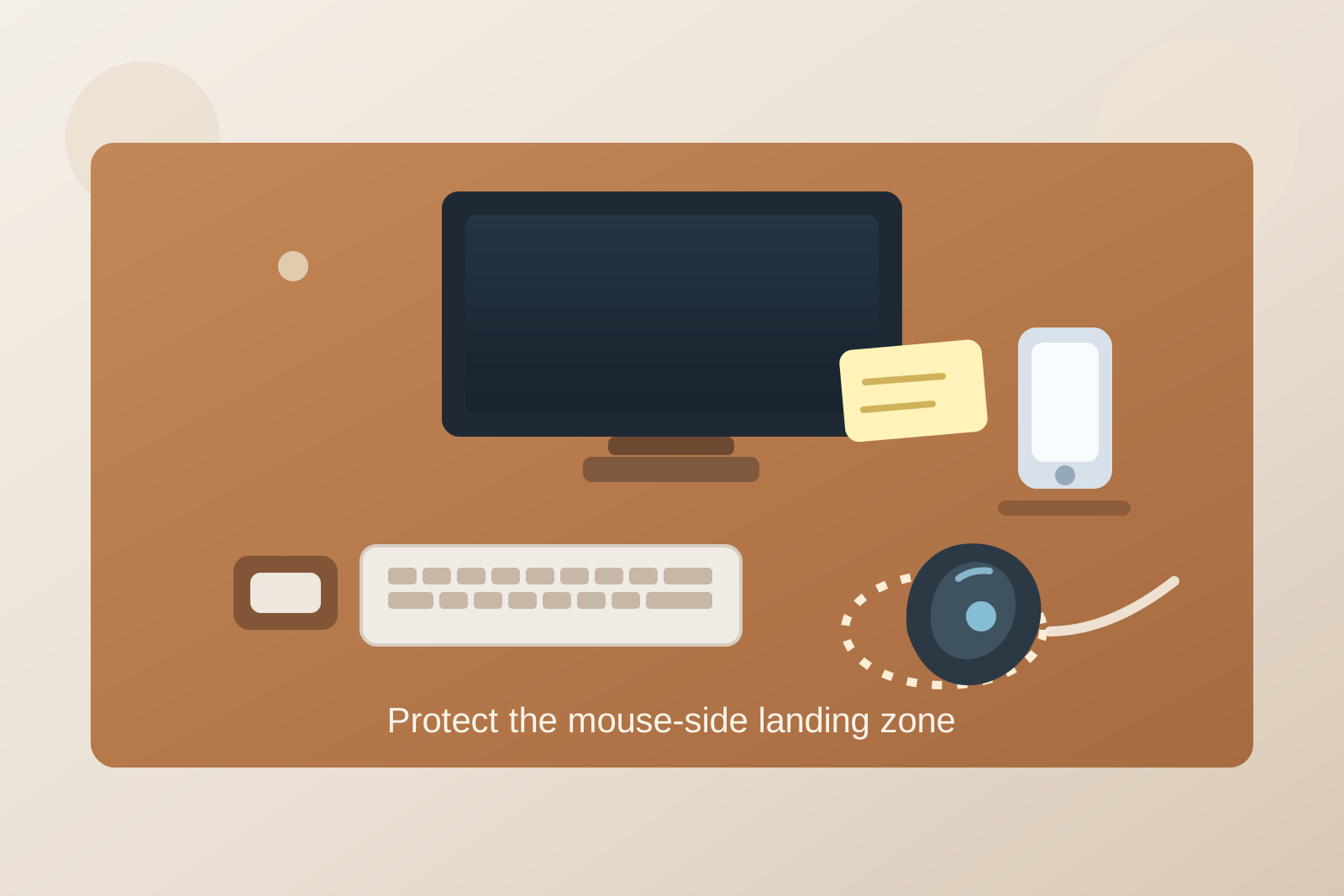
If you want to organize a desk with a vertical mouse, the goal is not only making room for one ergonomic accessory. The goal is keeping the mouse-side landing zone clear enough that the setup still feels comfortable, precise, and easy to use all day.
Quick answer
To organize a desk with a vertical mouse, protect one clear landing zone around the mouse, keep cable slack and temporary items off the same side cluster, place notes and phone charging somewhere other than the mousing side, and make sure the keyboard and mouse relationship still feels natural after the switch. A vertical mouse works best when the side of the desk around it stops acting like a drop zone.
Why vertical-mouse desks get messy in a specific way
A standard mouse usually makes people think about horizontal movement.
A vertical mouse creates a different problem. The device stays more upright, often takes up a chunkier footprint, and makes the surrounding area feel less like a motion lane and more like a tool corner. That changes what people do with the nearby space.
The clutter usually is not dramatic. It is small and persistent:
- phone
- charging cable slack
- sticky notes
- pen
- earbuds case
- USB drive
- badge
- snack wrapper
- one small adapter you meant to move later
That is why the desk can look mostly tidy from a distance while still feeling annoying in use. The problem is not the whole workspace. It is one crowded edge where your hand needs a repeatable landing path.
Protect the mouse-side landing zone, not just the mouse itself
A vertical mouse needs more than enough square inches for the base.
Your hand approaches it from the side and settles at an angle. That means the useful zone includes:
- the surface directly under the mouse
- the small approach path for your hand
- the space where your wrist or lower palm settles
- the area your forearm crosses to reach it
If any object forces you to land your hand awkwardly, twist around something, or hover before gripping the mouse, it is too close.
A simple rule helps: if an item shares the same reach pattern as the mouse, it does not belong there.
Stop using the mouse side as a temporary parking spot
Many desks develop a habit where the mouse side becomes the fastest place to put anything small.
That gets worse with a vertical mouse because the device does not read visually like a wide movement lane. It reads like one contained object. So people assume the nearby surface is available.
That is how the same side of the desk starts collecting:
- the phone during a meeting
- a charger between plug-ins
- a quick reminder note
- keys or an access badge
- one tool from another task block
The fix is not buying a larger mouse pad first. The fix is redefining the side of the desk. The mouse side is an active control zone, not the easiest open patch on the surface.
Keep phone charging somewhere else
Phone clutter is one of the fastest ways to ruin a vertical-mouse setup.
A phone often lands on the mouse side because it feels reachable and separate from the keyboard. But once the phone is there, the charging cable follows. Then the cable loop drifts into the hand path. Then the mouse area starts doing two jobs at once.
If possible, give the phone one home that is not on the mouse side:
- behind the keyboard line
- on the non-mouse side
- on a stand near the monitor
- in a dedicated charging spot off the main work lane
This one move often improves the whole desk because it prevents the mouse side from becoming your default temporary tech shelf.
Keep notes out of the same side cluster
Vertical-mouse desks often develop a note problem more than a storage problem.
People place notes near the mouse because that side feels active and easy to glance at. Then the note attracts a pen. Then another note overlaps it. Soon the mouse zone is sharing space with a mini reminder system.
A better setup gives notes one separate role:
- above the keyboard line
- in one notebook
- in a small upright holder near the monitor
- on the non-mouse side if you review notes while clicking less often
The mouse side should support control, not become the anchor for reminders.
Watch the keyboard-to-mouse gap after the ergonomic switch
A vertical mouse changes how the gap between keyboard and mouse feels.
Sometimes people place the mouse too far out because the device looks bulky. Other times they shove it too close to the keyboard and crowd the same narrow strip with cable ends, sticky notes, or a wrist rest edge.
A cleaner arrangement usually means:
- the mouse is close enough that your shoulder stays relaxed
- the keyboard does not force the mouse too far outward
- nothing sits in the gap if your hand crosses it often
- the mousing side still has a calm, readable surface
If your shoulder is reaching or your hand keeps brushing objects on the way to the mouse, the layout is still doing too much on that side.
Separate active ergonomic tools from backup accessories
Vertical mice often show up as part of a bigger comfort experiment.
That setup may also include:
- a split keyboard
- wrist rest
- laptop stand
- alternate mouse
- trackball
- forearm support
- compact number pad
Those tools do not all need to live equally close to the mouse side.
Keep the tools you actively use in the current workflow. Move the rest one layer away. If an alternate pointer or spare adapter is only occasional, it should not be sitting in the same area your mouse hand needs every few minutes.
Keep cables behind the hand path
Vertical mice do not need much room, but they do need a clean approach.
Cables become a problem when they:
- cross in front of the mouse
- touch the base
- loop beside the hand landing area
- run through the same path as your forearm
Try to keep your rule boring:
- send mouse-adjacent cables toward the rear edge quickly
- keep charging slack off the mouse side entirely
- avoid letting keyboard or headset cables settle into the same corner
- clear the surface in front of the mouse before adding more storage nearby
The goal is not visual perfection. It is making the mouse side feel predictable every time your hand reaches for it.
A simple layout that works for many desks
If you want a practical starting point, try this:
- center: keyboard in its normal typing position
- mouse side: vertical mouse with one protected landing zone around it
- rear center: monitor and one note holder if needed
- non-mouse side: notebook, paper, or current reference material
- support zone: small tray or cup for pens, adapters, and little items that would otherwise drift toward the mouse
This layout works because it gives the mouse side one clear purpose instead of asking it to support pointing, notes, charging, and random temporary storage at the same time.
A quick reset that keeps the setup comfortable
At the end of the day, or after a meeting-heavy stretch, do a short reset:
- remove anything parked beside the vertical mouse
- move the phone back to its real charging or resting spot
- pull cable slack away from the hand path
- return notes to their note zone
- check whether your hand can land on the mouse without dodging anything
That five-step check matters more than adding another organizer.
Where TidySnap helps
If your desk looks fine in a wide photo but still feels crowded on the mouse side, the real problem is often one overworked landing zone rather than the whole setup.
TidySnap can help you spot where the mouse side keeps attracting notes, cables, chargers, and temporary items so you can reset the layout around real hand movement instead of just surface appearance.
FAQ
Does a vertical mouse need more desk space?
Not always more total space, but it usually needs a cleaner landing zone on one side of the desk. The hand approach matters more than the raw footprint.
Where should I put my phone if I use a vertical mouse?
Usually not beside the mouse. A rear charging spot, monitor-side stand, or non-mouse-side landing area works better because it keeps cables and quick-drop clutter out of the control zone.
Why does my vertical mouse setup still feel cramped?
The mouse itself may be fine, but the nearby side cluster may be doing too many jobs at once. Notes, charging cables, and temporary items often make the setup feel tighter than it really is.
Final thought
A vertical mouse should make desk work feel easier on your hand, not harder on the rest of the setup.
When the mouse side stops acting like a catch-all zone, the ergonomic benefit is easier to feel. Protect the landing area, move notes and charging elsewhere, and keep the side cluster simple enough that you can reach the mouse and start working without clearing space first.