A split keyboard changes desk clutter in a way a normal keyboard does not.
At first, the setup can look cleaner. The two halves create breathing room. Your shoulders relax. The desk feels less cramped.
Then the empty space in the middle starts attracting everything.
A phone lands there during one call. A sticky note gets tucked between the halves so it stays visible. A charging cable crosses the gap because it seems like the shortest route. Someone drops a badge, earbuds, or snack wrapper into the opening because it looks like spare space. Before long, the exact layout that was supposed to feel more ergonomic starts feeling fussy and crowded.
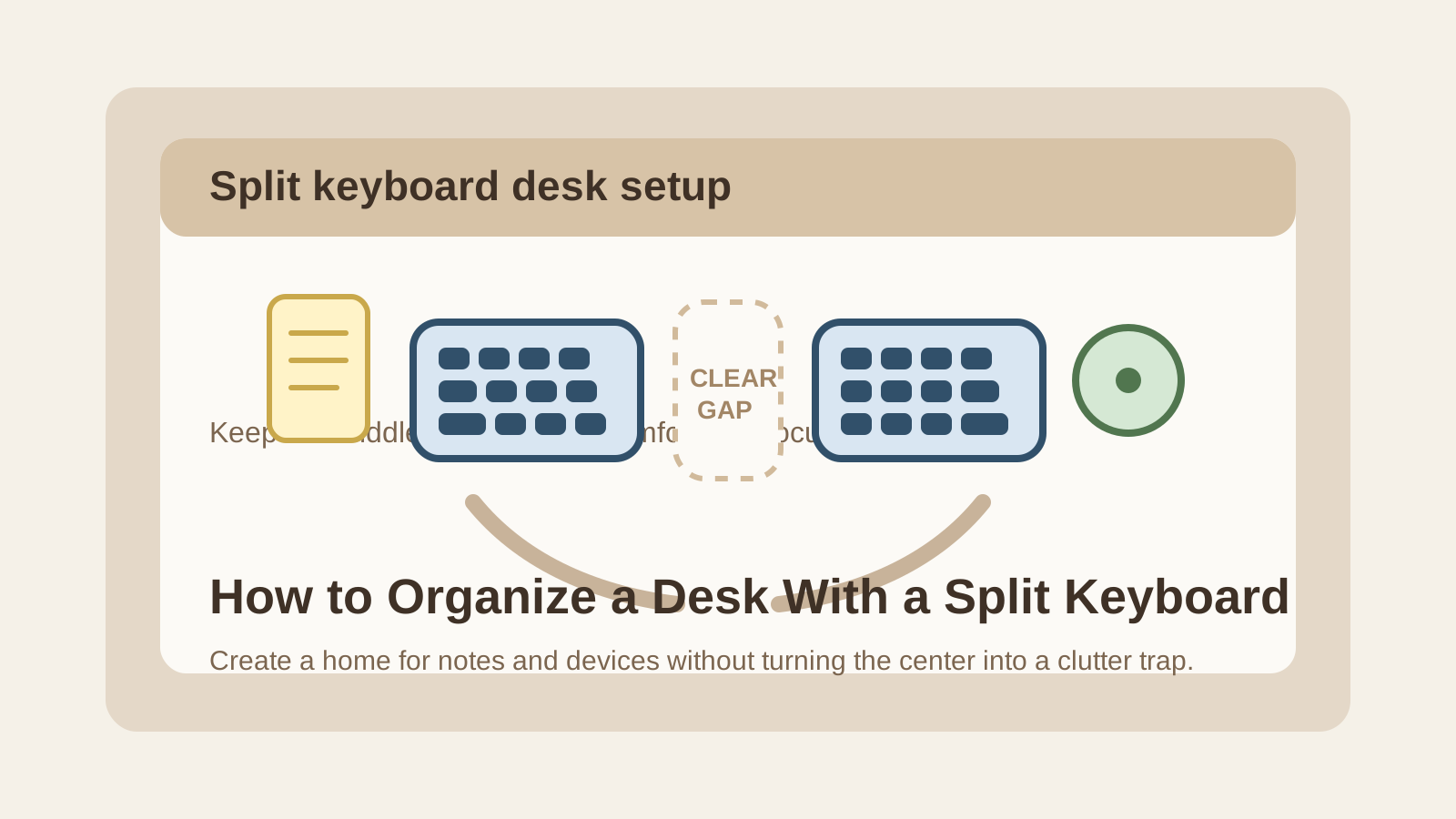
If you want to organize a desk with a split keyboard, the goal is not only fitting both halves on the surface. The goal is protecting the center gap and the forearm lanes around it so the keyboard can keep doing its job without turning into a storage magnet.
Quick answer
To organize a desk with a split keyboard, treat the space between the two halves as working space, not open storage. Keep the center gap clear, route cables behind the board instead of through the middle, give phones and notes their own landing spot, and make sure any palm rests, tenting stands, or extra input tools do not crowd the same hand path. A split keyboard works best when the desk around it stays simple.
Why split-keyboard desks get messy in a specific way
A regular keyboard tends to create one horizontal tool line.
A split keyboard creates multiple small zones at once:
- left-hand typing zone
- right-hand typing zone
- center gap
- one or two forearm landing paths
- sometimes a separate mouse, trackball, or numpad zone
That sounds minor, but it changes how clutter gathers. Small items no longer pile up only beside the keyboard. They start collecting in the gaps between tools, especially anywhere that looks intentionally empty.
That is why split-keyboard clutter often comes from objects that feel temporary:
- phone
- sticky notes
- charging cable slack
- badge or keys
- earbuds
- snack wrappers
- small adapters
- one-page references
The keyboard halves may still look neatly placed, yet the working area feels worse because your hands and eyes keep navigating around little interruptions.
Treat the middle gap like active workspace
The empty space between keyboard halves is not free real estate.
It is part of the typing setup. Your hands move around it. Your eyes cross it. Your posture depends on it staying visually calm. If that gap turns into a parking strip for little objects, the whole desk starts feeling improvised.
A simple rule helps: if an item makes the center gap look busy, it probably belongs somewhere else.
That usually means keeping these items out of the middle:
- phone during most of the workday
- sticky notes with reminders
- cable loops
- authentication keys
- pens
- drink coasters
- small trays or decorative dishes
The gap can stay empty. That is not wasted space. It is what makes the split setup comfortable.
Decide what belongs in the center before clutter decides for you
Some people do need one thing in the middle.
Maybe it is a slim touchpad. Maybe it is one small note card. Maybe it is nothing at all.
What usually fails is leaving the center undefined. Once the gap has no clear rule, it becomes the nearest landing zone for whatever is in your hand.
Choose one of these approaches on purpose:
- clear-center setup: nothing lives between the halves
- single-tool center: one thin tool such as a compact touchpad or one folded reference card
- task-block center: the middle stays empty during normal work and only holds a temporary item during one specific task block
If you choose the third option, the temporary item still needs to leave when the task ends. Otherwise the desk drifts back into mixed use.
Keep notes out of the typing arc
Split keyboards make note placement tricky.
The middle can look like the perfect place for reminders because it stays visible. In practice, that often turns the keyboard into an anchor for your whole note system. One sticky note becomes three. A meeting code joins them. A pen follows. Then the center gap feels crowded even when the rest of the desk is fine.
A better move is to place notes in one of these spots instead:
- above the keyboard line
- on the non-mouse side of the desk
- in a small upright holder near the monitor
- on one notebook that opens only when you need it
The important part is that note-taking has its own home. The split keyboard should support posture and typing, not become a bulletin board.
Route keyboard and charging cables behind the setup
A split keyboard often brings more cable decisions than a standard keyboard.
You may have:
- one cable from each half
- one joining cable between halves
- a wireless charging line
- a separate mouse or trackball cable
- a charging line for a nearby phone or headset
If any of those lines cross through the middle gap or drape through the forearm path, the setup starts looking and feeling cluttered fast.
A cleaner rule is:
- send keyboard cables rearward as early as possible
- keep extra slack behind the monitor line or rear desk edge
- avoid using the middle gap as a shortcut route
- keep phone charging separate from the keyboard footprint if possible
The goal is not perfect cable styling. The goal is making sure the keyboard area feels stable when your hands land.
Protect the forearm lanes, not only the keys
Many split keyboard setups get crowded even when nothing is touching the keys themselves.
The issue is what happens just outside the halves. A mug sits too close to the right forearm. A notebook edge pushes into the left wrist space. A small tray lives beside one half because the desk owner thinks the problem is only the center gap. Then typing still feels cramped even though the keys are technically clear.
Think beyond the keycaps. The working zone includes:
- the space where your forearms land
- the inward angle of both hands
- the path to your mouse, trackball, or touchpad
- any palm rest or tenting base you use with the keyboard
If an object forces you to twist around it before typing, it is too close.
Separate ergonomic tools from spare tools
Split keyboards are often part of a bigger ergonomic setup.
That might include:
- palm rests
- a trackball or vertical mouse
- a separate numpad
- a laptop stand
- a footrest
- a wrist support cushion
Those tools can be useful, but they should not all compete for surface space at once.
Keep your active ergonomic tools in the live typing zone. Move backup or occasional-use items one layer away. If a separate numpad is only needed for budgeting or data entry blocks, give it a repeatable off-to-the-side home instead of leaving it jammed beside the keyboard all day.
The same goes for alternate mice, cable adapters, and extra wrist supports. If they are not helping your current task, they should not be crowding the main setup.
Keep the center visually quiet during meetings and admin work
A split keyboard gap often fills up fastest during shallow work.
During meetings, people drop a phone in the middle. During admin tasks, they slide a badge there. During quick replies, they leave a charging case or a snack wrapper because they plan to move it in a minute.
That is why the setup can look tidy during focused work but messy by the end of the day.
Use one quick check whenever you return to the desk:
- is anything parked between the halves
- is a cable cutting through the middle
- is one forearm lane more crowded than the other
- did a temporary tool stay out after the task ended
That short check catches the kind of clutter that split keyboards attract most.
A simple layout that works for many split-keyboard desks
If you want a practical arrangement, try this:
- center front: split keyboard halves with a clear middle gap
- rear center: monitor and one small note holder if needed
- mouse side: pointer device with one protected hand path
- non-mouse side: notebook or active paper zone
- off to one side or rear: occasional-use numpad, charger backup, and small accessories
This layout keeps the typing setup readable without pretending the whole desk has to look empty.
Where TidySnap helps
If a split keyboard desk feels uncomfortable even when it looks mostly clean, the issue is often not total clutter. It is one crowded center gap, one blocked forearm lane, or one note habit that keeps pulling small items into the typing zone.
TidySnap can help you spot those patterns from a single photo so you can simplify the layout without rebuilding the whole desk.
Final thought
A split keyboard should give your desk more comfort, not more tiny decisions.
When the middle gap stays clear, notes live elsewhere, and cables stop cutting through the typing area, the setup feels calmer and easier to use. That is the real benefit: not just a more ergonomic keyboard, but a workspace that stops fighting the way you type.