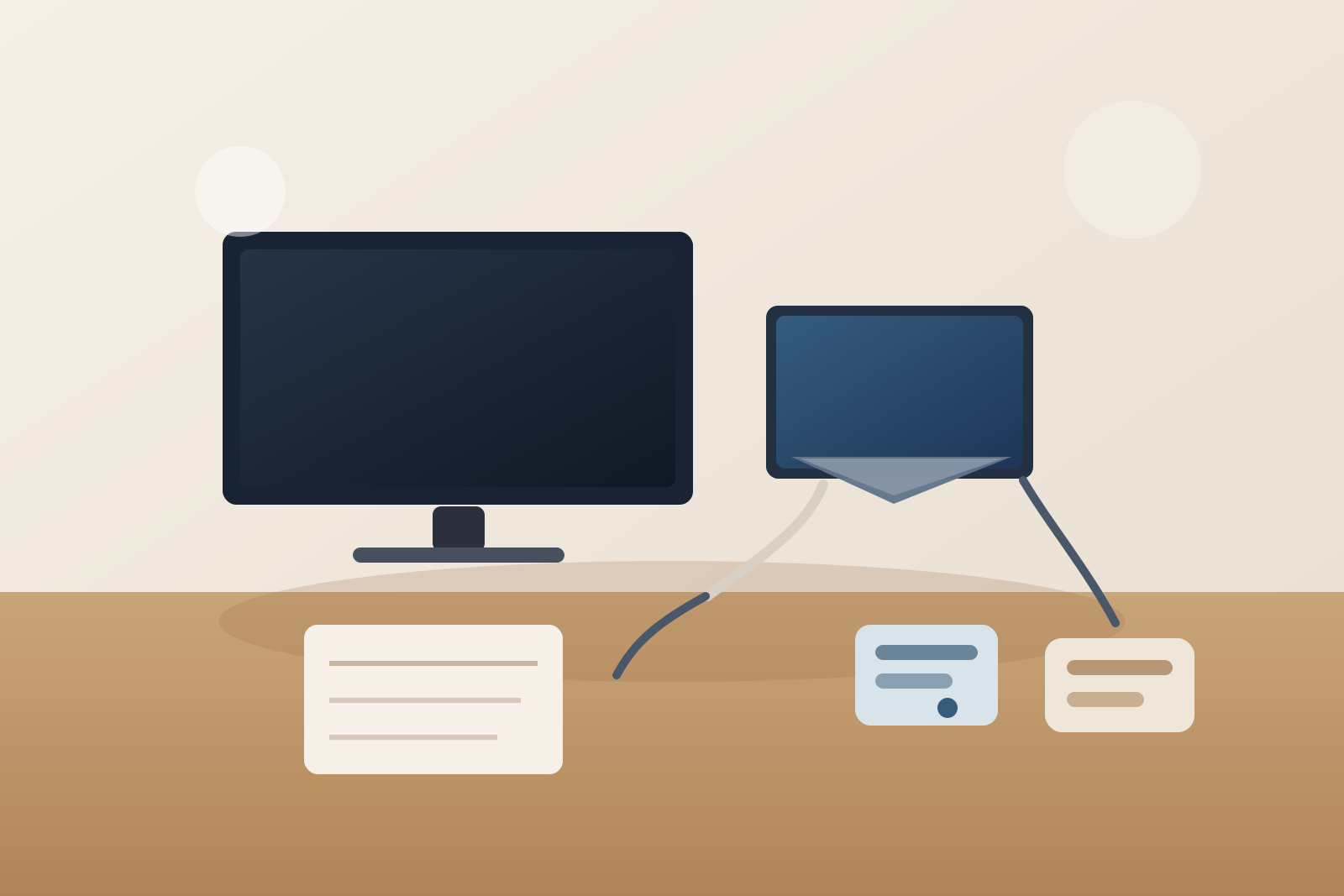
How to Organize a Desk With a Portable Monitor Without Turning It Into a Travel-Gear Pile
A portable monitor can make a desk more useful very quickly, but it can also make the whole setup feel unfinished.
That usually happens because the extra screen does not arrive alone. It brings a cover that doubles as a stand, one or two cables, maybe a power brick, maybe a laptop stand, and often a daily question about whether the monitor is supposed to stay out or get packed away again. The result is not the same as a normal dual-monitor setup. It is a workspace that keeps hovering between permanent desk and temporary travel station.
If you want to organize your workspace with a portable monitor, the goal is not only fitting in one more screen. The goal is deciding what stays live on the desk, what becomes part of the setup only when needed, and how to stop the monitor accessories from spreading faster than the screen helps.
Quick answer
To organize a desk with a portable monitor without making it feel cluttered:
- decide whether the portable monitor is a daily screen or an occasional screen
- give the monitor one stable landing position instead of changing sides every session
- keep the cable path simple enough that one setup step does not create three loose items
- store the sleeve, stand cover, and spare adapters away from the active work lane
- protect one main keyboard-and-notebook zone that does not depend on the second screen
- reset the monitor fully when you switch back to one-screen work
That usually works better than treating every portable-monitor accessory like it has to stay visible all day.
Why portable-monitor desks get messy in a different way
A fixed second monitor creates a stable footprint. A portable monitor creates a flexible footprint, which is exactly why it can get messy.
You may set it up for a call block, a spreadsheet task, or a research session, then fold it halfway away without actually putting it back. The folio cover stays on the desk. The USB-C cable remains plugged in because you will probably need it later. A stand or riser stays out because the screen angle felt better with it. By the end of the day, the desk is carrying both a normal work setup and the leftovers of a temporary one.
That is the real problem. The clutter comes from setup drift, not only from the monitor itself.
Decide whether the monitor is daily or occasional
This is the first decision that makes the rest easier.
If you use the portable monitor every day, treat it like a real part of the workstation. It needs a consistent position, a consistent cable route, and a consistent support rule.
If you use it only for certain tasks, treat it like a deployable tool. That means it should have a fast setup path and a real off-desk home when the task ends.
Many desks feel crowded because the monitor is being treated as both at once. It is always nearby, never fully stored, and never fully integrated.
Give the screen one repeatable position
A portable monitor often bounces around the desk because it feels easy to move.
One day it sits beside the laptop. The next day it is propped in front of a notebook. Later it gets leaned behind the keyboard while you clear space for lunch. That flexibility sounds helpful, but it makes the desk feel unsettled because nothing around the screen can form stable habits.
Choose one repeatable role:
- side reference screen for email, chat, notes, or dashboards
- spreadsheet or review screen used next to the main display during specific work blocks
- presentation or meeting support screen that appears only when you need shared visibility
Once the role is clear, the position becomes easier to repeat and the rest of the desk can stop rearranging around it.
Keep the cover and stand from becoming side clutter
Portable monitors often create clutter through their accessories before the screen itself creates clutter.
The folio cover, kickstand flap, stand plate, or folding case ends up sitting beside the monitor line like one more half-active object. Sometimes it stays attached in an awkward angle. Sometimes it comes off and lies flat under papers. Sometimes it becomes the place where a cable, stylus, or adapter lands because it already looks like a gear zone.
A better rule is simple: if the cover or stand is not actively supporting the screen, it should not remain in the center work area.
That may mean:
- leaving the cover attached and folded into one repeatable position
- storing a separate stand off to one support side
- keeping the empty sleeve off the desk during active work
The point is to stop the support gear from acting like a second desk surface.
Use the shortest honest cable setup
Portable-monitor cable clutter is often caused by overbuilding the connection.
People leave out extra adapters, backup power, and multiple cable options because the setup changes from place to place. That makes sense for travel. It usually makes less sense on a desk you use repeatedly.
For a regular workspace, pick the shortest honest setup that actually works:
- one cable if your device and monitor support it well
- one power cable plus one display cable if that is the reliable option
- one charger parked in a support zone instead of several floating near the screen
If the monitor needs special adapters for unusual situations, those should live in backup storage, not beside the keyboard every day.
Protect the main work lane from second-screen creep
A portable monitor can be small and still take over more desk function than expected.
The danger zone is usually the area in front of it and the area between it and the main screen. That is where notebooks, pens, charging lines, and quick paper items start piling up because the monitor makes the edge feel already occupied.
Keep one rule clear: the extra screen should not erase your main writing and typing lane.
You still need room for:
- keyboard and mouse movement
- one open notebook or task pad
- one temporary document
- normal hand placement without dodging a cable or stand edge
If adding the portable monitor makes those actions awkward, the setup is carrying too much monitor support gear in the wrong place.
Separate active use from packed-away mode
One reason portable-monitor setups stay messy is that they rarely return to a true baseline.
The desk gets stuck in a middle state:
- monitor unplugged but still standing there
- sleeve left under the monitor edge
- USB-C cable trailing across the desk just in case
- adapter still out from the last meeting
That half-packed state creates the same visual drain every day.
A cleaner system is to define two clear modes:
| Mode | What stays out | What gets put away |
|---|---|---|
| active second-screen mode | monitor, live cable path, one required stand/support piece | sleeve, spare adapter, backup cable |
| one-screen mode | main monitor or laptop setup only | portable monitor, cover, extras, and any temporary power gear |
If you switch modes often, that is fine. What matters is that each mode has a complete ending point.
A good layout for most portable-monitor desks
If you use a portable monitor at home or in an office, this layout usually works:
- main screen centered on your real work position
- portable monitor on the support side, not directly in front of the keyboard
- one cable route along a rear or side edge
- cover, sleeve, or backup adapter stored out of the center lane
- one side support zone for charging and small tech
- one protected notebook or writing area that stays usable with or without the extra screen
That gives you the benefit of a second display without making the desk feel like a bag you never fully unpacked.
Use TidySnap to see whether the monitor is helping or just multiplying gear
Portable-monitor setups are hard to judge because each individual item looks reasonable on its own.
A photo makes it easier to see the real pattern: the support cover that never leaves the desk, the extra cable crossing your notebook area, or the small adapter cluster that grew around a screen that was supposed to save space.
TidySnap helps you spot whether the portable monitor is improving the workflow or just creating a more complicated version of the same desk.
FAQ
Should a portable monitor stay on the desk all the time?
Only if you use it often enough to justify a stable position. If it is only useful for certain tasks, it usually works better as a tool with a fast setup and a real put-away routine.
Where should I put the portable monitor on a desk?
Usually to one side of the main screen or laptop, where it supports reference work without blocking the main keyboard and writing lane.
How do I keep portable-monitor accessories from spreading everywhere?
Treat the sleeve, spare adapters, and backup cables as storage items, not active desk items. Keep only the support pieces needed for the current session visible.
Is a portable monitor better than a full second monitor for a small desk?
It can be, especially if you do not need the second screen all day. But it only stays space-saving if you manage the setup and put-away steps clearly.
Final thought
A portable monitor should give your desk a second-screen option, not a permanent layer of travel gear.
When the screen has one repeatable role, the cable path stays simple, the support pieces stop lingering in the middle, and the desk can return to a clear one-screen baseline, the setup feels useful instead of half unpacked.