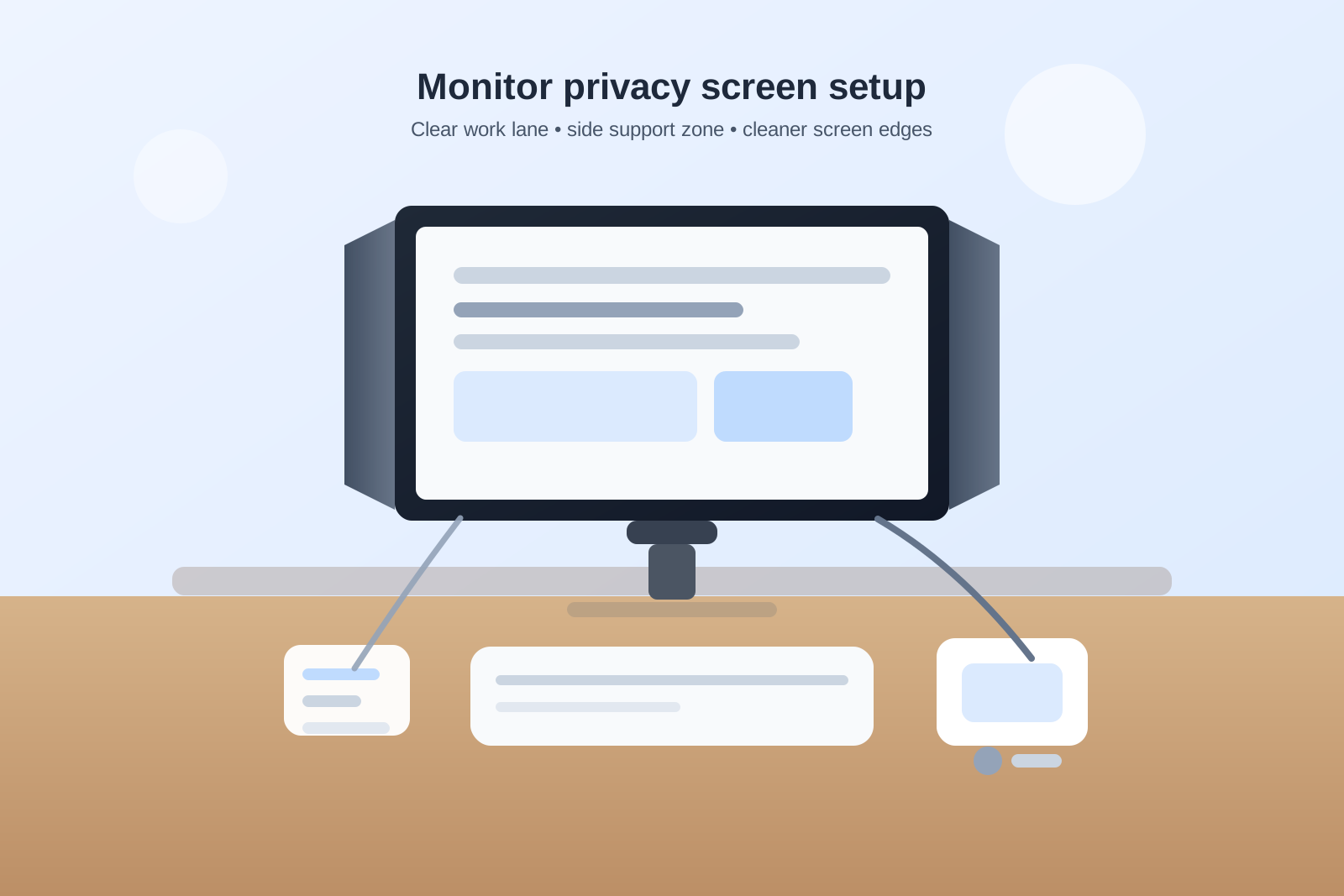
How to Organize a Desk With a Monitor Privacy Screen Without Making the Setup Feel Boxed In
A monitor privacy screen can solve one problem and quietly create three more.
You stop worrying about people reading over your shoulder, but the desk starts feeling tighter. The screen looks heavier. Side notes get tucked into awkward places because the monitor edges are less usable. A webcam, task light, or charging cable suddenly has to compete with the same narrow hardware zone. In some setups, the privacy screen even makes people keep more things on the desk because they no longer trust the space around the monitor.
If you want to organize your workspace with a privacy screen, the goal is not only protecting what is on the display. The goal is keeping the desk readable, open enough to work in, and easy to reset without turning the monitor into a wall.
Quick answer
To organize a desk with a monitor privacy screen without making it feel cramped:
- treat the privacy screen as a visibility tool, not as extra storage edge
- keep the monitor zone limited to screen-related hardware only
- move notes, chargers, and small tools out of the side shadow around the display
- protect one clear work lane in front of the keyboard
- keep conversation, pass-through, and quick-reference items off the blocked screen corners
- reset the monitor area anytime objects start leaning against the privacy panel
That usually works better than adding more trays or clips while the screen area is still doing too many jobs at once.
Why privacy-screen desks get crowded so quickly
A privacy screen changes how the monitor interacts with the rest of the desk.
Without one, the screen edge is visually light. With one, the monitor becomes a thicker object with side boundaries. That often creates a new habit: people start using the edges around the screen as parking spots for sticky notes, badges, pens, charging cables, or little reminders because those items feel hidden enough to leave there.
The result is not just visual clutter. It is workflow clutter. Items that should be easy to grab, read, or move start gathering around the one part of the desk that already feels narrower than before.
Start by deciding what the monitor zone is allowed to hold
A privacy screen works best when the monitor area has a very small job.
For most desks, that means:
- the monitor
- the privacy screen itself
- maybe a webcam if it truly belongs there
- the minimum cable path needed to power the setup
What usually does not belong there:
- sticky notes on the side wings
- chargers draped across a panel edge
- pens or styluses tucked between the screen and privacy filter
- reminder cards balanced on top of the monitor
- small tools hidden in the shadow beside the display
The privacy screen should reduce visual exposure, not become a narrow holding zone for everything that lacks a home.
Protect the space beside the monitor from shadow clutter
One of the sneakiest problems with privacy screens is side-shadow clutter.
Because the side angles are darker and less visible, they attract small objects that feel temporary. A note gets wedged there during a call. A badge leans there after a meeting. A charging cable hangs there because it is out of the way for now. Then the sides of the monitor become mini storage pockets that make the whole desk feel heavier.
A better rule is simple: if you cannot spot the item clearly from your normal seated position, it probably should not live beside the privacy screen.
Keep the front work lane brighter than the screen hardware
Privacy screens can make the monitor feel visually dominant, especially in smaller office desks.
That is why the area in front of the keyboard matters even more. You need one work lane that still feels open enough for active tasks such as:
- typing without brushing against loose objects
- keeping one notebook open
- reviewing one document briefly
- setting down a phone or badge without causing a pileup
If the desk starts feeling boxed in, the fix is usually not removing the privacy screen first. It is clearing the front lane so the setup still has one obviously usable open area.
Move quick-reference notes away from the screen edge
People often stick reminders near a privacy screen because the monitor already feels like a boundary.
That usually backfires.
Side-mounted or top-edge notes become harder to read, easier to ignore, and more likely to multiply. They also make the monitor feel busier in the exact place you are trying to keep visually controlled.
A cleaner setup is:
- active notes in one notebook or one small desk pad
- short reference reminders in a single side holder
- private reference information stored somewhere intentional instead of clipped onto the screen
If a note matters enough to keep visible, give it a real note zone instead of hiding it inside monitor hardware.
Do not let cables turn the privacy screen into an anchor point
A privacy screen already adds visual weight.
When cables start running over the top edge, drooping down the side, or hooking around the panel corners, the whole setup feels improvised fast. This happens often with webcam cords, charging lines, and temporary device cables that seem convenient to route around the screen.
Try these defaults instead:
- route monitor and webcam cables behind the screen when possible
- keep charging cables on one side support path, not across the privacy panel
- avoid letting any cord hang into the front visual field
- remove clip-on cable hacks once they stop serving the current setup
You do not need perfect cable styling. You need the monitor area to stop acting like a hook for every loose wire.
Give shared-office items a separate landing zone
Privacy screens are especially common in open offices, reception-adjacent desks, and shared admin areas. Those setups often collect extra small items because people need to handle quick interactions without exposing the screen.
That does not mean the monitor should store the interaction tools.
Instead, give shared-office items a separate landing zone for things like:
- visitor badges
- one pen for quick signatures
- a headset or earbuds
- a phone used for short calls or authentication
- one temporary paper item waiting for the next step
A side tray or back-corner support zone usually works better than leaning those objects against the privacy screen or leaving them in the shadow next to the monitor.
Watch for fake privacy solutions
Some desks feel more controlled after adding a privacy screen, but they are actually just hiding clutter more effectively.
That often looks like:
- papers tucked behind the screen because nobody else can see them
- notes clipped to the side panel because they feel semi-hidden
- adapters and cables hanging along the monitor edge out of direct view
- personal items parked close to the screen because the setup already feels enclosed
Those choices may make the desk feel more private for a moment, but they usually make it harder to work in. Privacy should reduce distraction and exposure, not create a sheltered clutter pocket.
A simple layout that works in most offices
If you use a monitor privacy screen at work, this layout is usually enough:
| Zone | What belongs there | What stays out |
|---|---|---|
| monitor zone | monitor, privacy screen, maybe webcam | notes, pens, chargers, random small tools |
| front work lane | keyboard, mouse, one active notebook | cable slack, stacked paper, accessory spillover |
| side support lane | phone, one charger, one pen, one tray | anything that needs to stay in the center |
| off-desk or drawer support | backup adapters, extra paper, duplicate gear | items pretending to be active because they fit near the screen |
This keeps the privacy screen doing its real job without letting it dominate the rest of the desk.
Where TidySnap helps
A privacy-screen desk can feel harder to judge because the setup often looks more controlled than it really is. A photo makes it easier to spot when the monitor zone has become too heavy, when side-shadow clutter is building, or when the front work lane has disappeared.
TidySnap helps you see whether the privacy screen is supporting focus or simply hiding a new layer of desk drift.
FAQ
Should I put sticky notes on a monitor privacy screen?
Usually no. The side panels and top edge quickly become clutter magnets, and notes there are harder to read consistently.
Where should cables go if I use a privacy screen?
Ideally behind the monitor or along one side support path, not draped over the privacy panel or hanging in front of the screen.
Does a privacy screen make desk organization harder?
It can if the monitor area starts carrying notes, cables, and small office tools. It helps when the rest of the desk has clear support zones.
What should stay next to a privacy-screen monitor?
Only the few items you genuinely use with the screen, such as a webcam or one intentional side support tool nearby. The monitor itself should not become a storage edge.
Final thought
A monitor privacy screen should make your desk feel safer, not smaller.
When the screen area holds only screen-related hardware, the front work lane stays clear, and side items stop leaning into the monitor shadow, the whole setup feels easier to use. The privacy screen can then do what it is supposed to do: protect your work without making the rest of the desk feel boxed in.