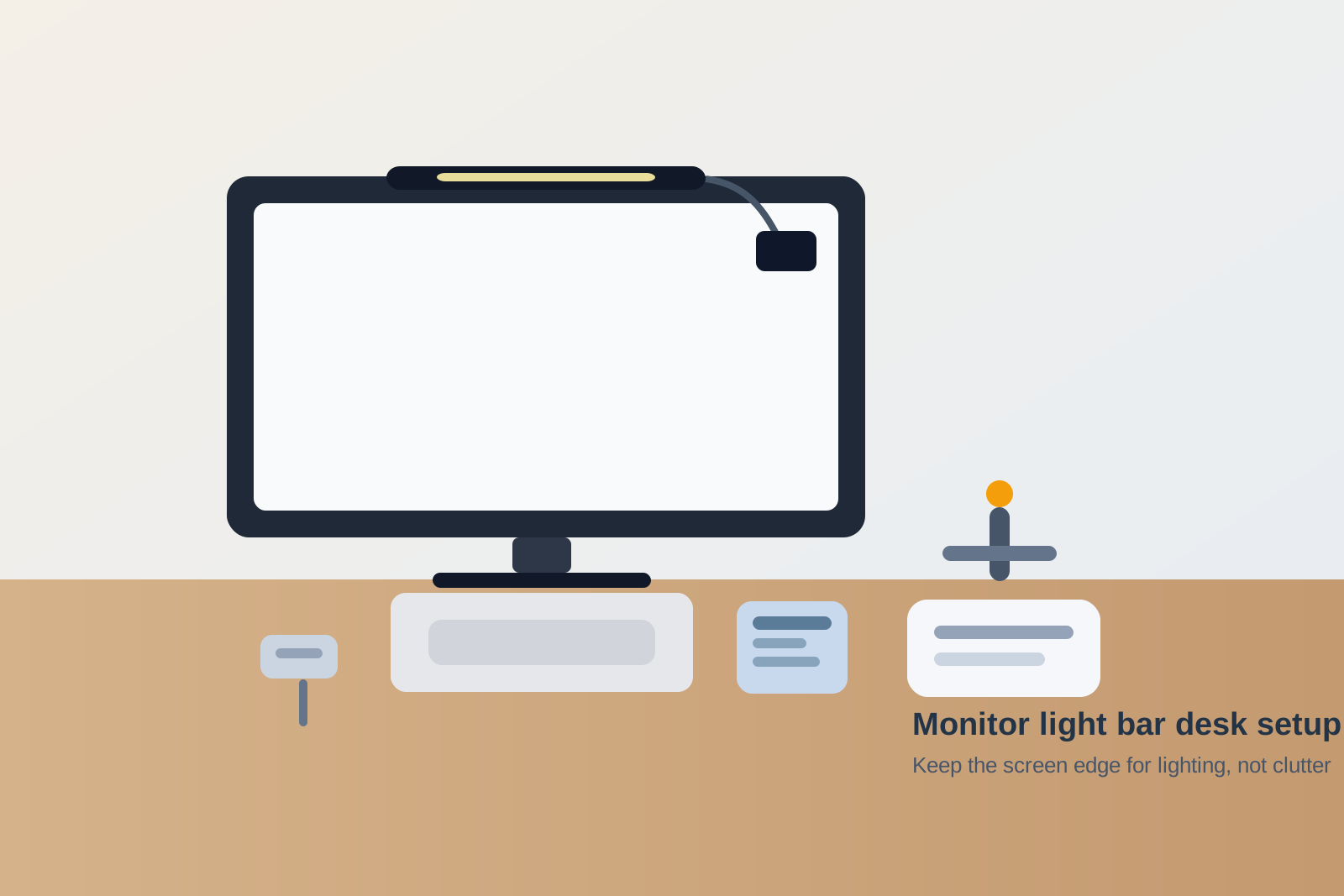
How to Organize a Desk With a Monitor Light Bar Without Crowding the Screen Edge
A monitor light bar often arrives as a fix for one annoying desk problem and quietly creates another.
The desktop lamp is gone, so you expect the workspace to feel cleaner. Then the top edge of the screen turns into a tiny storage rail. A webcam gets balanced beside the light bar. Sticky notes creep onto the monitor bezel because the area feels active. The charging cable drops into view. Reading glasses, a lens cloth, or a small clip-on accessory start living near the same zone because it all seems related to the screen.
If you want to organize your desk in a way that actually feels calmer, the goal is not only better lighting. The goal is keeping the screen edge from becoming a narrow clutter lane that competes with your work.
Quick answer
To organize a desk with a monitor light bar without making the setup feel busier:
- give the light bar one stable centered position
- keep the top screen edge for lighting and camera gear only
- move sticky notes, tools, and charging items off the monitor line
- route the light bar cable behind the display instead of down the front visual field
- decide where task notes live so they do not collect around the bezel
- reset the screen edge whenever it starts holding more than two categories
That usually works better than removing a desk lamp but letting the monitor turn into a mounting point for everything else.
Why monitor light bars create a new clutter zone
A light bar solves a real problem. It frees desk surface space and puts light closer to the work area.
But it also makes the monitor feel like infrastructure. Once that happens, people start treating the screen edge like a support shelf instead of a boundary. Small things gather there because they feel adjacent to the work:
- webcam accessories
- privacy covers or lens caps
- sticky notes with passwords or reminders
- a cleaning cloth for glasses or the screen
- charging cables that drop from the top edge
- clips, adapters, or tiny tools that seem temporary
None of those items looks dramatic by itself. Together, they make the center of the workspace feel visually crowded in the exact area your eyes are using all day.
Treat the screen edge as a limited-use zone
The top of the monitor should do very few jobs.
For most desks, that means:
- the light bar
- a webcam if you genuinely need it there
- nothing else
That rule matters because the screen edge is not neutral space. Anything attached there changes how the whole desk feels. Even a few small objects can make the setup look improvised and mentally noisy.
If something does not directly support lighting or calls, it probably should not live on the monitor line.
Separate lighting gear from note-taking gear
One common failure pattern is mixing visual-task tools with reminder tools.
A monitor light bar makes the screen area feel like a natural place for notes because the light, screen, and current task all sit together. That is how people end up pressing sticky notes onto the bezel, tucking reminders under the bar, or clipping a small paper list to the monitor corner.
That may save space for an hour, but it usually makes the desk harder to read.
A better setup is:
- keep the monitor line for display and lighting only
- keep active notes in one side lane, one notebook, or one upright card holder
- move reference reminders farther from the center than you first expect
When notes stop collecting on the screen itself, the whole workspace feels more intentional.
Give the light bar cable a rear path immediately
Many monitor light bar setups feel messy because of one cable.
The bar looks sleek from the front, but the USB cable drops over the top corner, runs down the side of the screen, or hangs into the background of video calls. That visual line can be more distracting than the lamp you removed.
A cleaner rule is simple:
- send the cable straight behind the monitor if possible
- keep slack on the rear edge, not along the front bezel
- avoid sharing the same visible corner with webcam cords and charging lines
- remove old clip-on accessories if the cable path no longer needs them
The light bar should make the desk feel lighter, not add a new cord silhouette in the middle of your field of view.
Decide where the webcam belongs before stacking gear
The light bar and webcam often compete for the same real estate.
If both need the top center of the monitor, the setup can quickly become awkward. People start offsetting one item, balancing the other, or adding extra clips that make the monitor edge look overbuilt.
Ask a simple question: which tool matters more in the normal workday?
If the light bar is the daily tool
Center the bar and move the webcam to a separate mount, side shelf, or only-on-call position when possible.
If the webcam is the daily tool
Let the camera keep the cleanest position and place the light bar where it still lights the desk well without turning the top edge into a stack of hardware.
The key is choosing the primary item instead of pretending both can own the same exact spot without compromise.
Keep the area below the monitor clear too
A crowded monitor edge usually comes with a crowded strip below the screen.
That is because the same categories drift together: notes, glasses cloths, adapters, chargers, and small tools. If those items are climbing onto the top edge, they are often already collecting at the screen base too.
A simple three-zone layout works well:
| Zone | What belongs there | What stays out |
|---|---|---|
| top screen edge | light bar and maybe webcam | notes, clips, paper, random accessories |
| front work lane | keyboard, mouse, one active notebook | spare tech, cleaning items, cable slack |
| side support lane | charger, cloth, adapters, small tools | anything you need to see in the center |
This keeps the light bar from solving one surface problem while creating a new visual one around the monitor.
Watch for fake minimalism
A monitor light bar setup can look modern while still being cluttered.
That happens when the desk lamp disappears, but the supporting mess simply migrates to smaller places:
- cables tucked behind the monitor but still unmanaged
- sticky notes moved onto the screen corners
- cleaning items parked below the display
- a webcam perched awkwardly beside the bar
- adapters hidden at the base of the stand
From across the room, the desk may look cleaner. In use, it still feels busy.
Real improvement means the center of the workspace becomes easier to read, not just more streamlined-looking.
A five-minute reset for this setup
If the screen edge keeps getting crowded, do this quick reset:
- remove anything attached to the monitor that is not the light bar or core camera gear
- move all task notes off the bezel and into their real note zone
- route the light bar cable back behind the display
- clear the monitor base of cloths, adapters, and loose accessories
- sit down and check whether the center of the setup looks visually quiet again
That last step matters. A desk can be technically organized and still feel noisy if the monitor line is carrying too much visual detail.
Where TidySnap fits
Monitor-light-bar desks can be misleading because the setup often looks cleaner in theory than it feels in use. TidySnap helps by showing the whole screen zone at once, so it is easier to spot when lighting gear, notes, and small accessories are piling into the same narrow visual strip.
That makes it easier to organize your workspace around what supports focus instead of what simply fits near the monitor.
FAQ
Should I put sticky notes on my monitor if I use a light bar?
Usually no. A few quick reminders may feel efficient, but they often turn the screen edge into visual clutter faster than you notice.
Where should the cable go on a monitor light bar?
Ideally straight behind the monitor, with slack hidden on the rear edge instead of hanging down the front or side of the screen.
Can a webcam and monitor light bar share the same monitor?
Yes, but only if you choose a clear primary position and avoid stacking extra clips and accessories around them.
Does a monitor light bar really help desk organization?
It can, if it replaces a bulky lamp without turning the screen edge into a new storage zone.
Final thought
A monitor light bar should make your desk feel simpler, not more engineered.
Keep the top edge limited, move notes and support tools off the monitor line, and protect the center of the setup from cable and accessory creep. When the screen edge stops acting like spare storage, the whole desk becomes easier to use.