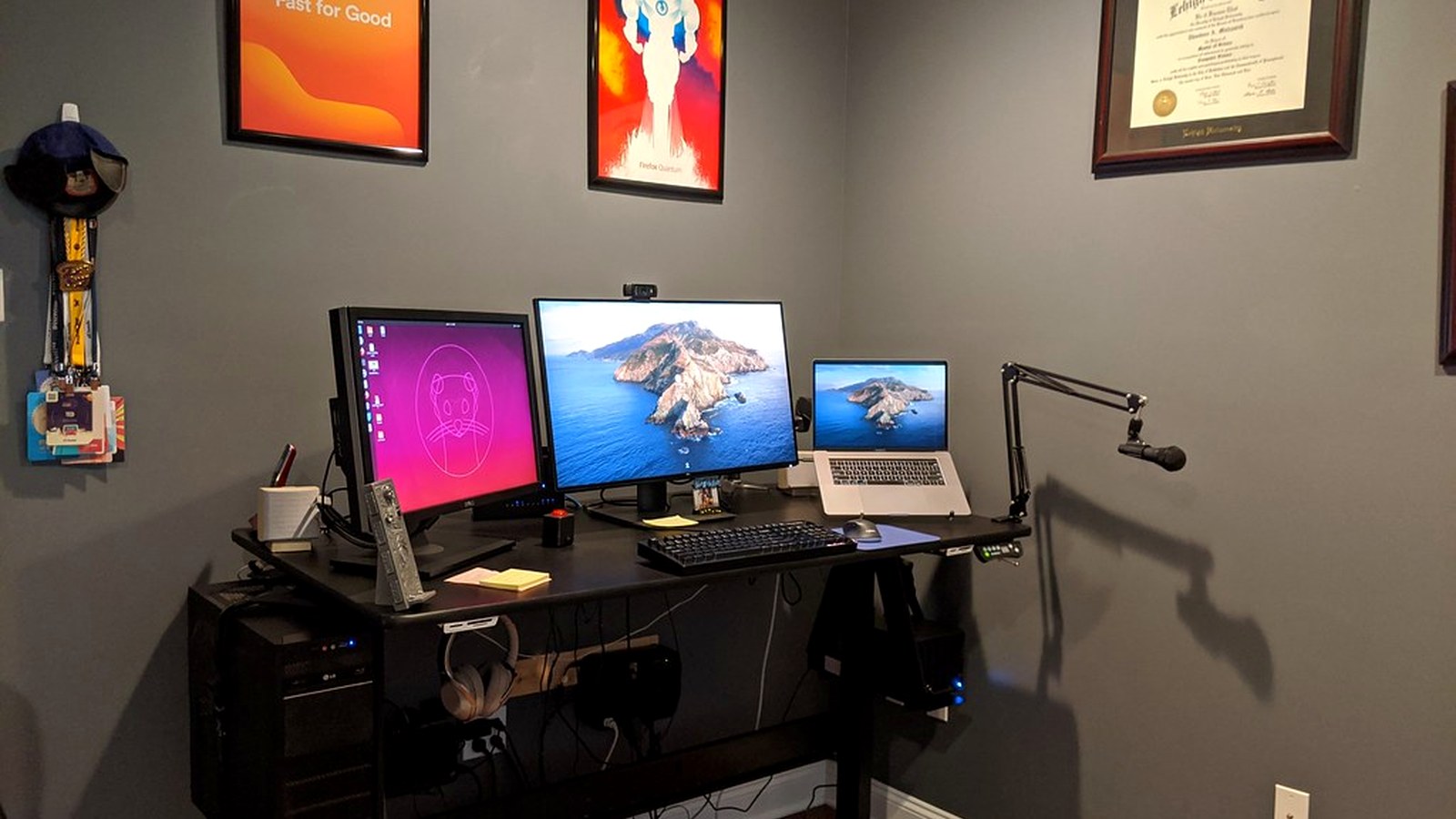
How to Organize a Desk With a Monitor Arm Without Losing the Space You Just Gained
A monitor arm is supposed to make a desk feel lighter. Sometimes it does the opposite.
You lift the screen, clear the old stand, and suddenly there is more room underneath. Then that new room fills up with a dock, a charger, loose paper, headphones, sticky notes, and one cable loop you keep meaning to fix later. The desk is technically less crowded, but it still feels busy.
If you want to organize a desk with a monitor arm, the goal is not just mounting the screen higher. The goal is making the freed-up space work for your actual day instead of turning into a low shelf for leftover stuff.
Quick Answer
If you are organizing a desk with a monitor arm, these changes usually help fastest:
- decide what the space under the monitor is for before you fill it
- keep one clear working lane in front of the keyboard or laptop
- route the monitor cable and charging cable on different paths
- move bulky support gear to one side instead of under the screen
- treat the arm clamp area as a cable path, not a storage zone
- keep paper and sticky notes out of the monitor footprint
- reset the desk so the open space stays open tomorrow too
The biggest win is usually not the arm itself. It is what you stop putting under it.
The Hidden Problem With Monitor-Arm Setups
A monitor arm removes one block of hardware, but it also creates tempting empty space.
That space often attracts:
- charging bricks
- a dock or hub
- headphones
- stacked notebooks
- sticky notes pushed against the wall
- small tools that do not have another home
- loose cable slack
That is why some desks with monitor arms still feel cramped. The setup has more physical room, but not more visual control.
Decide What the Freed Space Is Actually For
Before you rearrange accessories, choose one main job for the newly open zone below the screen.
Usually that zone works best as one of these:
| Best use | Why it works |
|---|---|
| keyboard and mouse movement | keeps the desk feeling active instead of crowded |
| one notebook or writing pad | gives you room for planning without blocking the screen |
| one temporary document area | helps with review work without spreading paper everywhere |
What usually works worse:
| Low-value use | Why it becomes clutter fast |
|---|---|
| storing backup gear | turns open space into passive storage |
| parking chargers and adapters | creates visual noise right in your main sightline |
| stacking multiple notebooks | makes the desk feel shorter and busier |
If the area under the monitor has no defined job, random objects will claim it for you.
Build the Layout From the Front Edge Back
A lot of people organize a monitor-arm desk from the wall backward. It works better to do the opposite.
Start at the front edge where your hands actually move.
- protect the typing and mouse path first
- leave room for one active note surface if you use one daily
- place the screen where it supports that working position
- let accessories fill only the leftover side space
That order matters because the desk should still feel good to use even when the day gets busy.
Keep the Area Below the Screen Quiet
The space right below the monitor has a strong effect on how the whole desk feels.
When that strip is crowded, your eyes keep catching extra decisions:
- a charging cable crossing the notebook
- a dock sitting where your hands want to move
- sticky notes competing with what is on screen
- a pen cup or speaker cutting into writing space
A calmer setup usually keeps this area limited to:
- keyboard
- mouse or trackpad
- one current notebook or slim pad
- one temporary document if needed
That is enough for most workdays.
Give the Arm and the Cables One Clean Exit Path
Monitor arms help most when the cable path looks intentional.
A simple default works well:
| Item | Better path |
|---|---|
| monitor cable | follow the arm and drop toward the rear edge |
| power cable | follow the same rear path if possible |
| phone or laptop charging cable | use one side corner instead of the center |
| extra slack | tie or guide it behind the screen line |
Try not to let the main charging line and the monitor line compete in the same visible area. Even when the desk is not full, crossed cable paths make it feel messy.
Move Support Gear to One Side, Not Under the Screen
A dock, notebook stack, charger, headphones, and pen cup can all be useful. The problem starts when each one lives in the middle.
Pick one support side and let it hold the extras you reach for often, such as:
- one dock or charger
- one notebook stack
- one headphone position
- one pen cup or small tray
That keeps the center clearer and makes the monitor arm feel like it actually created working room.
Be Careful With Sticky Notes and Reference Paper
Monitor-arm desks often collect reminders in the newly open vertical space around the screen.
A few reference items are fine. A wall of notes usually is not.
If you rely on paper cues, keep them tighter:
- one current note page on the desk
- one short reminder list
- one reference stack off to the side
Once reminders spread under the screen and around the arm, the desk starts feeling visually loud again.
A Good Monitor-Arm Desk Still Needs Empty Space
This is the part people skip.
When the desk gains room, there is a temptation to use all of it. But empty space is what makes the setup feel easier.
You need room to:
- pull a notebook forward
- sign or review one document
- set down a mug without blocking the mouse
- shift the keyboard briefly
- start the next task without rearranging half the desk
An organized desk is not the one that stores the most. It is the one that stays usable when real work changes shape during the day.
Where TidySnap Helps
A monitor-arm setup is one of those cases where broad advice sounds obvious until you look at your own desk.
TidySnap helps you work from a real photo of the space you actually use. That makes it easier to see whether the desk still has a clear work lane, whether the area under the screen is becoming storage again, and which cables or accessories are creating more visual noise than you thought.
That is especially useful when the desk is not dramatic enough to look messy in photos, but still feels subtly harder to use every day.
A 10-Minute Reset for This Kind of Desk
If your setup already has a monitor arm but still feels off, do this quick reset:
- clear everything from under the monitor except what you use in the next work block
- route the monitor and power lines toward the rear path
- move charging to one side
- choose one support side for the dock, headphones, and small tools
- remove old notes and paper that no longer support current work
- leave one open patch of desk space before you stop
That last step is what keeps the desk from filling right back up.
FAQ
Does a monitor arm really help desk organization?
Yes, but only if the extra space stays active instead of turning into storage. The arm creates an opportunity, not an automatic clean desk.
What should go under a monitor on an arm?
Usually just the tools that support current work: keyboard, mouse, and maybe one notebook or one temporary document.
Where should I put my dock if I use a monitor arm?
Usually off to one side works better than directly under the monitor. That keeps the center easier to read and easier to use.
How do I keep cables from ruining the setup?
Let monitor and power lines follow the arm or rear edge, then keep daily charging on one separate side path. The cleaner the exit path, the calmer the desk feels.
Is a monitor arm still worth it on a small desk?
Often yes. On a small desk, removing the monitor stand can make a real difference, but only if you protect the newly open space instead of filling it immediately.