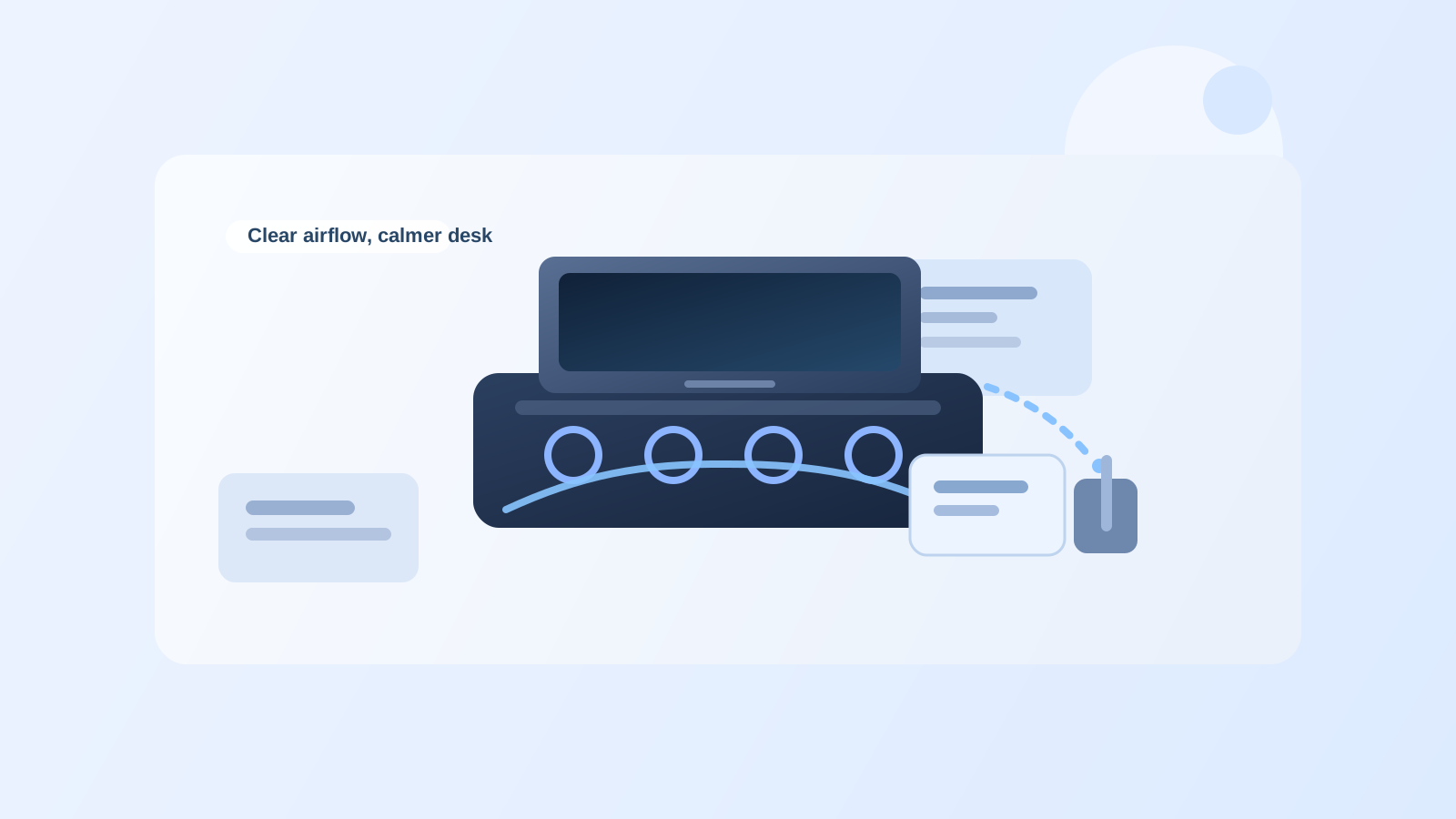
How to Organize a Desk With a Laptop Cooling Pad Without Blocking Airflow
A laptop cooling pad usually arrives to solve one very specific annoyance: too much heat during long work sessions. Then the area around it starts getting strange.
The laptop sits higher. The fan cable needs a port. The rear edge fills with charging cords, adapters, and a sleeve that feels useful enough to keep nearby. Papers or sticky notes drift too close to the intake area. Before long, the cooling pad is technically helping the laptop while the desk around it feels more crowded and less usable.
If you want to organize a desk with a laptop cooling pad, the goal is not only making the setup look tidy. The goal is protecting the airflow zone so the pad can do its job without turning the rest of the workspace into a heat-management workaround.
Quick answer
To organize a desk with a laptop cooling pad, keep the cooling setup in one defined equipment zone, protect clear space around the intake and rear exhaust area, move soft clutter and paper away from the airflow path, and route the fan power cable with the rest of your permanent tech lines instead of letting it become one more loose cord across the desk. The desk should support cooling without making the whole surface feel like a temporary repair.
Why cooling-pad desks get cluttered in a specific way
A cooling pad creates a different kind of desk problem than a laptop stand or a desk fan.
A laptop stand mainly changes screen height and the space underneath it. A desk fan changes the airflow across the whole workspace. A cooling pad creates a small heat-control zone right under the computer, and that zone tends to attract everything related to laptop survival: charging bricks, dongles, spare cables, a sleeve, external drives, and little items people do not want near the fan but also do not move fully away.
That is why the setup often feels awkward even when it is not technically messy. The cooling pad turns one section of the desk into infrastructure, but the surrounding items still behave like casual clutter.
Treat the pad as equipment, not as a platform
One common mistake is acting like the cooling pad creates extra general-purpose surface.
It does not.
The top of the pad should hold the laptop and nothing else. The area immediately around it should support only what helps that setup work, such as the charging connection or one necessary adapter. Once people start tucking sticky notes under the front lip, parking earbuds beside the fan controls, or balancing a phone against the side, the pad stops being a clean piece of equipment and starts becoming a mixed-use pile.
A better rule is simple: if an item does not help the laptop run cooler or work better in that moment, it should not live in the cooling-pad zone.
Protect the intake area from soft clutter
Cooling pads often fail because the desk around them encourages blockage.
Soft items are the usual problem:
- a laptop sleeve left beside or partly under the pad
- a microfiber cloth dropped over one corner
- sticky notes creeping under the front edge
- lightweight paper pushed behind the laptop
- a cable loop sagging into a vent opening
None of those objects looks important by itself. Together, they make the cooling zone harder to trust.
Keep the air path visibly clear. If you use a sleeve, give it a separate parking spot. If you keep paper nearby, store only the current sheet in a side lane rather than behind the laptop. If a cloth is necessary, keep it in the same support area as other laptop accessories, not touching the pad.
Keep the back edge from becoming a heat-and-cable shelf
A lot of cooling-pad clutter gathers behind the laptop, not in front of it.
That happens because the rear edge feels hidden enough to ignore. People leave the charging brick there, coil extra cable there, stash a USB hub there, or park a dongle because it seems close to the laptop and out of the way. Then the back line becomes a crowded strip of hot equipment and cable slack.
A cleaner setup keeps the rear edge narrow and intentional:
- one power path for the laptop
- one power path for the cooling pad if it needs separate power
- one necessary adapter or hub if you truly use it daily
- no storage of sleeves, papers, or backup gear behind the machine
The back edge should behave like a cable route, not like a shelf.
Separate cooling support from normal desk tools
The cooling pad creates its own category of support items. That category is smaller than people think.
Cooling support may include:
- the laptop charger
- the pad power cable
- one adapter or hub
- one sleeve or case stored nearby but not in the airflow path
Normal desk tools may include:
- your notebook
- pens
- sticky notes
- documents
- headphones
- your phone charger
Do not mix those groups just because they all sit near the laptop. When cooling support and normal desk tools blend together, the work lane shrinks and the laptop zone starts spreading outward.
Decide whether the cooling pad stays out all day
Some people need the pad continuously. Others only need it during heavy work blocks, long calls, editing sessions, or hot afternoons.
That matters for organization.
If the cooling pad stays out all day
Give it a fixed centered or slightly off-center position and build the cable route once. Keep nearby tools light and stable so the area around the pad does not become a parking lot.
If the cooling pad is only used sometimes
Treat it like a deploy-and-return tool. Store it where it can come out quickly, but do not leave it taking prime desk space during low-heat tasks. A part-time cooling pad should still have one true parking spot when it is off duty.
A lot of desk frustration comes from setups that never choose between those two modes.
Keep paper and fabric out of the heat zone
Cooling pads and paperwork rarely mix well.
Loose pages, receipts, sticky-note pads, and fabric items all tend to drift toward the laptop because that is where active work is happening. But the cooling zone should stay visually open. If you still need paper nearby, keep it to one side in a protected note area or on a document holder. If you use a wrist rest, sleeve, or desk mat with soft edges, make sure it is not creeping into the cooling path.
The desk will feel calmer when the laptop area looks engineered on purpose and the softer work materials live somewhere else.
Use a short reset after heat-heavy work
A cooling-pad desk stays usable when the setup has a fast reset.
After a long session, do four quick things:
- clear any paper, cloth, or accessory that drifted near the vents
- return the charging and pad cables to their intended path
- move the sleeve or case back to its home spot
- check whether the rear edge is holding anything that is acting like storage instead of infrastructure
That small reset matters because cooling clutter builds through drift, not through one dramatic mess.
Where TidySnap helps
A cooling-pad setup can feel fine from memory and still look crowded in a real photo. TidySnap helps you spot whether the real problem is blocked airflow, rear-edge cable buildup, or too many support items clustering around the laptop zone.
That makes it easier to decide what belongs near the cooling setup, what should move to a side support area, and what never needed to stay on the desk at all.
Final thought
A laptop cooling pad should solve a performance problem without creating a layout problem.
When the airflow path stays clear, the back edge stays narrow, and the support items stop spreading into the rest of the desk, the whole setup feels easier to use. That is the real goal: a cooler laptop and a workspace that still works like a workspace.