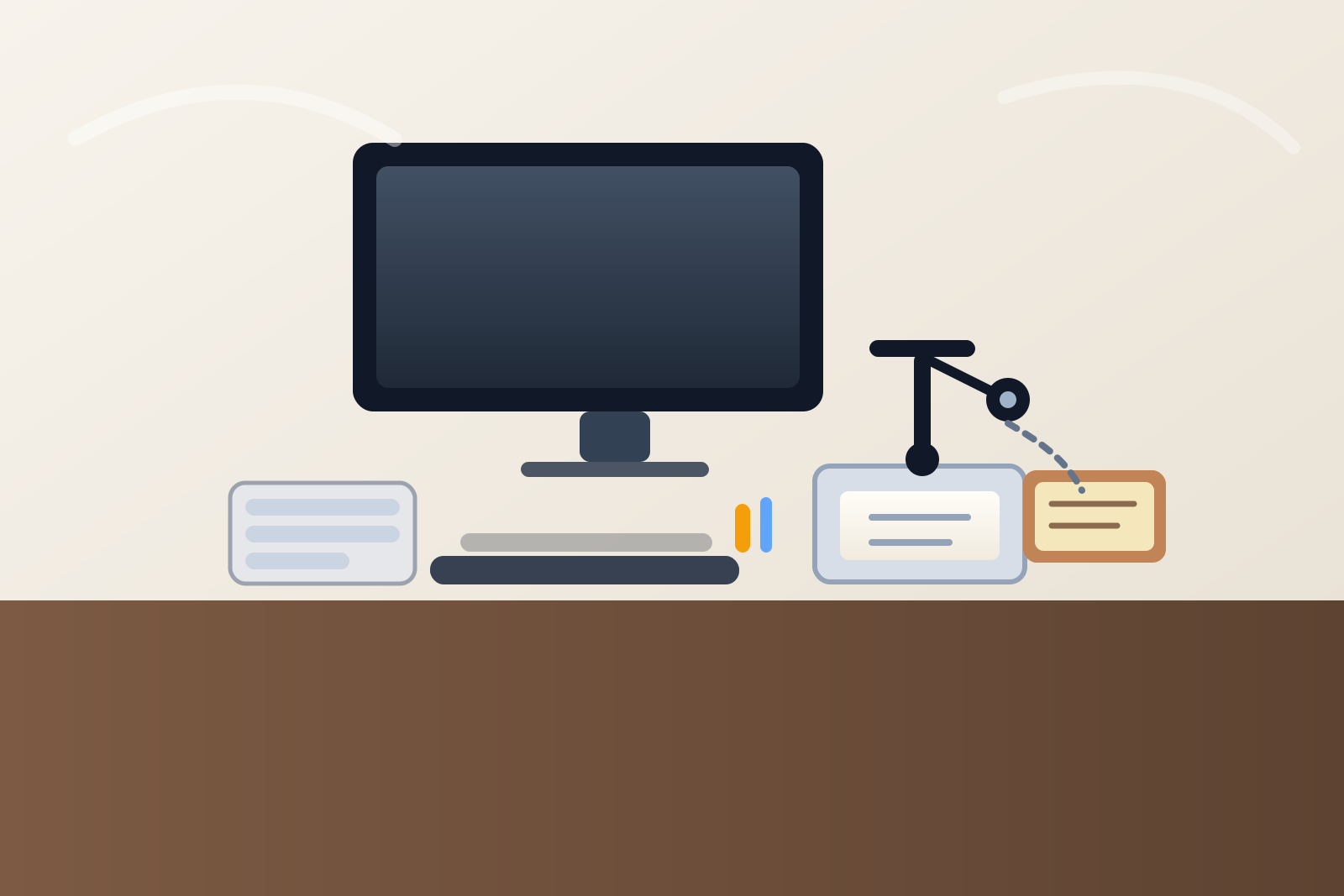
How to Organize a Desk With a Document Camera Without Building a Demo Gear Pile
A document camera creates a different kind of desk clutter than a printer, webcam, or tablet stand.
The problem is not only the device. It is the temporary teaching or demo layer that forms around it.
One worksheet stays out because you may show it again in the next meeting. A USB cable remains draped across the desk because unplugging it feels annoying. A marker, adapter, sticky note, and reference packet all gather near the camera because they feel connected to the next quick explanation. Before long, one corner of the desk is no longer a simple visual-sharing tool. It is a half-built presentation station that never quite resets.
If you want to organize a desk with a document camera, the goal is not hiding the camera at all costs. The goal is making paper-sharing and live demo work easy to start and easy to shut down, so the rest of the workspace does not stay trapped in presentation mode.
Quick answer
To organize a desk with a document camera, give the camera one defined landing zone, separate live demo paper from normal desk paper, keep only the current support tools near the lens, and create a fast reset that clears the teaching setup when the session ends. A good setup should make it obvious what is ready to show, what is waiting off camera, and what belongs somewhere else entirely.
Why document camera setups spread so easily
A document camera often looks harmless because it does not seem as permanent as a monitor or as bulky as a printer.
But it invites several categories of clutter at once:
- pages waiting to be shown under the lens
- pages you already used but have not put away
- cables or adapters that stay connected for convenience
- markers, pens, or props used during explanation
- sticky notes with the next thing to demonstrate
- a small stand base that attracts random items between sessions
That mix is what makes the setup messy. A document camera supports a live sequence, and live sequences leave leftovers unless each stage has a boundary.
Build around a show-now zone, not a paper stack
The most useful way to organize this setup is by presentation status.
A practical desk usually needs only three states:
- show now
- show later
- done and leave the desk
That works better than one mixed pile of worksheets, examples, forms, and notes near the camera.
If the desk does not separate what is going under the lens next from what is merely related to the lesson or meeting, every paper starts claiming camera-adjacent space.
Give the document camera one true home
A document camera should not float around the desk depending on the day.
When it moves between the center lane, a side corner, and a shelf, you also end up moving the cable path, paper placement, and support tools every time. That creates more friction than the camera itself.
A better default is one permanent or repeatable home that is:
- close enough to your computer for a clean cable path
- outside the main keyboard lane
- near enough to pull one page under the lens without reshuffling the whole desk
- far enough from your daily writing area that the camera base is not always in the way
The camera should feel like a controlled side tool, not like a second desk growing out of the first one.
Keep the show surface clear except for the current item
The area under a document camera works best when it behaves like a stage, not like a storage pad.
That means the show surface should usually hold only:
- the page, object, or note you are showing now
- maybe one marker or pointer if you are actively using it
- enough empty space to reposition the item cleanly
It should not hold:
- the whole next packet
- yesterday’s examples
- spare adapters
- extra pens and sticky notes
- items waiting for an unrelated desk task
A document camera feels much easier to use when the viewing area stays visually calm.
Separate demo paper from general paperwork immediately
This is the biggest distinction between a document camera setup and a general paper desk.
Paper near the lens often looks active even when it is not. A worksheet for the next class, a meeting handout you might reference later, or a printed example from this morning can all sit near the camera because they feel presentation-related. That does not mean they belong in the live zone.
Use a simple split:
| Zone | What belongs there | What stays out |
|---|---|---|
| show-now lane | the current page or object under the lens | backup packets, finished examples, unrelated forms |
| waiting lane | one slim folder or stack for the next items to present | random printouts and general paperwork |
| off-desk support | archived handouts, extra worksheets, and low-use materials | anything needed in the next five minutes |
That structure keeps the camera from becoming the excuse for a permanent paper cluster.
Keep the support tools deliberately small
Document camera clutter is usually powered by accessories.
You may sometimes need:
- a marker
- a pen
- a sticky note
- a USB adapter
- a cable extension
- a small prop or demo object
The mistake is letting all of them stay visible by default.
Most desks work better when the camera keeps one live tool and one clean cable path, while the rest of the support kit stays in a nearby drawer, pouch, or small side bin. That way, the camera is still easy to use without advertising every possible teaching or demo scenario on the desk all day.
Stop cable convenience from becoming visual clutter
Document camera cables often stay out because the setup feels semi-temporary.
People think they might need the camera again in an hour, so the cable never gets tucked back. Then the adapter stays out too. Then another cord joins it. Soon the setup looks more complicated than it really is.
A better rule is:
- give the camera one default cable path
- keep slack behind or beside the monitor, not across the center of the desk
- leave only the active connector visible
- avoid storing backup adapters in the same lane as the camera base
The camera should be quick to activate, but it should not leave a trail through the whole workspace.
Decide whether your setup is teaching-first or desk-first
This choice changes the layout.
If you teach, train, or demo from the document camera several times a day, the camera can act like semi-permanent desk infrastructure. In that case, its side lane should stay ready, and your paper system should support quick swaps under the lens.
If you only use it occasionally, the desk should stay desk-first. The camera can still have a defined home, but it should return to a parked state when not in use, and the show-now zone should go back to being open space.
Many setups feel messy because they are stuck in between. The camera is always present, but the workflow around it is never fully active or fully closed.
Use a short reset after every demo block
Document camera setups usually stay tidy when they reset in under two minutes.
After a class, meeting, or walkthrough:
- remove the last page or object from under the lens
- move the next-use packet to its waiting folder or put it away
- return extra markers, adapters, and props to the support zone
- tuck the cable back into its normal path
- leave the camera area empty or parked for the next session
That reset matters because the mess usually comes from lingering readiness, not from the live demo itself.
Signs the camera setup is too spread out
Your document camera zone probably needs tightening if:
- the base is holding unrelated desk items between sessions
- multiple handouts stay visible all day just in case
- the cable path crosses your normal writing or typing lane
- the camera side of the desk feels like a second workstation
- you have to clear the area before every demo even though the camera never moved
A good setup should let you start quickly without forcing the desk to stay in presentation mode all day.
Where TidySnap helps
A document camera setup is hard to judge from memory because each individual item seems defensible. The worksheet feels relevant. The cable feels temporary. The marker feels useful. A photo makes the pattern much clearer.
TidySnap can help you see whether the camera zone is truly supporting live demos or quietly collecting paper, cables, and support tools that should be somewhere else.
Final thought
A document camera should make one explanation easier, not turn one side of your desk into a permanent demo pile.
When the camera has one real home, the show surface stays clear, and waiting materials stop pretending to be active materials, the desk becomes much easier to work from between sessions. That is the real win: faster demos without carrying the whole presentation setup for the rest of the day.