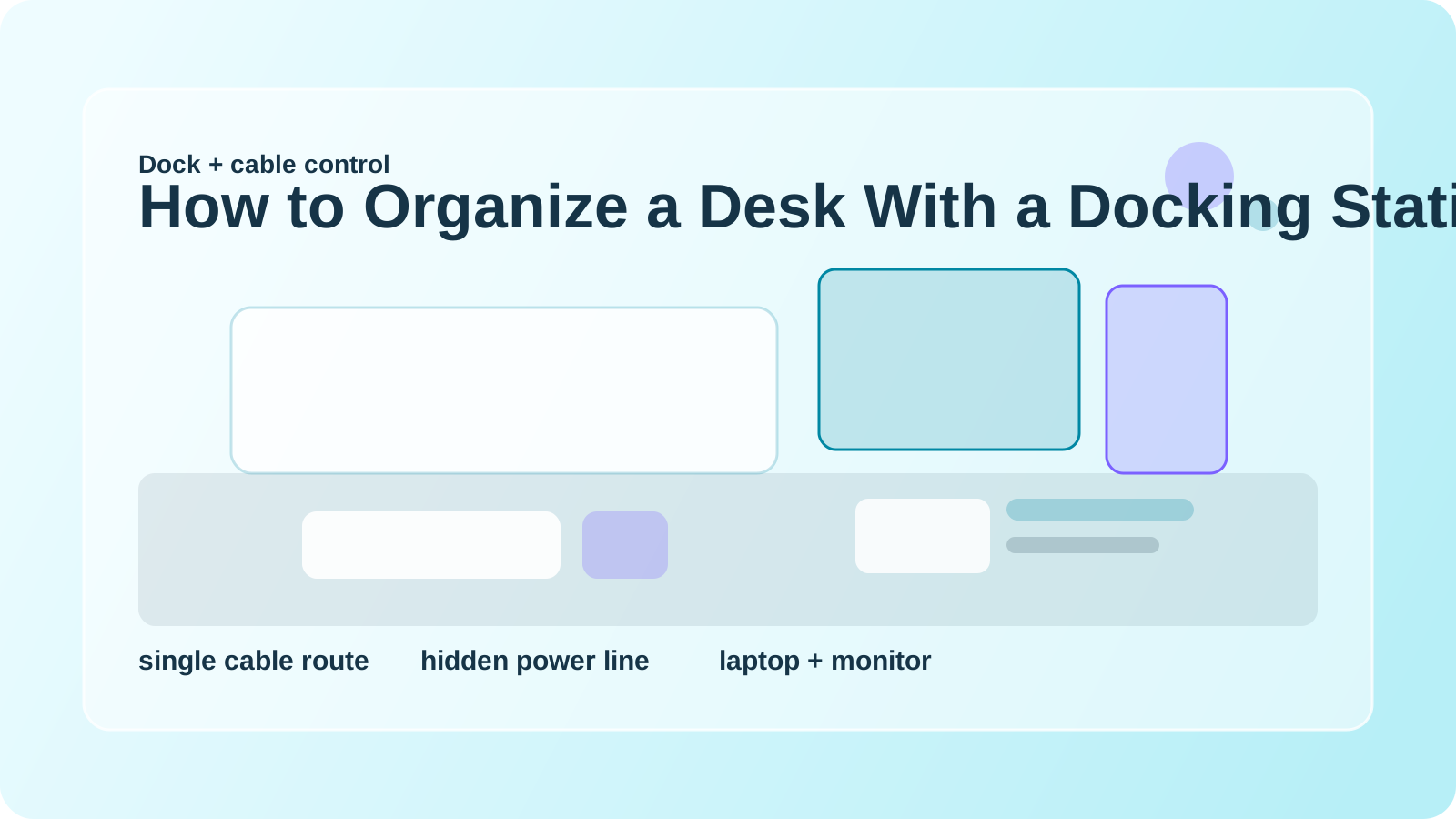
How to Organize a Desk With a Docking Station and Too Many Cables
A docking station is supposed to simplify your setup. Sometimes it does the opposite.
One dock becomes the meeting point for monitor power, laptop charging, USB accessories, Ethernet, speakers, backups, and the one adapter you never seem to unplug. The desk still works, but the cable story gets harder to ignore every week.
Organizing this kind of desk is not about hiding every wire perfectly. It is about making the connection path easier to understand and removing cables that do not need to live on the desk all day.
TidySnap helps when you know the setup is functional but visually noisy. A real photo can show which cable paths are creating the most clutter and where the dock should sit to support the whole layout better.
Quick answer
To organize a desk with a docking station and too many cables:
- decide where the dock should live permanently
- group cables by daily use versus occasional use
- send power and display lines behind the desk line
- keep only one easy-reach laptop connection visible
- remove backup adapters from the surface
- stop the dock from becoming a small-item parking lot
When the desk has one obvious cable route, it feels cleaner immediately.
Why dock setups get messy fast
Docks create convenience by collecting connections in one place. That same advantage creates clutter when too many lines converge without structure.
Typical problems include:
- one thick knot where every cable meets
- spare adapters left out just in case
- a laptop cable stretching across the desk front
- monitor and power lines crossing the same visual space
- the dock sitting in the middle because it feels easy to access there
The fix is to treat the dock as infrastructure, not desktop décor.
Pick one permanent dock position
A lot of clutter comes from a dock that moves around.
Good placements are usually:
- behind the monitor line
- on the less-active side of the desk
- under a stand if there is enough airflow and access
- close enough to reach the laptop cable without dragging it through your work zone
Bad placements are usually:
- directly in front of you
- in the notebook area
- floating in the center with cords leaving in every direction
Once the dock has a stable home, the rest of the setup gets easier to route.
Sort cables by frequency
Not every connected thing deserves the same visibility.
Use three groups:
| Cable type | Visibility level | Best home |
|---|---|---|
| used every day | easy to reach | one side connection point |
| used weekly | available but tucked away | behind monitor or dock cluster |
| rarely used | off the desk | drawer, pouch, or shelf |
This is what keeps a dock from carrying the entire history of your devices.
Protect the front edge from cable crossover
The front half of the desk should stay clear enough for hands, notes, and quick writing. When the main laptop cable or charging line crosses that area, the setup feels busier and less comfortable.
A better default is:
- laptop cable enters from one side
- monitor and power lines stay in the back
- accessory cables stay close to the dock cluster
- spare length gets tied or folded away from the center
If your front edge is clear, the desk often feels half fixed already.
Remove cable-adjacent clutter too
The dock zone often collects more than cables.
Watch for:
- adapters
- flash drives
- external drives
- earbuds
- paper clips
- sticky notes
Keep those items in one separate small tray. Otherwise the dock area becomes a visual junk drawer.
If your setup also includes multiple screens, How to Organize Your Workspace With Two Screens can help on the layout side.
Keep the reset simple
A dock-heavy setup should not require a full cable ritual every evening. Usually a good reset is just:
- reconnect the laptop the same way each time
- return small tech to one tray
- keep spare cables off the desktop
- make sure no line crosses the main writing zone
The more repeatable the route, the less messy the desk feels.
Where TidySnap helps
Cable clutter is hard to judge when you see it every day. TidySnap can help you spot:
- where the dock should move to reduce spread
- which lines are crossing the work zone unnecessarily
- which adapters are taking space without helping daily work
- how to make the setup easier to reset after unplugging
That often gives you a cleaner result without buying much at all.
FAQ
Where should a docking station go on a desk?
Usually on the less-active side or behind the monitor line, as long as the laptop connection stays easy to reach.
How many cables should stay visible?
Only the lines you use daily and truly need access to. Backup cables can live nearby without staying in sight.
Why does my dock area look messy even after I tidy it?
Because too many categories may be mixed into the same zone. The dock should not also store adapters, drives, and random desk tools.
A desk with a docking station feels better when the dock stays anchored, the cable path is predictable, and the visible lines support today’s work instead of every possible setup.