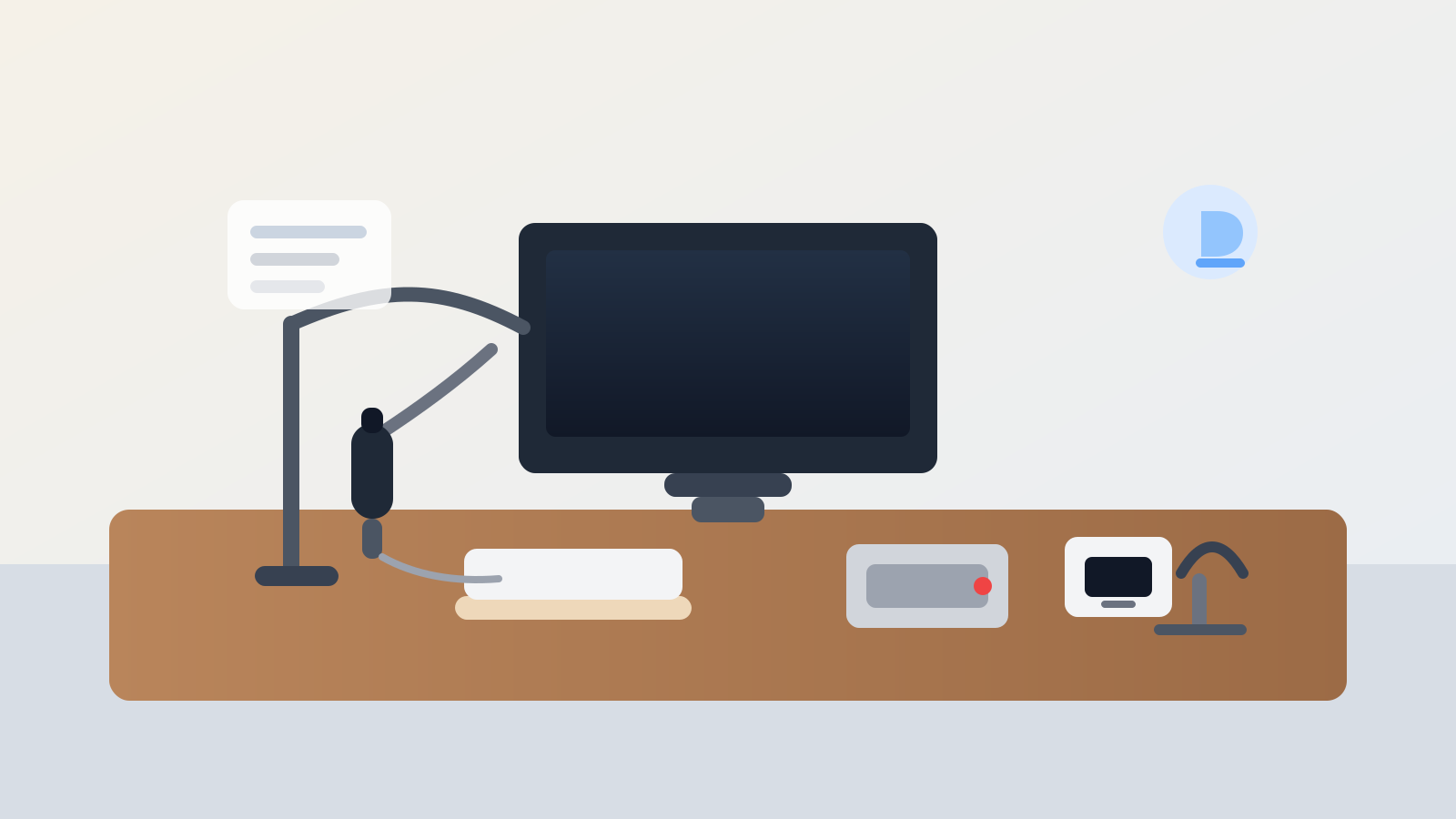
How to Organize a Desk With a Desktop Microphone Without Creating a Mini Recording Studio Mess
A desktop microphone creates a very specific kind of desk clutter.
The problem is not only the mic. It is the ring of supporting gear that quietly forms around it. A boom arm claims one corner. Headphones get draped on the mic stand because they feel related. A mute button, audio interface, or USB hub lands near the keyboard. One cable becomes three. Suddenly the desk is still usable, but it feels like every normal task has to work around a tiny podcast setup that never fully packs down.
If you want to organize your workspace without sacrificing better call audio, the goal is not hiding the microphone between meetings. The goal is deciding which audio tools need live desk space, which ones belong in a support lane, and how to keep the microphone from taking over the center of the desk.
Quick answer
To organize a desk with a desktop microphone without turning it into a cable-heavy recording corner:
- keep the microphone out of the main writing and keyboard lane
- give the mic arm or stand one repeatable parked position
- separate live call gear from occasional recording accessories
- keep headphones, mute controls, and interface tools in one support zone instead of around the monitor base
- route microphone cables toward one rear or side exit path
- reset the setup back to work mode when the microphone is not actively in use
That usually works better than buying more audio accessories while the desk still has no rule for where the microphone system ends.
Why microphone desks get messy faster than expected
A microphone setup makes sense one item at a time.
You add the microphone because laptop audio is weak. Then you add headphones because they help during calls. Then the mic needs a boom arm or desk stand. Then the cable has to reach the right port. Then a small interface, mute switch, pop filter, or backup adapter appears because the setup is now doing real work. None of that is excessive on its own. The clutter comes from the fact that every item wants to live near the same narrow part of the desk.
That is why microphone clutter feels different from ordinary office clutter. It is not random. It is support gear piling around one active tool until the whole desk starts behaving like a partial studio.
Start with three microphone zones
A desk with a desktop microphone usually works better when audio gear is split into three clear zones:
| Zone | What belongs there | What stays out |
|---|---|---|
| live audio zone | microphone, boom arm or stand, and the one control you need during calls | notebooks, chargers, paper stacks, and snack clutter |
| work lane | keyboard, mouse, one active notebook, and hand space | audio accessories that do not need touching during normal work |
| support zone | headphones, interface, spare cable, adapter, and cleaning cloth | random office tools and unrelated tech |
This matters because the microphone itself often does not take much room. The mess comes from all the gear that drifts into the same area because it feels connected to the mic.
Keep the microphone out of the center task path
The center of the desk should still belong to the work you do most often.
If the microphone stand sits exactly where you write, if the boom arm crosses the screen line, or if the cable hangs across the front edge where your hands and notebook need to move, the audio setup is asking for too much prime space. That is usually when people start feeling like the desk is cramped even if they did not add many objects.
A better default is to place the microphone so it can swing or slide into use without permanently owning the center lane. For most setups, that means one side position, one rear-corner mount, or one stand location that stays just outside the keyboard arc when you are not speaking into it.
Decide whether the microphone is always live or only live on demand
This is the choice that makes the rest of the organization easier.
If the microphone is used all day
Treat it like primary work equipment. Give it a stable position, keep the cable route permanent, and build the rest of the desk around not fighting it.
If the microphone is only used for meetings, recording, or teaching blocks
Treat it like a quick-deploy tool. The stand or arm can still stay on the desk, but the microphone should return to one parked position when not in use, and the accessories should not stay scattered across the work lane.
A lot of desk frustration comes from setups that try to behave like both. The microphone is neither fully parked nor fully integrated, so it keeps interrupting ordinary work.
Keep the boom arm from becoming a diagonal barrier
Boom arms solve one problem and create another.
They free surface space, but they also create a moving boundary across the desk. When the arm cuts through the monitor line, blocks a shelf, or forces you to reach around it for basic tasks, the setup feels more crowded than it really is.
A cleaner rule is to give the arm only two legitimate positions:
- active position for calls or recording
- parked position tucked to one side or back corner
What usually fails is the half-in, half-out position where the arm floats across the desk all day because the next call might happen soon.
Put headphones and mute controls in one support cluster
Audio accessories create most of the visual sprawl.
A headset on the mic stand, a mute puck below the monitor, a spare cable near the keyboard, and an interface squeezed beside the mouse all make sense individually. Together they turn the desk into an obstacle course of almost-related tools.
A better setup keeps those items together in one support cluster, usually on the same side as the microphone mount. That cluster may include:
- one headphone hook or stand
- one mute button or audio control
- one compact interface if you actually use one daily
- one small tray for the adapter or cable you reach for often
If a tool does not need to be touched during the next call, it probably should not be floating in the center of the desk.
Route microphone cables like infrastructure, not accessories
Microphone cables create more drag than people expect because they often cross the exact spaces where you type, write, and move your chair.
A better cable rule is simple:
- send the mic cable toward one rear or side exit path
- keep slack behind the monitor line or along the desk edge, not across the front work lane
- avoid mixing the mic cable with phone charging cables if both need frequent movement
- remove backup dongles and retired adapters from the visible path
If the microphone sounds better but the desk starts looking more tangled every week, the cable route is probably still acting like temporary gear instead of permanent infrastructure.
Separate meeting audio from recording extras
Many desks get busier because every audio accessory stays visible just in case.
That often means:
- pop filters left mounted during normal office work
- spare cables sitting out all week
- extra headphones kept beside the keyboard
- a portable recorder or second mic sharing the same footprint
- sound treatment odds and ends that do not belong on the desk at all
If your real daily use is video meetings and occasional focused recording, keep the visible setup optimized for the normal case. The everyday desk should support clear speaking and fast calls, not every possible audio task at once.
Use a work-mode reset after calls
A microphone setup stays manageable when the desk can return to normal work mode quickly.
A practical reset takes less than two minutes:
- move the mic to its parked position
- return headphones to their hook or stand
- place the mute control and interface back in the support zone
- clear any notes, adapters, or cables that drifted into the center lane
- check that the keyboard and writing area are open again
That short reset matters because microphone clutter usually grows through drift, not through big messes.
Mistakes that make the setup feel more technical than it needs to
A few small habits create most of the visual noise:
- hanging headphones on the microphone instead of giving them their own home
- letting the boom arm stay half-extended all day
- keeping spare audio cables on the desk surface because they feel important
- balancing the microphone in front of the monitor when it only gets used twice a day
- mixing recording accessories with ordinary office supplies
- treating the audio interface like decoration instead of a tool with one defined spot
The goal is not a studio look. The goal is a desk that sounds better without becoming harder to use.
Where TidySnap fits
Microphone desks can be deceptive because the setup often looks reasonable until you sit down and try to work around it. TidySnap helps by showing the microphone, arm, headphones, cables, and work lane in one real photo, so it is easier to see whether the audio gear is supporting the desk or quietly taking it over.
That is especially useful when the setup has grown one accessory at a time and no longer feels simple.
Final thought
A better microphone desk is not the one with the most gear in reach. It is the one that keeps audio tools ready without letting them dominate the whole workspace.
Give the microphone one true home, protect the center work lane, group the support gear, and route the cables like part of the desk instead of temporary tech. When the mic setup stops behaving like a mini recording studio, the whole workspace feels easier to trust.