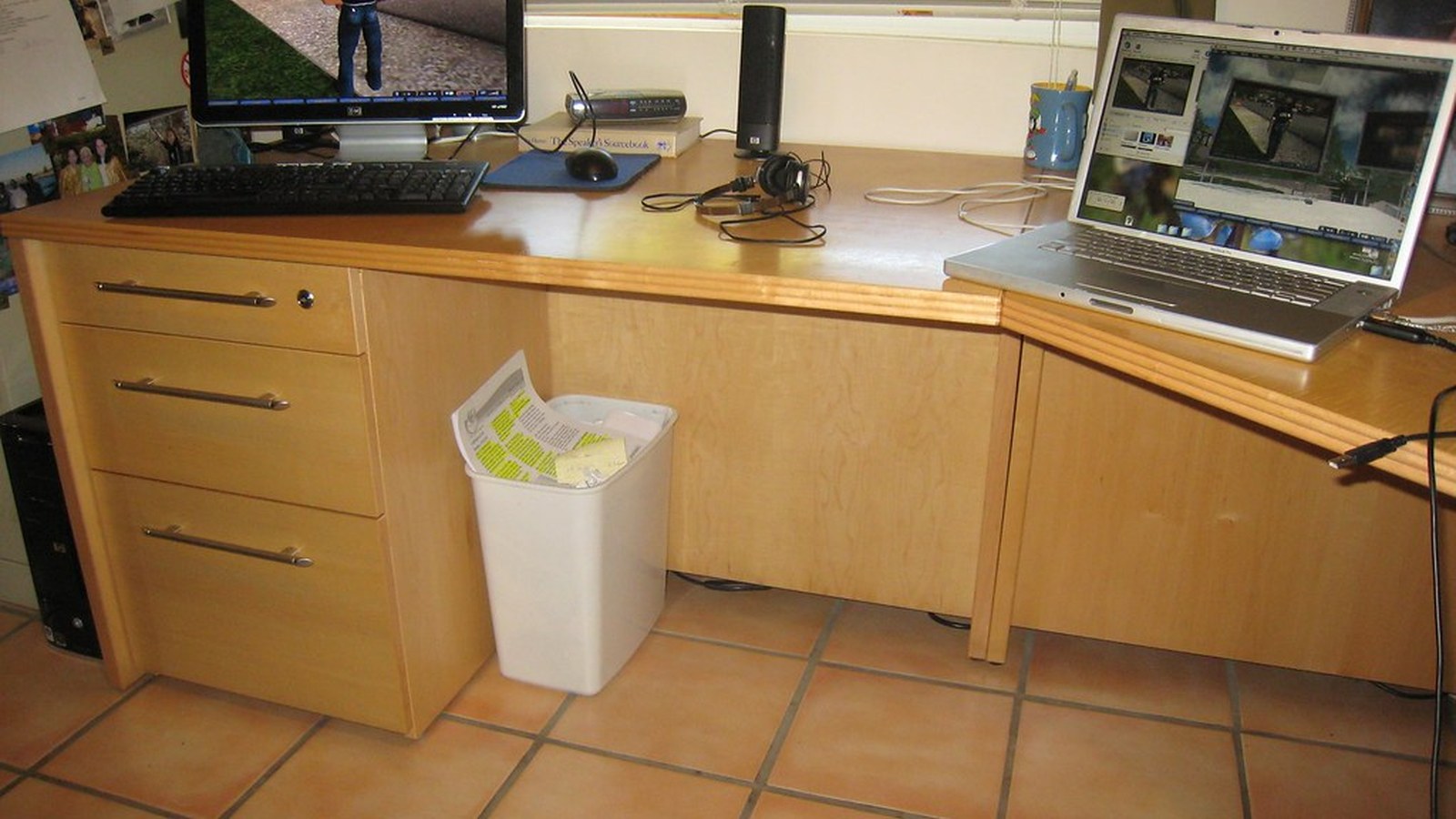
How to Organize a Desk With a Desktop Computer and Still Keep It Clear
A desktop computer setup can make a desk feel crowded even when there are not that many things on it.
The tower needs a home. The monitor is usually bigger. Speakers, cables, a keyboard, a mouse, and a few small accessories start spreading out. Then the surface that should support actual work turns into a place that mostly supports equipment.
Quick Answer
If you want to organize a desk with a desktop computer and still keep it clear, start here:
- move the computer itself out of the prime work zone
- keep the center of the desk for keyboard, mouse, and one active task
- give accessories one support area instead of scattered homes
- route cables to one rear or side path
- stop the tower, speaker area, and monitor base from becoming storage
- leave enough open space to write, review, or think without rearranging the whole setup
Why Desktop Setups Feel Heavier Than Laptop Setups
A desktop desk has more permanent hardware. That changes the whole layout.
Common clutter points include:
- a tower sitting where your notebook should go
- speakers pushing inward from both sides
- display and power cables crossing the back edge
- USB accessories and drives living near the keyboard
- backup tech staying visible because it feels too important to put away
The real goal is not to hide everything. It is to keep the hardware from claiming more visual territory than it deserves.
Start With the Computer Placement
The first organizing decision is not about trays or containers. It is about where the computer belongs.
For most desks, the best locations are:
| Computer position | Why it works | Watch out for |
|---|---|---|
| under-desk stand or side stand | frees the main surface | needs airflow and easy cleaning |
| back corner of desk | keeps ports reachable | can eat a side work zone |
| nearby return or side cabinet | protects the center | may need a longer cable route |
| mini PC behind monitor | keeps setup light | still needs cable discipline |
If the computer tower is living in the middle third of the surface, fixing that usually changes the whole feeling of the desk.
Protect the Front-Center Work Lane
The area right in front of the monitor should support real work, not technical overflow.
That lane usually needs room for:
- keyboard placement that feels natural
- mouse movement without bumping objects
- one notebook or working pad
- a little open space for temporary tasks
When flash drives, chargers, speakers, or sticky notes drift into that lane, the desk may still look acceptable in a photo, but it will feel harder to use all day.
Build One Support Zone for Smaller Gear
Desktop setups collect small tech everywhere unless you define one support zone.
A good support zone can hold:
- one charging point
- one tray for flash drives or adapters
- one notebook or task pad
- one headphone home
- one cloth or cleaner for the screen
What does not work well is letting every small object keep its own random position near the monitor base.
Keep the Cable Route Simple
Most desktop-computer desks feel messy because several cable paths compete at once.
Use a simple default:
| Cable type | Better home |
|---|---|
| monitor and display cables | rear edge behind the screen line |
| computer power and data cables | same side as tower placement |
| daily phone charging | one reachable side corner |
| backup cables | drawer, pouch, or side tray |
A setup usually feels calmer when all cables exit toward one rear or side path instead of crossing the work zone.
Do Not Turn the Tower Into a Shelf
The top of the computer tower looks flat, so it attracts clutter fast.
That often becomes a pile of:
- sticky notes
- loose receipts
- charging cables
- headphones
- flash drives
- small tools
Treat the tower like equipment, not like storage. That keeps airflow better and reduces one of the most common visual mess points in desktop setups.
A Better Layout for Daily Use
A practical desktop-computer desk usually follows this rhythm:
- computer bulk stays off to one side
- monitor stays centered to your seated position
- keyboard and mouse stay in the active middle
- accessories stay grouped instead of spread
- one open patch of surface stays available for current work
If you cannot set down one notebook without shifting hardware, the layout still needs editing.
Where TidySnap Helps
TidySnap is useful when your desk does not look terrible but still feels heavy. A real photo makes it easier to see whether the tower is stealing too much space, whether the speakers are too far forward, and which items are acting like hardware clutter instead of work tools.
FAQ
Should a desktop computer sit on the desk?
It can, but it usually works best in a back corner or side position rather than the main working lane.
How much empty space should I keep on a desktop desk?
Enough for your keyboard, mouse, and one active notebook or task. If there is no easy place for that, the hardware is taking too much room.
What is the biggest mistake with desktop-computer desk organization?
Trying to tidy around the tower and cables without first choosing a better hardware layout.