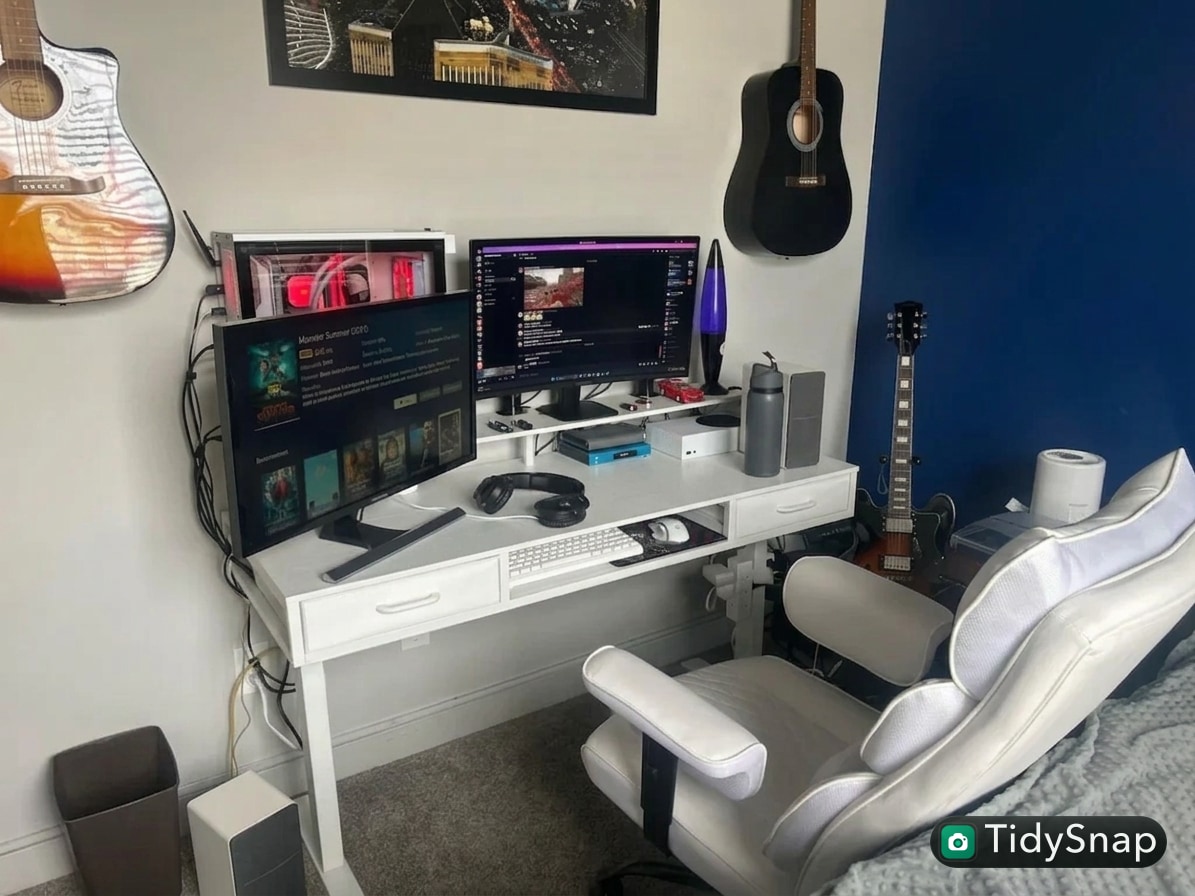
How to Organize a Desk With a Desktop Computer Without Letting the Tower Crowd Everything Else
A desktop computer desk gets cluttered in a different way from a laptop desk.
The screen is not the only anchor. There is usually a tower or mini PC, power cables, display cables, speakers, a keyboard, a mouse, maybe a headset, maybe a notebook, and often a few extras that never quite found a proper home. The setup can still work, but it starts feeling heavier than it needs to.
Quick Answer
Start with the tower placement and cable route before you touch the smaller items.
- decide where the computer itself should live
- protect the center of the desk for keyboard, mouse, and one active task
- keep accessories in one support zone instead of scattered around the monitor
- route cables toward one rear or side exit path
- stop the top of the tower from becoming storage
- keep airflow and easy access in mind when placing the computer
- reset the setup back to the same layout at the end of the day
A desktop setup usually feels better when the big hardware stops dictating every other decision.
The Real Problem Is Usually Hardware Spread
A desktop computer setup creates clutter when every related item gets treated like it needs visible desk space.
That often means:
- the tower sits where your notebook should go
- speakers creep inward until they narrow the working area
- extra cables stay visible because they feel technical and important
- USB accessories collect near the keyboard
- backup items stay out because moving them feels annoying
On a laptop desk, the mess often comes from temporary overlap. On a desktop desk, the mess usually comes from permanent hardware taking up more visual territory than it should.
Start by Deciding Where the Computer Belongs
The first decision is not about pens, trays, or organizers. It is about the computer itself.
For most people, there are only a few realistic options:
| Computer position | Best for | Watch out for |
|---|---|---|
| under the desk or on a side stand | preserving desk surface | dust, kicks, poor ventilation if cramped |
| back corner of the desk | easy access to ports and power | tower can eat the side work zone |
| side return or nearby cabinet | larger desks or L-shape setups | cables may need a longer but cleaner route |
| compact mini PC behind or beside monitor | very small setups | still needs airflow and cable discipline |
The right answer depends on your desk and hardware size, but the general rule is simple: the computer should be accessible without living in the part of the desk meant for active work.
If the tower is currently sitting in the middle third of the surface, that is usually the first thing to fix.
Protect the Area in Front of the Screen
The space in front of the monitor should stay useful, not just technically available.
For most desktop setups, that area needs room for:
- keyboard placement that feels natural
- mouse movement without bumping objects
- one notebook, planner, or working sheet
- a place to rest your hands comfortably
If speakers, hubs, cable loops, portable drives, or decorative items keep sliding into that zone, the desk will feel crowded even when it looks fairly tidy from across the room.
A good default is to treat the front-center area as premium space. Only daily work belongs there.
Keep One Support Zone for Accessories
Desktop setups attract small tech clutter very easily.
You may have:
- headphones
- an external drive
- a USB hub
- a card reader
- charging cable
- pens
- sticky notes
- a cleaning cloth
- a microphone or webcam accessory
The mistake is letting each of those items settle wherever there is a gap.
A better move is to keep one support zone on one side of the desk. That zone can hold the smaller things you actually use often, while the center stays calmer.
A support zone usually works best when it contains only:
- one charging point
- one tray or small catch-all
- one notebook or task pad
- one home for headphones or one peripheral
If you need to reach across the whole desk to find routine tools, the layout is probably still too spread out.
Do Not Let the Tower Become a Shelf
This is one of the most common desktop-computer problems.
The top of the tower looks flat, so it starts collecting:
- flash drives
- sticky notes
- unopened mail
- cables
- headphones
- receipts
- small tools
That makes the whole setup feel messier, and depending on the case, it can also interfere with airflow or simply make the computer harder to clean around.
If the tower must stay visible, treat the top of it as off-limits storage. It is equipment, not a side table.
Organize for Airflow and Maintenance, Not Just Looks
A desktop computer setup has one requirement that many other desk layouts do not: the machine itself needs breathing room.
That means the cleanest-looking spot is not always the best spot.
Before you finalize the layout, check:
- whether vents are blocked by walls, bins, or books
- whether cables pull awkwardly when you need to access ports
- whether you can still vacuum or wipe around the setup
- whether the tower placement makes the desk harder to reset
If the computer is jammed into a corner where dust gathers and cables knot behind it, the setup will slowly become harder to manage no matter how tidy the top surface looks.
Build One Cable Route for the Whole Setup
Desktop setups get messy fast because several cable types have to coexist.
Usually that includes:
- monitor power
- computer power
- display cable
- keyboard or mouse cable, or dongles
- speaker power or audio cable
- one phone or accessory charging cable
Instead of hiding each cable separately, build one route for the setup.
| Cable type | Better default home | Why it helps |
|---|---|---|
| monitor and display cables | rear edge behind the screen line | keeps the center visually lighter |
| tower power and data cables | same side as tower placement | reduces cross-desk drag |
| charging cable for small devices | one reachable side corner | stops cable drift into the work zone |
| backup cables | drawer, pouch, or side tray | keeps the desk from becoming tech storage |
If the monitor cable and charging cable are crossing the same patch of desk where you write or use the mouse, the hardware layout is still doing too much.
Better Layouts for Common Desktop Setups
Desktop computer on a small desk
Best approach:
- move the tower off the main work surface if possible
- use only one visible accessory zone
- keep speakers slim or pushed back
- protect the center for keyboard and one active task
Desktop computer plus paperwork
Best approach:
- keep paper on the side opposite the computer bulk
- avoid stacking paper near vents or cables
- use one tray for action paper instead of loose piles
- keep the front-center clear enough to write comfortably
Desktop computer for gaming and work
Best approach:
- separate daily work tools from gaming accessories
- keep only the current controller, headset, or mic visible
- stop backup gear from living around the monitor base
- define what the desk should look like in work mode
If your main problem is mixing entertainment gear with work gear, read How to Organize a Gaming and Work Desk Without Mixing Everything.
A Practical Reset Order
If you are looking at the desk and do not know what to move first, use this order:
- place the tower where it interferes least with active work
- center the monitor and input area around real use
- route the main cables to one rear or side path
- group small accessories into one support zone
- clear the front-center area back to keyboard, mouse, and one active task
That sequence works because it solves the biggest physical constraint first instead of trying to tidy around it.
Where TidySnap Helps
Desktop setups are hard to fix from memory because the problem is usually about proportion and placement, not just object count.
A real photo makes it easier to see:
- whether the tower is stealing too much of the desk
- which cables are creating the most visual drag
- whether the speakers or accessories are narrowing the useful center
- what should stay near the computer and what should move away
- how much surface is actually left for real work
TidySnap helps you turn that photo into a practical layout plan based on your actual desk, computer, monitor, accessories, and daily tasks.
A 12-Minute Desktop Desk Reset
| Minute | Action | Goal |
|---|---|---|
| 0-2 | remove trash, cups, and non-desk items | cut immediate visual noise |
| 2-4 | return tower, monitor, keyboard, and mouse to their intended positions | restore the core setup |
| 4-6 | regroup headphones, drives, and adapters into one support zone | stop accessory spread |
| 6-9 | route loose cables back to the main path | reduce visual clutter |
| 9-12 | reopen one clear area for notes or paperwork | make the desk usable again |
FAQ
Should the computer tower stay on the desk?
Only if keeping it there makes the setup easier to use without stealing your main work area. If the tower dominates the surface, moving it to a stand, side return, or another nearby position usually helps.
How much should stay visible on a desktop computer desk?
Usually only the core computer setup, one active work item, and one contained support zone. Everything else needs a reason to stay out.
Is it okay to keep accessories on top of the tower?
Usually no. It quickly turns the computer into clutter storage, and on some cases it can also make airflow or cleaning worse.
What if I need a desktop setup for both work and gaming?
Keep the permanent layout stable, then limit visible mode-specific accessories. The desk usually feels better when only the tools for the current session stay in reach.