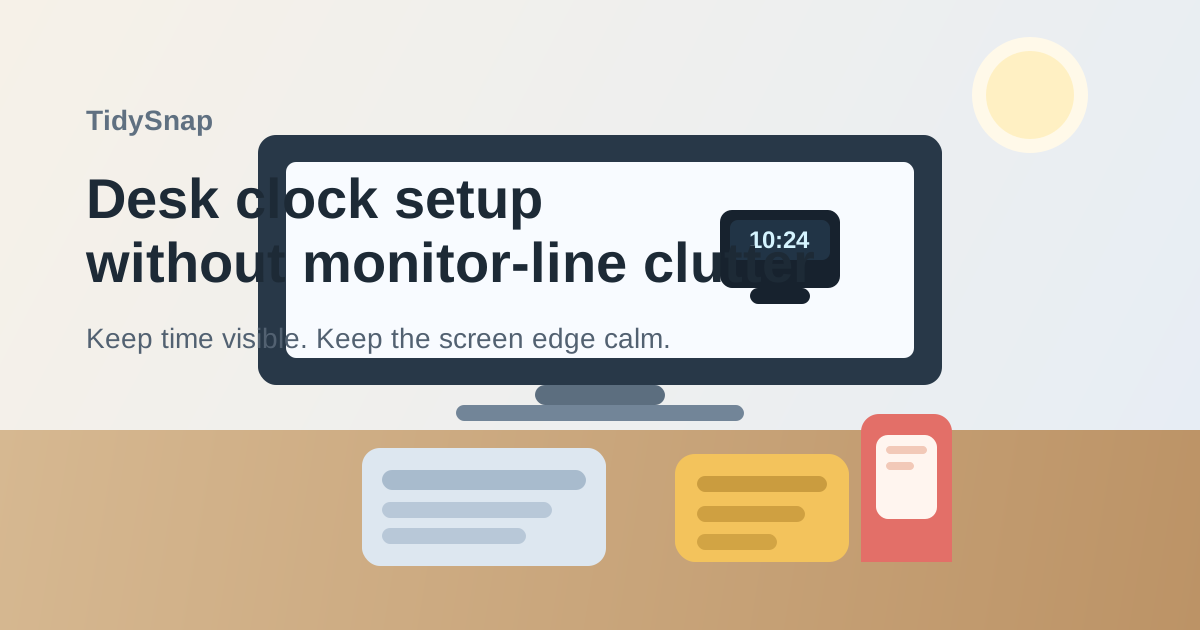
How to Organize a Desk With a Desk Clock Without Crowding Your Monitor Line
A desk clock rarely looks like the reason a workspace feels busy.
It is just one more useful object: a small digital clock, a timer cube, or a compact analog face you keep near the screen so you can glance up without unlocking your phone. But then the clock picks up company. A charging cable runs toward it. A sticky note gets tucked under the base because you look there often. A timer lands beside it for focus blocks. A badge, earbud case, or meeting note starts resting near the same edge because that top line already feels active. Before long, the monitor area is doing too many jobs at once.
If you want to organize a desk with a desk clock, the goal is not only keeping time visible. The goal is making the clock easy to check without letting the screen line become a mini control strip for every reminder, timer, and small daily object.
Quick answer
A desk clock works best when it has one clear viewing position, one clear job, and as little support clutter as possible. Keep it in a repeatable glance zone near the monitor without stacking other reminder tools around it, route any charging cable away from the front visual line, and stop the clock area from becoming a parking spot for notes and tiny objects you look at “just for now.”
Why desk clocks create visual clutter faster than physical clutter
A desk clock usually does not take up much space on paper. It takes up attention.
That is why clock clutter feels different from the clutter caused by paper piles or bulky gear. The problem is not only where the clock sits. The problem is that anything near it starts competing for the same glance.
That often includes:
- timers or focus cubes
- sticky reminders for the next meeting
- charging cables or battery cords
- earbuds, badges, or small grab-and-go items
- a phone placed nearby as a backup clock
- little notes about deadlines or return times
When those items gather around the clock, the desk starts creating a second sightline above or beside the main work area. You are no longer just checking the time. You are scanning a cluster.
Decide what the clock is actually doing for you
Most desk clocks become messy because they quietly take on more than one role.
Before changing the layout, decide which of these jobs matters most:
- time at a glance during focused work
- meeting pacing without grabbing your phone
- break or timer support during repetitive tasks
- a simple visual anchor in a workspace with few other cues
That matters because a clock used only for time can stay small and quiet. A clock used for timing work blocks may need a little more visibility but should still avoid attracting every other planning tool. If the clock is trying to be a time display, timer station, note holder, and charging dock all at once, the monitor line gets crowded fast.
Keep the clock in a glance zone, not the center line
The best clock position is usually visible without sitting directly in the most important visual lane.
For many desks, that means:
- just to one side of the monitor instead of centered below it
- on the back edge rather than at the front edge of the desk
- slightly outside the main keyboard-to-screen path
- high enough to read easily, but not blocking the monitor base or writing area
A clock in the exact center often creates two problems. First, it adds one more object to the place your eyes are already working hardest. Second, it encourages nearby clutter because centered objects start feeling permanent and important. A side glance zone keeps the clock useful without making it the star of the setup.
Do not let the clock become a substitute for a note system
This is one of the fastest ways a desk clock turns into clutter.
Because you check the clock often, it starts feeling like a good place to tuck things you do not want to forget. A callback time note slides under the base. A lunch reminder sits beside it. A meeting code gets written on a scrap and parked nearby. Soon the clock is carrying memory for your day instead of just showing time.
A better rule is simple: the clock can display time, but it should not store tasks.
If you need reminders, give them one separate home such as:
- one note card in a defined note lane
- one planner or notebook spot
- one digital reminder system
- one sticky note area that is not attached to the clock footprint
That separation protects the clock from becoming a magnet for little promises you still need to process.
Keep timer tools from multiplying around the same spot
A desk clock often overlaps with other time tools.
You may have:
- a timer cube
- a Pomodoro timer
- a phone timer
- a smartwatch
- a calendar alert running on your screen
You do not need all of them physically clustered at the desk edge.
Pick one primary timing method for active work blocks. If the clock is just for checking time, let a digital timer live elsewhere. If you use a timer device constantly, then the desk clock should stay visually simpler. When multiple timing tools stack together, the desk starts to feel more like a command center than a workspace.
Move charging and battery clutter away from the visual line
Even a small cable can make the clock zone feel untidy.
A rechargeable clock, timer, or compact LED display often adds:
- one cable draped across the back edge
- one battery pack or charging brick
- one extra plug adapter
- one habit of setting the device down wherever the cable reaches best
Try to keep power support behind the monitor, down the back edge, or off to the non-dominant side instead of running across the top visual band of the desk. The clock should read as one clean object, not as the start of a cable story.
Protect the monitor line from accessory creep
The monitor line is premium space because your eyes keep returning to it.
Once the clock area gets busy, you usually notice these symptoms:
- the top or side of the screen feels visually crowded
- your eyes bounce between the screen and unrelated objects
- meeting notes start camping near the monitor base
- your phone keeps landing beside the clock
- the desk feels busier even when the surface is technically not full
That is why organizing a desk clock is partly about restraint. You are protecting a sightline, not just clearing a few inches.
A simple desk layout that works for most desk clocks
If you want a practical starting point, try this:
| Zone | What belongs there | What stays out |
|---|---|---|
| glance zone | desk clock only, or clock plus one tightly related timer | sticky notes, earbuds, badges, loose cables |
| center line | monitor base, keyboard, and your main work view | extra gadgets added “because they fit” |
| note zone | planner, note card, or one reminder area | time devices and chargers |
| support zone | charging cable slack, spare batteries, adapters | items you check constantly |
This works because each part of the desk does one job. The clock stays visible, but it does not recruit a whole cluster around itself.
Where TidySnap helps
Clock clutter is hard to notice because it usually looks small and intentional. In a real desk photo, though, the pattern shows up fast: a clock near the screen, a phone beside it, a note tucked under it, and a cable turning the whole monitor edge into a busy strip.
TidySnap helps you turn that real setup into a simpler layout plan so the clock stays readable, the monitor line stays calmer, and reminder clutter stops gathering in the same glance zone.
Final thought
A desk clock should help you check time without stealing attention from the work in front of you.
When the clock has one clear role, one clear position, and no little pile forming around it, the whole workspace feels calmer. That is the real win: you can keep time visible without turning the monitor line into a second workspace of reminders, gadgets, and cable drift.