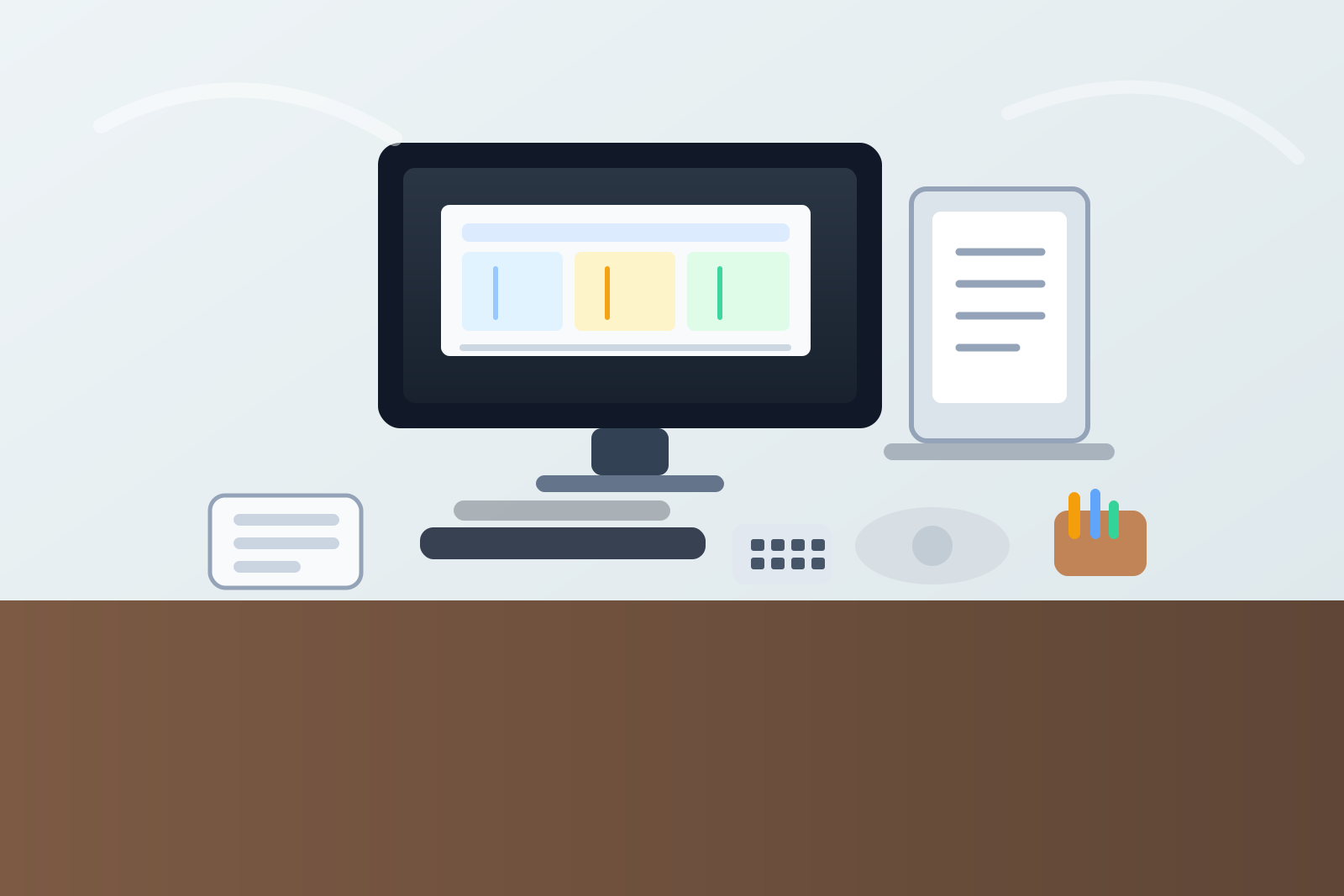
Desk Organization for Spreadsheet Work With an External Number Pad
A desk can feel fine during normal typing and then fall apart the moment a long entry task starts.
That usually happens when an external number pad joins the setup. The pad itself is small, but it changes how your hands move, where the mouse lands, and where paper gets pushed while you work through invoices, reports, forms, or spreadsheet rows. A desk that felt balanced for email and meetings can suddenly feel sideways, cramped, and strangely hard to reset.
If you want better desk organization for spreadsheet work with an external number pad, the goal is not only finding somewhere to place one extra device. The goal is keeping data entry fast without letting the whole workspace drift into a permanent right-side tool pile.
Quick answer
To organize a desk for spreadsheet work with an external number pad:
- decide whether the pad is a full-day tool or a task-block tool
- keep the pad close enough for fast entry without forcing the mouse too far away
- protect one clear mouse lane that does not collapse during entry work
- keep source documents in one repeatable reading spot instead of under your hands
- move backup tools and chargers out of the same side cluster as the pad
- reset the desk back to normal mode when the entry block ends
That usually works better than squeezing the number pad into whatever space is left after everything else has already claimed the desk.
Why number-pad desks get awkward so quickly
An external number pad creates a second command center.
With a normal keyboard setup, most movement stays predictable. With a separate pad, one hand may shift toward the pad while the other keeps bouncing back to the mouse. Then a reference sheet needs to stay visible. Then a notebook slides closer for a quick total or correction. Before long, the right side of the desk starts carrying the pad, the mouse, the paper source, and half the little tools tied to the task.
That is why this kind of clutter feels different from ordinary desk clutter. It is not random. It is workflow pressure building around a narrow entry lane.
Decide whether the number pad lives on the desk all day
This is the decision that makes the layout easier.
If you use the number pad throughout the day
Treat it like core equipment. Give it a stable home and build the mouse lane and paper position around it.
If you only use it for certain work blocks
Treat it like a deployable tool. It should still have one obvious landing position, but it does not need to occupy prime desk space when you are back to normal typing, calls, or note work.
Many desks feel crowded because the number pad ends up in a half-status. It is not fully stored, but it is not fully integrated either. So it keeps stealing mouse room even when you are not entering anything.
Keep the pad and mouse from fighting for the same inches
The most common failure is simple: the number pad shows up and the mouse gets exiled.
That may mean the mouse sits too far out to the side, too high above the pad, or partly on top of a notebook edge. None of those look dramatic in a photo, but they make spreadsheet sessions feel tiring fast.
A better default is to think in two active lanes:
- entry lane: keyboard plus number pad, or laptop plus number pad
- pointer lane: mouse space that stays flat, open, and easy to reach
If the pad is for your right hand, the mouse may work better slightly above or slightly left of its usual spot during entry blocks. If the pad is for your left hand, protect the dominant-hand mouse lane so the setup still feels natural. The point is not one universal position. The point is making sure the number pad does not silently consume the same space the mouse still needs.
Give source documents one reading position
A lot of entry clutter is really document clutter.
When people are entering figures from statements, receipts, inventory sheets, or printed reports, they often let the source paper drift around the number pad area. One sheet sits below the monitor. Another rests half under the keyboard. A third lands beside the mouse because there is nowhere else.
A cleaner setup gives source material one predictable role:
- one upright holder or stand beside the screen
- one flat reference spot above the keyboard line
- one small current stack on the non-mouse side
What usually fails is letting every active page compete with the number pad itself. The pad should support entry speed, not become the anchor for a spreading paper field.
Keep support tools out of the entry cluster
Data-entry work attracts small helpers.
Pens, sticky notes, a calculator, correction notes, chargers, clips, and authentication devices all start gathering near the number pad because that side of the desk already feels task-related. Then the pad stops being one tool and starts being the center of a clutter halo.
A better rule is to keep only the tools you touch during the current entry block inside reach of the pad. Everything else should live in a separate support zone.
That may mean:
- one pen and one note card near the active work area
- one calculator only if it is still truly necessary
- one small tray or cup for the rest of the support tools
- zero charging cables crossing the same hand path as the pad
If the number pad side is also hosting your phone, cable slack, snack wrappers, and spare adapters, the problem is not the pad. The problem is that the desk has no boundary around the entry workflow.
Protect a normal keyboard mode
Some desks stay in spreadsheet posture all day even after spreadsheet work ends.
The number pad remains out. The mouse never returns to its better position. The paper source stays open. The note card with one old total is still sitting by the monitor. That is how one hour of entry work turns into a full day of awkward desk use.
If the number pad is not a constant-use tool, reset the workstation when the task ends:
- move the pad back to its home or off-desk storage spot
- return the mouse to its normal lane
- close or file the source document
- clear scratch notes that no longer matter
- remove extra tools that were only needed for the entry block
That reset is what keeps a specialized task from redrawing the whole desk permanently.
A simple layout that works in most offices
If you want a practical starting point, try this:
- center: main keyboard or laptop
- entry side: external number pad in one repeatable position
- mouse side: one clear mousing lane with no paper under it
- upper zone: one source document or one small reference stack
- support side: pen, note card, and one compact tool tray
This layout works because it separates input, pointing, reference, and support instead of forcing them into the same narrow corner.
Where TidySnap helps
Sometimes the hard part is not knowing that the mouse lane is too tight or that the paper keeps drifting toward the number pad. The hard part is seeing the pattern while you are in the middle of work.
TidySnap helps by turning one real desk photo into a practical reset plan. If your entry tools keep swallowing mouse space, if the spreadsheet setup never returns to baseline, or if the pad side keeps attracting paper and cables, a photo usually makes the problem easier to spot.
Final thought
An external number pad should make entry work faster, not make the rest of the desk harder to use.
When the pad has one clear role, the mouse keeps its own lane, and source documents stop floating through the same side cluster, spreadsheet work feels smoother and the desk becomes much easier to reset after each block.