Desk Organization for Invoice Checks With a Desktop Calculator
A desk can feel organized right up until invoice-checking starts.
Then the calculator comes forward. One invoice stays open in the center. Another page sits off to the side for comparison. A handwritten note with one missing amount gets parked near the keyboard. A printed total or calculator tape hangs around because you still need to confirm it. Before long, the desk is no longer set up for normal work. It is set up for one narrow verification task that has quietly taken over the whole surface.
If you want better desk organization for invoice checks with a desktop calculator, the goal is not making finance work look minimal. The goal is giving the calculator, the active papers, and the confirmation notes a clear relationship so you can verify amounts quickly without losing track of what has already been checked.
Quick answer
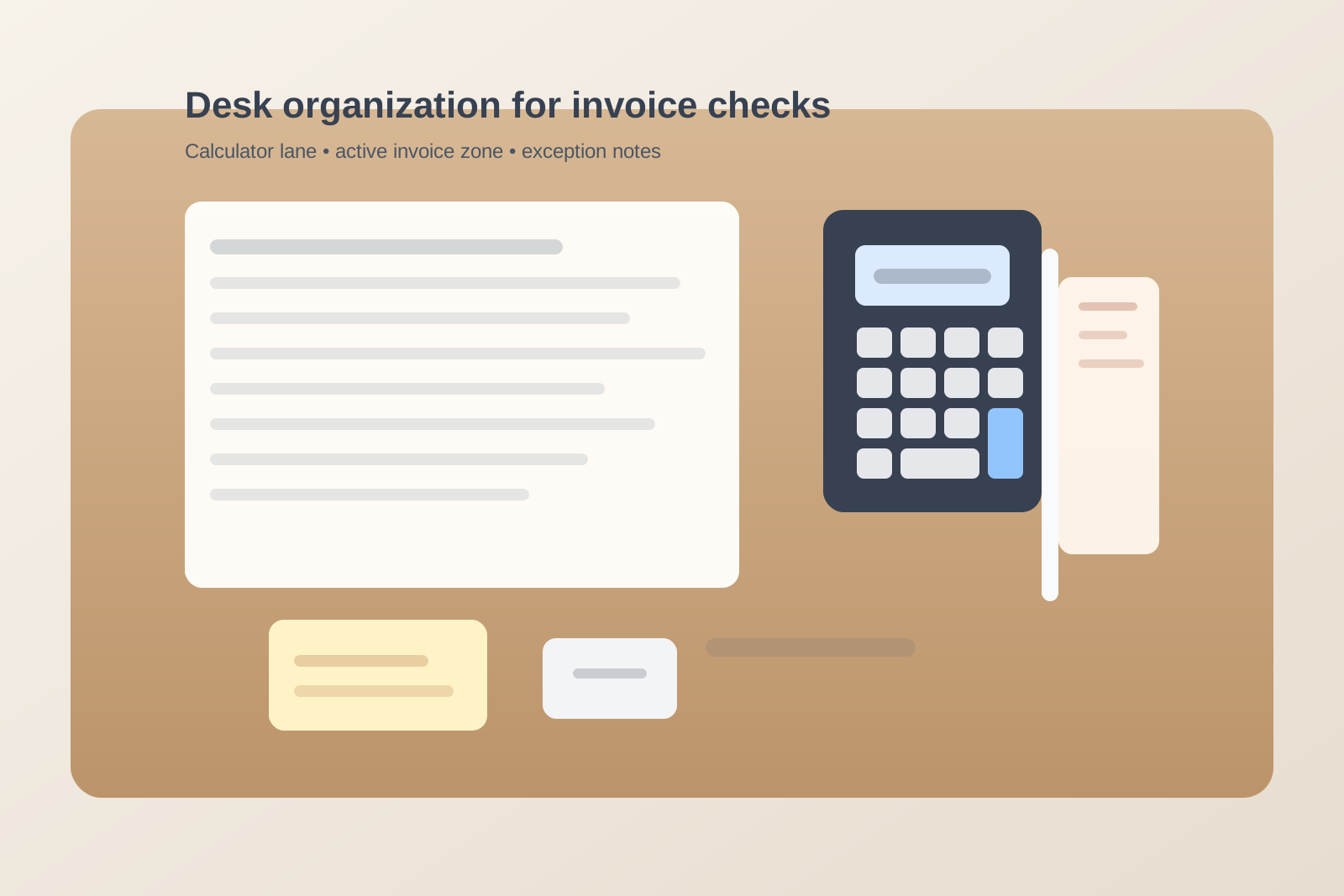
To organize a desk for invoice checks with a desktop calculator, keep the calculator in one fixed checking lane, keep only the current invoice set in the center, give handwritten exceptions and calculator tape one small review spot, and move unrelated paper out of arm’s reach before you start. Invoice-checking works best when the desk supports compare, calculate, mark, and move on instead of letting every page stay active at once.
Why calculator-based invoice work gets messy fast
This kind of clutter is not random.
Invoice review usually mixes several items that all feel temporarily important:
- the invoice being checked now
- the backup page or statement you are comparing against
- the calculator itself
- a running tape or written total
- one note about a missing amount, mismatch, or follow-up
- completed pages that have not been moved away yet
That combination creates a specific problem. The desk starts holding several versions of “still relevant” at once. When that happens, checked pages, unchecked pages, and questionable pages begin to look the same.
Build the desk around the checking sequence
A calculator desk works better when the layout follows the actual task.
For most invoice checks, the sequence is simple:
- read the source page
- compare one amount or line group
- calculate or confirm the total
- mark the result
- move the page to its next state
Your desk should make that flow visible.
A useful default layout is:
| Zone | What belongs there | Why it helps |
|---|---|---|
| center review zone | the invoice or statement you are checking right now | keeps the current document obvious |
| calculator lane | the desktop calculator and its tape or display path | stops the calculator from drifting into writing space |
| note zone | one small pad or sticky area for exceptions only | prevents side notes from mixing with source pages |
| done or hold zone | checked pages or items waiting on one answer | keeps finished work from re-entering the active pile |
That is usually more useful than organizing by document type alone.
Give the calculator its own lane
A desktop calculator causes trouble when it floats.
If it moves between the center of the desk, the keyboard area, and the edge near your mouse, the rest of the setup keeps moving too. Papers shift around it. Notes get tucked partly under it. The tape or output strip bends across active pages. Then every new check starts with a small reset.
A better approach is to choose one checking lane for the calculator and keep it there.
That lane should be:
- close enough for quick reach during repeated checks
- outside your main writing area
- not sitting on top of the current invoice
- not crowding the keyboard if you still need the computer during review
For many people, the calculator works best slightly to the dominant-hand side of the center document rather than directly in front of the monitor.
Keep the center for one invoice set only
A lot of invoice clutter comes from stacking several maybe-active pages together.
One page is being reviewed. A second is next. A third needs one correction. A fourth is already done but still on the desk because there was no obvious place to move it. The desk starts looking busy, but the bigger problem is that it stops telling you where you are in the work.
The center zone should hold only the invoice set tied to the current calculation.
That means moving out:
- already checked invoices
- unrelated mail or notes
- backup office supplies
- other paperwork you will not touch during this block
- reference sheets that belong in a separate spot
If everything stays near the calculator, you will keep re-reading pages just to remember their status.
Separate exception notes from normal paperwork
Calculator-based checking often produces one more category that causes trouble: exceptions.
Maybe a total does not match. Maybe tax was applied differently than expected. Maybe one line item needs a quick confirmation before you can sign off. Those notes matter, but they should not live loose across the same surface as the main invoice stack.
Use one small exception zone only.
That can be:
- one note card
- one corner of a legal pad
- one slim sticky-note area
- one short review list beside the calculator lane
The rule is simple: if a note is about a mismatch or follow-up, it goes to the same small place every time.
That keeps exception thinking from leaking across the whole desk.
Give calculator tape or written totals a stopping point
Some desks stay messy because the proof of the calculation never gets a home.
If you use a calculator tape, the strip can curl across papers, hang off the desk edge, or get tucked under a statement. If you use handwritten totals instead, small scraps of paper start collecting beside the keyboard. In both cases, the checking process leaves a physical trail that keeps acting active even after you are done.
Create one stopping point for proof items:
- one clip for the current tape
- one small corner for today’s handwritten totals
- one attach-to-page step before the checked document leaves the center
The goal is not storing old tape neatly forever. The goal is preventing temporary proof from becoming background clutter during the rest of the session.
Protect writing space for corrections and initials
Invoice review usually includes quick marks, circles, initials, or one-line corrections.
If the calculator takes over the exact place where your hand needs to write, you will start balancing paper awkwardly or writing on top of another stack. That is when the desk begins to feel smaller than it is.
Make sure there is one clear writing spot that does not compete with:
- the calculator body
- tape output
- mouse movement
- keyboard corners
- extra documents waiting nearby
A desk feels much calmer when the writing spot stays open through the whole review block.
Do not let checked pages stay in the active field
Many invoice desks feel crowded because finished work never fully leaves the scene.
A checked invoice that stays beside the active page still looks unfinished. Multiply that by several pages and the desk starts feeding the feeling that nothing is moving.
Use one simple next-state rule:
- checked and complete goes to one finished stack
- waiting on an answer goes to one hold spot
- still active stays in the center
That sounds obvious, but it is one of the biggest differences between a desk that supports review work and a desk that keeps replaying it.
Keep office extras out of the calculator cluster
The calculator zone tends to attract anything that feels vaguely administrative.
Soon it is not just the calculator and invoices. It is also pens, envelopes, clips, stamps, spare batteries, random receipts, and a charger someone set down earlier. That turns a focused checking lane into a general office tool patch.
Keep only the items that directly support the review block:
- calculator
- one pen
- current invoice set
- one note area
- one proof or tape spot
Everything else should live nearby, not inside the checking cluster.
A simple reset that keeps the desk readable
When the checking block ends, the desk should return to normal quickly.
A useful reset is:
- move checked pages to their finished place
- move unresolved items to the hold spot
- clear the calculator tape or total note from the center
- return the calculator to its fixed lane or storage position
- leave only the next real task visible
That reset matters because invoice work often ends with several almost-finished pieces. If they stay out, tomorrow’s desk starts by reminding you of yesterday’s half-closed loop.
When to use TidySnap
If your invoice-checking desk keeps turning into a mix of current papers, calculator output, and follow-up notes, TidySnap can help you see which items are doing active work and which ones are only lingering because the desk has no clear next-state layout.
Take one photo before you start a reset. TidySnap can help you spot where the calculator lane, active review zone, and hold area should live so paperwork stops spreading into every other part of the workspace.
Final thought
The best desk organization for invoice checks with a desktop calculator is not about making paperwork disappear. It is about making the checking sequence visible.
When the calculator has a fixed lane, the current invoice owns the center, and exceptions have one controlled home, the desk feels easier to trust. You spend less time re-sorting paper and more time confirming the numbers that actually need your attention.