Desk Organization for an Under-Monitor Drawer That Keeps Becoming a Junk Slot
An under-monitor drawer looks disciplined from the outside.
The tray slides shut, the desk surface looks clearer, and for a day or two it feels like the problem is solved. Then the drawer starts collecting the exact categories that were already hard to control: loose sticky notes, USB adapters, lens cloths, receipts, batteries, clips, spare chargers, and little tools that seem too small to deserve a real home.
That is why this setup can feel oddly frustrating. The clutter is not gone. It is simply packed into a narrow tray in the middle of your workspace, where it becomes harder to sort and easier to ignore.
If you want better desk organization with an under-monitor drawer, the goal is not filling the tray efficiently. The goal is deciding what belongs in that drawer at all.
Short answer
If your under-monitor drawer keeps turning into a junk slot:
- give the drawer one job instead of letting it hold every small category
- keep daily-use items shallow, visible, and easy to grab in one motion
- move backup stock and tangled tech out of the center of the desk
- stop using the drawer for paper scraps and delayed decisions
- leave some empty room so the tray can still close without becoming storage pressure
The best under-monitor drawer setups feel boring on purpose. They hold a small set of items you actually reach for, not a compressed history of everything that landed near the screen.
Why under-monitor drawers get messy faster than they look
A desk drawer normally announces itself as storage.
An under-monitor drawer feels different. It sits in the center of the setup, close to the keyboard and screen, so it starts acting like a catch-all for tiny in-between objects. Things get dropped there because they are active enough to keep nearby but not important enough to place carefully.
That usually leads to a drawer full of mixed categories:
- note scraps and sticky flags
- adapters and dongles
- charging cables with no clear device match
- pens that may or may not work
- screen wipes and cloths
- batteries, clips, and other small hardware
The tray stays physically small, but the decision load inside it grows fast. Every time you open it, you have to scan unrelated objects before finding the one thing you wanted.
Pick one drawer role before you organize the contents
The fastest fix is choosing one role for the drawer before you touch dividers, trays, or inserts.
In most workspaces, the best roles are:
- one quick-access writing kit
- one small tech-accessories kit
- one meeting-support kit
- open space with only two or three essentials
What usually fails is combining all of them.
If the drawer is trying to hold writing supplies, backup charging gear, paper scraps, batteries, cleaning items, and random extras, it becomes a tiny junk drawer mounted under your monitor.
A simple question helps: what do I need to reach here without standing up or opening another storage spot?
If the answer is not immediate, the item probably does not belong in this drawer.
Keep the tray for live items, not backup stock
The center of the desk should support current work, not long-tail inventory.
That means the under-monitor drawer should hold items you use often enough to justify the location. Backup label tape, extra batteries, spare charging bricks, and unopened pen packs usually belong elsewhere even if they technically fit.
A cleaner rule looks like this:
| Keep in the drawer | Move out of the drawer |
|---|---|
| one pen, one highlighter, sticky flags | unopened stationery refills |
| one current adapter you actually need | cable bundles and spare dongles |
| one screen cloth | backup cleaning products |
| one small notebook card or checklist | old receipts, random paper scraps |
This is what makes the drawer useful instead of crowded. It stays tied to the work you are doing now.
Do not let paper scraps colonize the tray
Under-monitor drawers are especially bad at holding undecided paper.
A small receipt, password reminder, shipping slip, phone number, meeting note, or label stub feels harmless, so it gets tucked into the tray for later. Then later never comes. The drawer becomes a flat archive of tiny paper decisions that no longer make sense.
If paper matters, give it a clearer path:
- active notes stay in one notebook or one visible card
- action paper stays in one real paper zone
- finished scraps get thrown away immediately
The drawer should not become a holding area for paper that feels too small to classify.
Avoid deep categories in a shallow tray
Many under-monitor drawers look bigger than they are.
Once you stack items, you lose the whole benefit of the drawer. Small tools overlap. Cables knot together. Sticky notes slide under other objects. You stop seeing the contents in one glance, which means you stop resetting them consistently.
A better standard is simple: if an item makes the drawer taller, layered, or hard to scan, it is probably the wrong item for this location.
That is why shallow categories work best here:
- two or three writing tools
- one cloth
- one adapter
- one compact note item
Not a pouch. Not a backup cable nest. Not an everything tray.
Protect the desk edge below the screen
An under-monitor drawer changes how the whole screen zone behaves.
When the tray is overloaded, the clutter usually spreads outward too. Items end up parked in front of the drawer, wedged beside the monitor base, or balanced along the keyboard edge because the drawer no longer opens cleanly or no longer feels trustworthy.
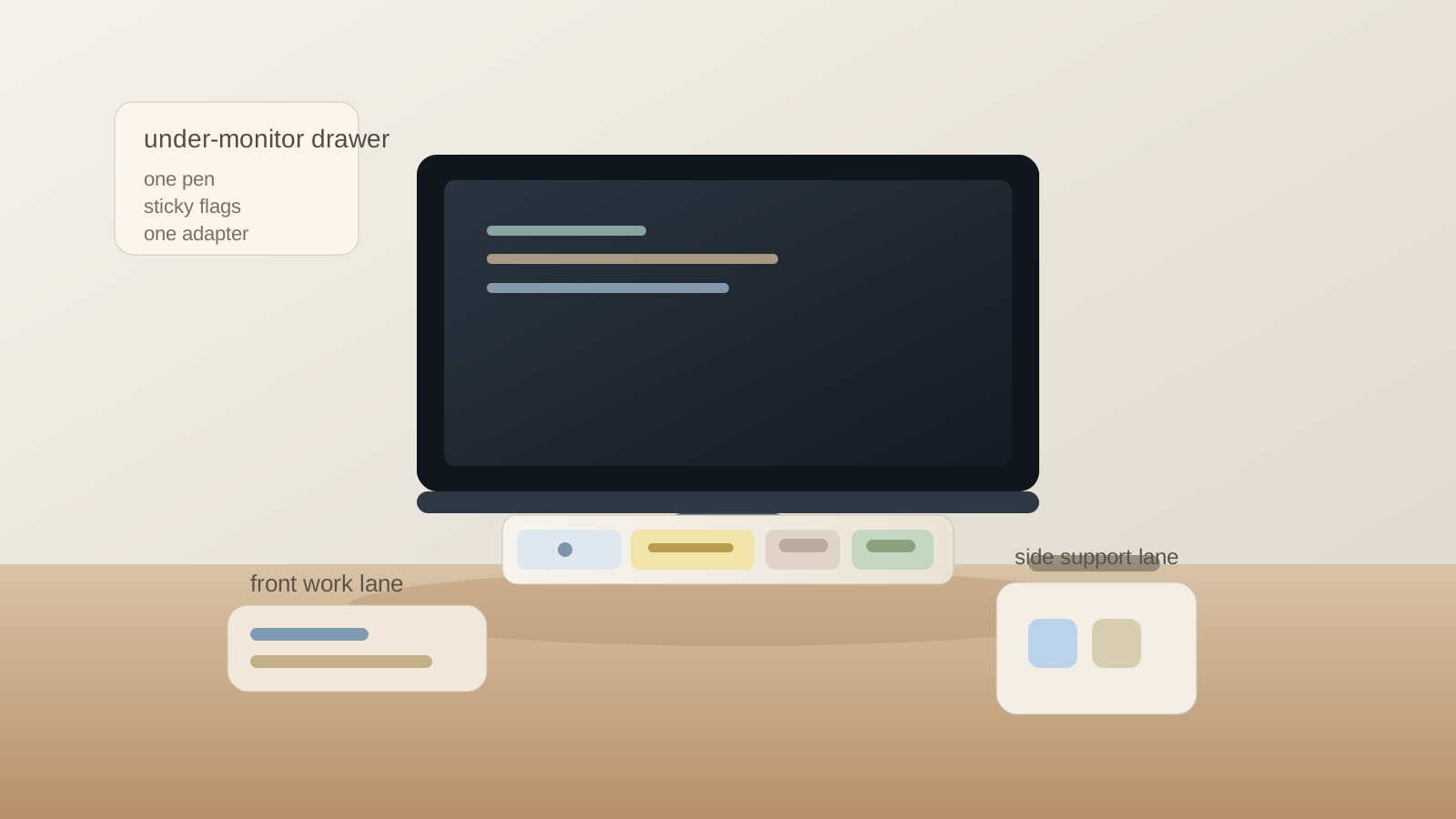
A better layout keeps three zones distinct:
| Zone | Purpose | What stays out |
|---|---|---|
| under-monitor drawer | a tiny live-access kit | backup stock, mixed paper, cable bundles |
| front work lane | keyboard, mouse, one active notebook | loose gadgets and tray overflow |
| side support lane | chargers, headphones, backup tools | items needed every few minutes |
That keeps the drawer from becoming the reason the whole monitor area feels cramped.
Signs the drawer is doing the wrong job
You forget what is inside it
If opening the drawer feels like rediscovery, it is storing too much or storing the wrong categories.
You need two hands to search it
A good under-monitor drawer should work with one quick reach, not a mini sorting session.
The drawer is full of “just in case” items
That usually means backup stock has moved into premium desk space.
Things start living on the desk because the drawer feels annoying
When the tray gets frustrating, clutter returns to the surface anyway.
A five-minute reset for an under-monitor drawer
At the end of the day:
- empty anything that drifted into the tray without a clear reason
- throw away paper scraps immediately
- return only the few items that belong in the drawer’s chosen role
- move spare cables, refills, and duplicates to a side drawer or cabinet
- make sure the tray opens and closes without shuffling other desk items
If that reset takes more than a few minutes, the drawer is holding too much.
Where TidySnap can help
Under-monitor drawers are deceptive because they make a desk look cleaner before they make it work better.
A photo helps you see whether the drawer is supporting your real workflow or simply hiding the small-item clutter that keeps reappearing near the screen. TidySnap can help you spot what belongs in the center, what should move out of the tray, and how to keep the monitor zone from turning into compressed overflow.
FAQ
What should go in an under-monitor drawer?
Only a small set of flat, frequently used items, such as one pen, one highlighter, sticky flags, one cloth, or one adapter you use often.
Should I store charging cables in an under-monitor drawer?
Usually only one active cable or adapter at most. Spare cables and mixed connectors turn the tray into tech clutter very quickly.
Why does my under-monitor drawer still feel messy even when the desk looks clean?
Because the clutter has been hidden, not reduced. A crowded center drawer still adds friction every time you reach for something.
Is an under-monitor drawer good for desk organization?
Yes, if it holds a very small live-use kit. No, if it becomes the default home for every tiny object you do not want to leave on the desk.
Final thought
An under-monitor drawer should remove friction, not compress it.
When the tray has one role, shallow contents, and almost no backup stock, it helps the desk feel calmer. When it becomes a hiding place for every small leftover object, it turns into a junk slot mounted right under the part of the workspace you use most.