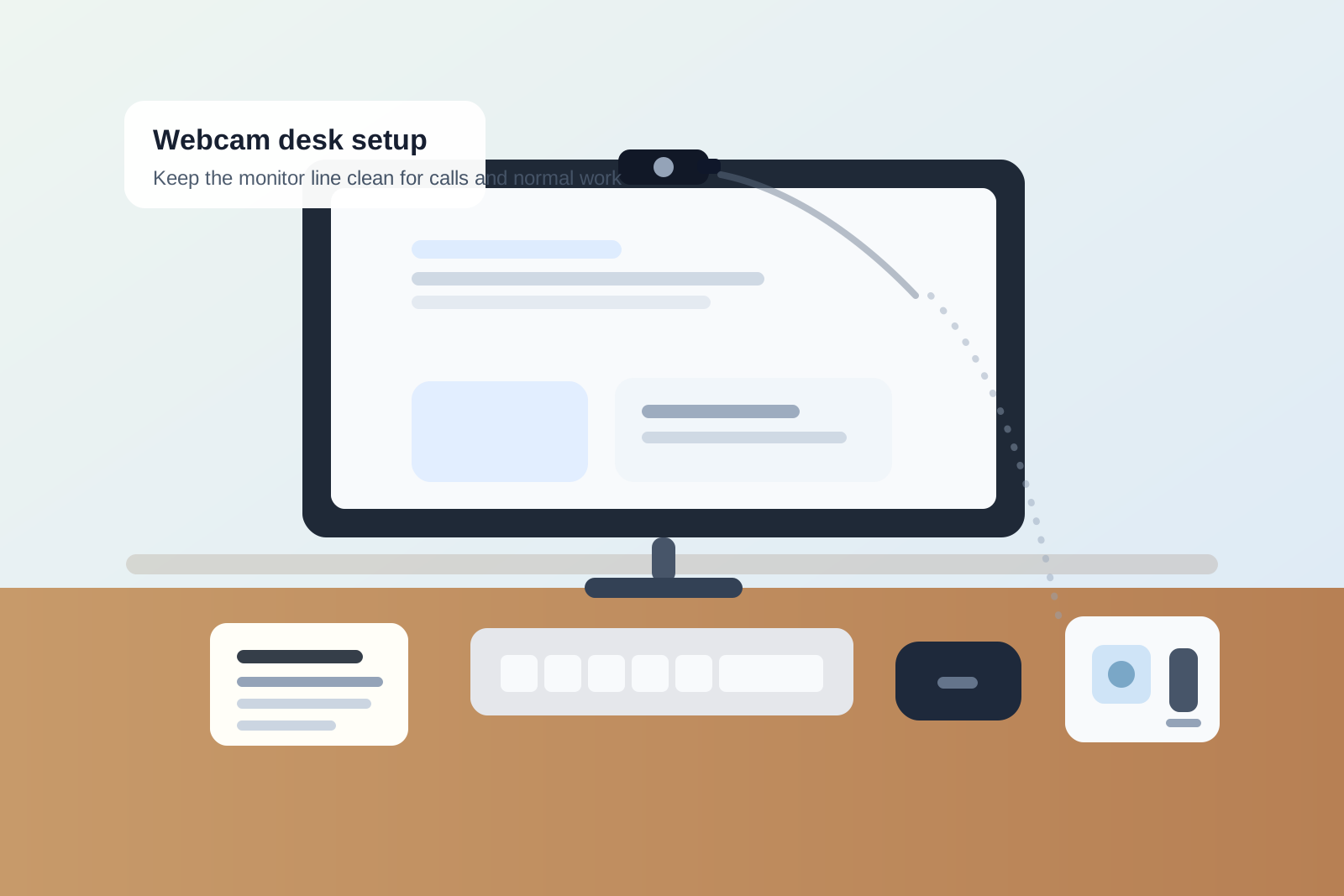
Desk Organization for a Webcam Setup That Keeps Taking Over the Monitor Line
A webcam is small enough to seem harmless.
Then it starts recruiting the whole top of your monitor.
A privacy cover gets left half open. A lens cloth lands nearby because it feels related. A charging cable for a light or battery pack drops into view. Sticky notes collect near the camera because that is where your eyes go during calls. Before long, the narrow line around the webcam is doing too many jobs, and the desk starts feeling visually busy even when the rest of the surface looks fairly tidy.
If you want to organize your workspace around a webcam, the goal is not making the setup look like a studio. The goal is protecting the monitor line from becoming a tiny storage zone for call leftovers.
Quick answer
To organize a desk with a webcam, give the camera one permanent position, keep the monitor line limited to camera gear only, move notes and accessories off the screen edge, route cables behind the display, and create a quick reset after calls so the setup returns to normal work mode instead of staying in half-meeting mode all day.
Why webcam clutter feels worse than its size suggests
A webcam usually does not take much physical space. The problem is the support behavior it creates.
Once the camera becomes part of the desk, people start treating the area around it like a call-prep strip. That is where they leave:
- a lens cloth
- a privacy shutter half closed
- one sticky note with a meeting code
- earbuds or a headset case
- a charging line for a nearby call accessory
- a tiny tripod or alternate mount that never fully gets put away
None of those items is large. Together, they make the exact part of the setup you look at all day feel crowded.
Decide whether the webcam is fixed or deployable
This is the first choice that clears up the rest.
If you are on camera most days, the webcam should act like permanent desk infrastructure. It needs one true position and a cable path that does not change.
If you only use it for interviews, client calls, or occasional meetings, treat it like a deployable tool. That means the camera can still live nearby, but it should have a real parked state instead of sitting on the monitor surrounded by half-related extras.
Many webcam setups feel messy because they are stuck in between. The camera is always there, but it is never fully integrated and never fully put away.
Give the top of the monitor a strict job limit
The monitor line should not become general-purpose storage just because the webcam lives there.
For most desks, the top edge should hold:
- the webcam
- maybe one directly related mount or privacy cover
- nothing else
That means keeping these items out of that zone:
- sticky notes
- paper reminders
- charging cables hanging across the corner
- screen wipes or lens cloths
- earbuds, dongles, or spare adapters
- clips that are no longer serving the current setup
The more categories that gather around the webcam, the more the desk starts feeling improvised.
Stop the webcam from competing with your other monitor gear
A webcam often shares real estate with other screen-adjacent tools.
That can include a monitor light bar, a ring light positioned behind the display, a privacy screen, or even a microphone arm that has to stay out of frame. When those tools all compete for the same strip, people start stacking clips, shifting the camera off-center, or leaving cable slack in visible corners.
A cleaner rule is to choose a primary owner for the monitor line.
- If the webcam matters most, center it and move the supporting gear elsewhere.
- If another tool must hold the best position, give the webcam a deliberate side mount or separate stand.
The important part is deciding on purpose. A webcam setup gets messy fastest when every piece of call hardware is treated like it deserves the same exact spot.
Move call notes out of your eye line after the meeting starts
A lot of webcam clutter is really note clutter.
People place reminders near the camera because it feels efficient. That can help for a few minutes, but it often turns into a habit where meeting codes, follow-up names, talking points, and temporary prompts all gather near the lens.
A better approach is:
- keep one active note below the screen or in a side notebook
- move reference notes into one holder instead of attaching them to the monitor
- remove camera-adjacent notes as soon as the call begins if you no longer need them in direct sight
The monitor line should stay visually quiet. Your talking points do not need to live on the bezel to stay useful.
Keep the cable path boring
Webcam cables create a lot of visual drag for something so small.
If the cord runs over the monitor corner, drops into the background of calls, or mixes with the same visible path as charging cables and light wires, the whole desk starts feeling busier than it is.
The simplest fix is usually the best one:
- send the webcam cable behind the display
- keep any slack on the rear edge, not along the front bezel
- avoid crossing the center visual field
- remove extra clips or hooks that only exist because the path was never simplified
A webcam setup should disappear when you are not actively thinking about it.
Create a small off-screen support zone
Not everything related to calls needs to sit near the webcam.
Give the setup one side support zone for items like:
- a lens cloth
- a headset or earbuds
- one adapter you actually use often
- a small notebook for meeting notes
- one charger for nearby call gear
That support zone can live on one side of the desk, in a tray, or in a drawer you open during calls. What matters is that the webcam does not become the magnet for all of it.
Watch for fake minimalism
A webcam setup can look clean from across the room while still creating daily friction.
That often happens when:
- the camera is tiny, but the cord path is awkward
- the monitor edge looks neat, but there are notes tucked just out of frame
- the lens cloth keeps living at the base of the monitor
- the privacy cover is always half used, which invites more fiddling in the same zone
- backup mounts and accessories stay out because they feel too small to matter
The setup is only truly organized when the camera stays ready without making the monitor area feel like a command strip.
A two-minute webcam reset
If your desk keeps getting pulled into call mode, use this quick reset after your last meeting:
- center or park the webcam where it belongs
- clear any note scraps from the monitor line
- return the lens cloth or accessory to the support zone
- tuck the cable back into its normal path
- check that the top edge of the screen is carrying only camera gear
That reset is small, but it stops the buildup that makes a desk feel permanently half on camera.
Where TidySnap helps
Webcam clutter is easy to miss because the individual items are so small. In a full workspace photo, though, the pattern becomes obvious: too much happening along the monitor line, too many notes near the lens, or too many accessories pretending to be permanent.
TidySnap helps you see when the camera setup is supporting your desk and when it is quietly turning the screen area into a storage strip.
FAQ
Where should a webcam go on a desk setup?
Usually centered on the monitor or on one deliberate side mount, with a cable path routed behind the display rather than down the front of the screen.
Should I keep webcam accessories on top of the monitor?
Usually no. The more items you store around the camera, the more visually crowded the monitor line becomes.
How do I keep meeting notes from piling up near my webcam?
Use one notebook, one small note pad, or one side holder instead of attaching reminders to the monitor edge.
Does a webcam make desk organization harder?
It can if the camera turns the monitor line into a storage zone for call-related clutter. It helps when the camera has one fixed position and the accessories live somewhere else.
Final thought
A webcam should support clear calls, not turn the top of your monitor into a shelf.
When the camera has one position, the cable path stays out of sight, and the support items move off the screen edge, the desk feels calmer immediately. That is the difference between a setup that is technically tidy and one that is actually easy to work at.