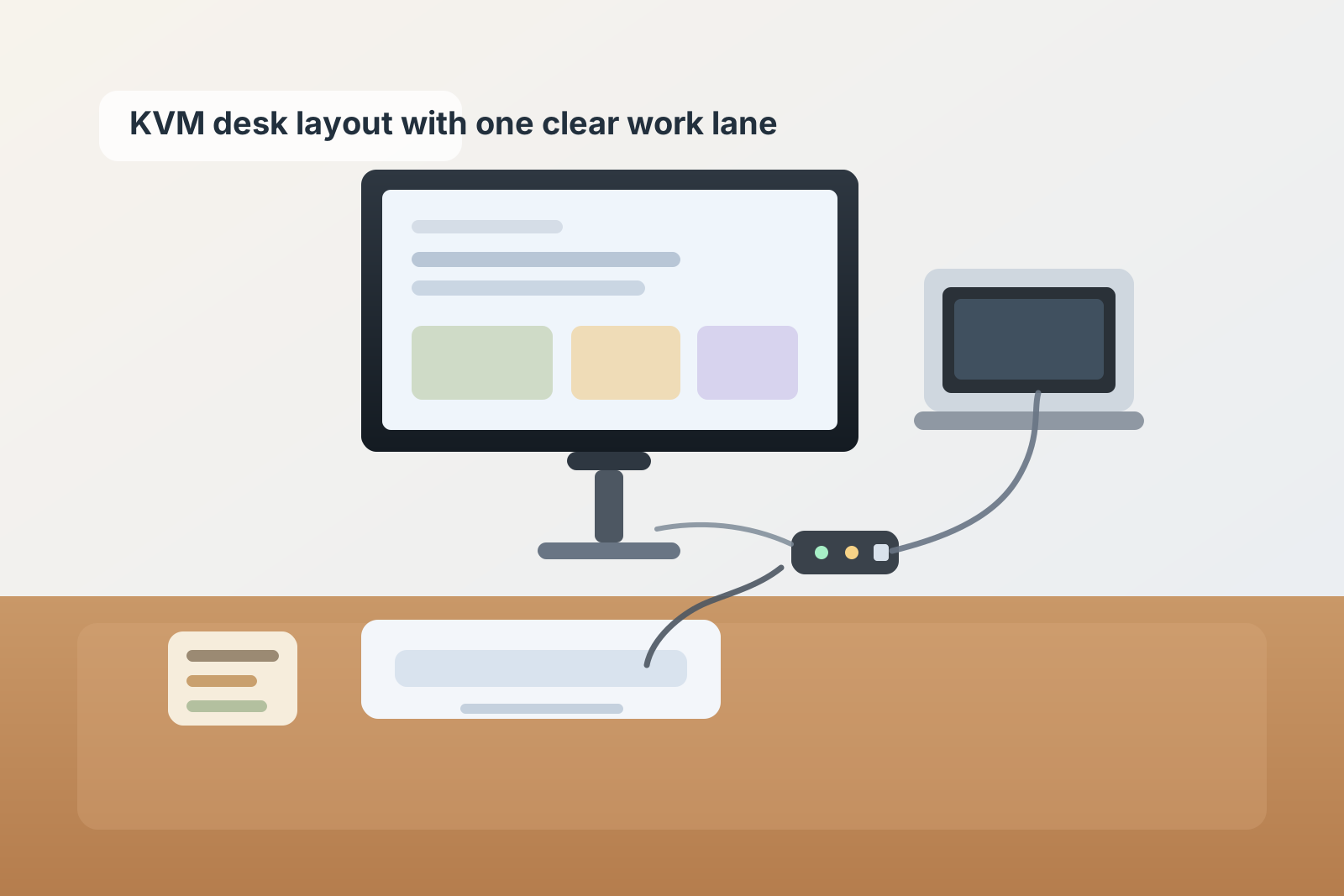
Desk Organization for a KVM Switch: Keep Two Computers From Taking Over One Surface
A KVM switch usually shows up when one desk has to do more than it was designed for.
Maybe you are moving between a work laptop and a personal desktop. Maybe one monitor, keyboard, and mouse need to serve two different machines in the same day. The switch solves that control problem quickly, but the desk can start feeling like a handoff zone. One computer is active, one is parked, adapter cables stay out because they are always needed, and the switch itself ends up sitting exactly where your notebook or coffee mug wants to go.
If you want to organize your workspace around a KVM switch, the real goal is not hiding every wire. It is making the switching path obvious while keeping the rest of the desk usable for actual work.
Quick answer
A desk with a KVM switch usually works better when you:
- give the switch one fixed home instead of letting it drift around the front edge
- decide which computer is the active desk resident and which one is the parked device
- route shared monitor, keyboard, and mouse lines together as one control path
- keep machine-specific chargers and adapters out of the center work lane
- leave one clear writing and thinking zone that does not depend on which computer is connected
- make the switching button easy to reach without making the switch the visual center of the desk
That setup is usually more helpful than buying more cable clips while both computers are still competing for the same patch of surface.
Why KVM desks feel crowded faster than normal desks
A typical desk gets crowded when too many tools stay visible at once.
A KVM desk gets crowded because two setups overlap even when only one is in use.
You may have:
- one monitor serving both machines
- one shared keyboard and mouse
- a dock or adapter for one device
- a power brick for the other
- one laptop that needs a landing spot
- one second machine that never fully leaves the desk
- a small switch box that has to stay reachable
That combination creates a different kind of clutter than a normal cable-heavy desk. The problem is not just too many cords. It is that the desk keeps carrying both the active setup and the waiting setup at the same time.
Start by choosing the primary work position
Before you move the switch, decide where your body actually works.
Your main screen, keyboard, and chair position should still define the center of the desk. The KVM setup has to support that position, not replace it.
A good test is simple: if you removed the second computer for a week, where would the monitor, keyboard, notebook, and daily tools naturally sit? That is your real desk layout. Build the KVM arrangement around that baseline instead of letting the switching hardware decide the whole shape.
Give the KVM switch a side home, not a center-stage home
The switch should be easy to reach, but it should not live in the middle of your usable surface.
In most setups, the best location is:
- just to the left or right of the monitor base
- near the back half of the desk rather than the front edge
- close enough to tap without leaning
- far enough from your writing lane that it does not collect loose items around it
What usually fails is putting the KVM box in front of the keyboard. Once it lives there, every cable attached to it becomes part of the desk centerline, and the switch starts attracting adapters, earbuds, sticky notes, and other small items that do not belong there.
Decide which computer is active and which one is parked
A KVM setup gets easier when the desk stops pretending both computers need equal physical presence all day.
Usually one machine is the active desk resident:
- the computer you open first
- the one that stays connected longer
- the one that needs the easiest access to charging or ports
The second machine is the parked device:
- close enough to connect quickly
- easy to see when needed
- not sitting in the middle of your paper or writing area
That might mean your work laptop gets the prime side stand while your second computer stays on a rear shelf, side riser, or dedicated corner. Or it may mean the desktop tower stays fixed below the desk while the laptop gets the visible landing zone. The exact choice matters less than making the roles clear.
Treat the shared control lines as one bundle
The monitor cable, keyboard connection, and mouse connection all belong to the same job: helping you switch control cleanly.
Keep those lines traveling together as much as possible.
That usually means:
- one controlled route from the switch toward the monitor
- one route toward the keyboard and mouse area
- one machine-input route per computer, each kept to its own side
When those paths are mixed randomly, the desk starts feeling more complicated than it is. When they are grouped by function, the setup becomes easier to read at a glance.
Keep machine-specific accessories off the center lane
The easiest way to lose desk space is to let every computer keep its own little support pile.
You often end up with:
- two charging cables in the middle
- one extra adapter that never gets put away
- a headset or webcam cable crossing the keyboard path
- backup dongles sitting beside the switch because they feel related
Instead, separate shared tools from machine-specific tools.
Shared tools stay near the monitor-and-input zone.
Machine-specific items should live near the computer they belong to. If a dongle only matters for the laptop, keep it in the laptop lane. If the desktop has one specialty cable, park it near the desktop side. That keeps the center of the desk from turning into a neutral territory full of half-owned tech.
Protect one non-technical work zone
A KVM setup can make the whole desk feel like infrastructure.
That is a mistake if you still need to think, write, review paper, or keep a planner open while you work.
Keep one part of the surface clearly non-technical:
- a notebook lane
- a paper-review zone
- a clear area for signatures, reading, or planning
- a small everyday tray for non-computer items
If every inch of the desk is supporting the switch, the desk stops feeling like a workspace and starts feeling like an equipment board.
Set a rule for the parked computer
The waiting computer creates most of the visual drift.
If it stays half-open, half-charged, and loosely connected all day, the desk never looks settled. Give it one consistent parked state.
For example:
- laptop closed on stand, one cable ready
- mini PC fixed in place with no loose front-edge accessories
- second machine stored at the side unless actively in use
The point is to reduce the feeling that two full workstations are permanently spread across one desk.
Reset the switch zone at the end of the day
KVM setups build clutter in small leftovers.
A spare adapter gets left out after one meeting. A charging cable stays on top of the switch because you needed it once. A second mouse appears because someone borrowed the first one. None of that feels dramatic in the moment, but it changes how the desk feels very quickly.
A fast end-of-day reset helps:
- return the parked computer to its usual position
- move extra adapters back to their own device zone
- clear anything resting on or around the switch
- leave the main keyboard-and-monitor path ready for the next start
That takes less time than untangling the setup after three busy days.
When to use TidySnap for this kind of desk
KVM desks are hard to organize from memory because the problem is spatial. The switch, monitor base, parked laptop, cable exits, and writing area all compete in a very small footprint.
TidySnap helps by turning a real photo of your desk into a visual plan. That is useful when you already know the general rule but still need help deciding where the switch should sit, where the second machine should park, and which items should leave the center lane.
A simple layout to copy
If you want a practical starting point, try this:
- monitor centered on your actual work position
- KVM switch on the support side near the back half of the desk
- keyboard and mouse directly in front of the monitor
- primary computer in the easier-access position
- second computer on a side stand, rear corner, or under-desk location
- one small tray or notebook lane for non-tech work
- no loose adapters stored in front of the switch
That keeps the desk usable even when the setup has to serve two machines.
FAQ
Should a KVM switch sit under the monitor?
It can, but only if the button is still easy to reach and the box does not become a hidden cable pile. In many setups, a side position near the monitor works better than directly under the center.
How do I keep two computers from taking over the same desk?
Choose one as the active desk resident and one as the parked device. Shared controls stay in the middle. Machine-specific accessories stay with their own computer.
What is the biggest mistake in a KVM desk setup?
Letting the switch live in the front-center work lane. That usually pulls cables, adapters, and small accessories into the same area where your hands, notebook, and daily tasks need to go.
Do I need more cable accessories to organize a KVM desk?
Not always. A clearer layout usually matters more first. Once the switch, computers, and shared control path have defined positions, small cable tools help more and create less extra fuss.