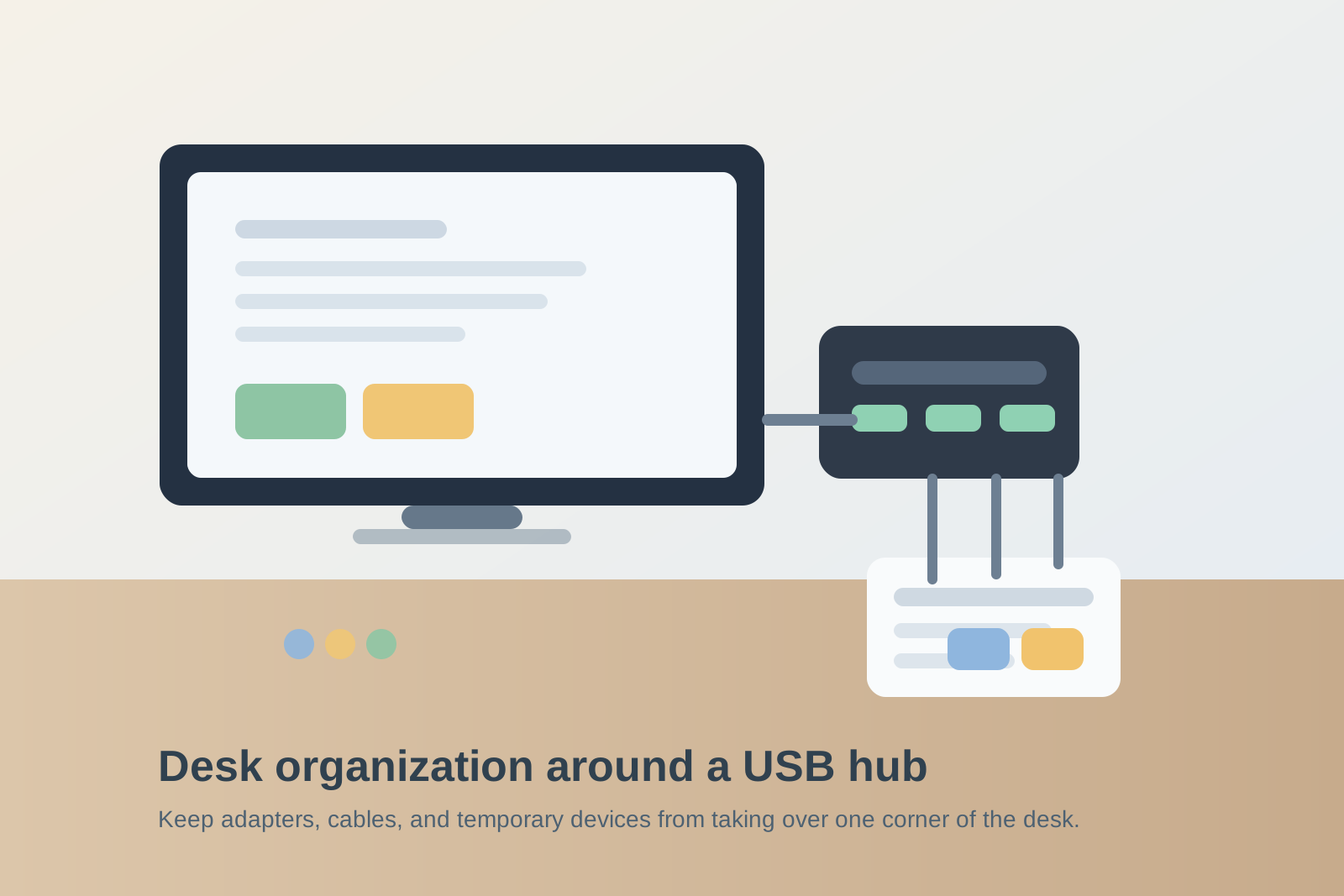
Desk Organization Around a USB Hub Without Growing an Adapter Pile
A USB hub usually arrives as a simple fix. Your laptop does not have enough ports, one cable is annoying to swap, or a few daily accessories need a steadier home.
Then the desk starts changing around that one little box.
The hub makes it easy to leave one more cable out. Then one more adapter. Then a card reader, an external drive, a backup charging lead, and something you only plug in once a week but do not want to lose. Before long, one side of the desk becomes a permanent connection lane, and the rest of the workspace has to work around it.
If you want better desk organization with a USB hub, the answer is not hiding the hub. It is deciding which connections are truly part of your everyday setup, which ones are temporary, and how much surface space that port zone is allowed to claim.
Fast answer
Organize a desk around a USB hub by treating the hub as a connection point, not as storage. Keep only your everyday plugged-in items connected, move occasional accessories off the desk, give loose adapters and drives one nearby home instead of letting them collect beside the hub, and protect a clear work lane so the port area does not spread into the rest of your desk.
Why USB hubs create clutter faster than they seem like they should
A printer, monitor, or docking station looks large enough to deserve dedicated space. A USB hub looks harmless.
That is exactly why it creates sneaky clutter.
Because the hub is small, people let it absorb jobs that do not really belong there. It becomes the place for charging, syncing, temporary storage, backup accessories, and “I will deal with this later” tech leftovers. The mess is usually not the hub itself. The mess is the permission the hub gives to every little accessory around it.
Start by separating permanent connections from temporary ones
This is the decision that usually fixes the desk fastest.
Your permanent connections are the things that belong in the setup almost every day, such as:
- keyboard receiver
- mouse receiver
- webcam cable
- speakerphone or microphone cable
- one charging line you genuinely use daily
Temporary connections are the things that should not live on the desk full time, such as:
- card readers
- backup charging cables
- external drives used only for occasional transfers
- phone cables for once-a-week syncing
- spare dongles kept “just in case”
If both groups stay piled around the same hub, the desk starts carrying a permanent setup and a temporary setup at the same time.
Choose one side for the hub and stop letting it drift
A floating USB hub almost always creates visual noise.
If it moves from the left edge to the right edge, from under the monitor to the front of the keyboard, or from desk to shelf depending on what you plug in, the cable layout never settles. The loose accessories never settle either.
Pick one home for the hub based on the devices it serves most often:
- beside the monitor if it mainly supports screen-adjacent accessories
- near the laptop stand if it extends a laptop setup
- at the far keyboard side if you often plug in short-term devices by hand
The best location is usually reachable without making the hub the center of the desk.
Do not let the hub become the desk’s charging station
This is one of the fastest ways to create adapter overflow.
A hub may technically charge several things, but that does not mean every cable should live there. When earbuds, a watch cable, a phone cable, and a backup battery lead all start hanging off the same point, the hub stops being a clean work connection zone and turns into a mixed-use tangle.
A better rule is simple: if a device is not part of your active work session, it should not be charging from the desk hub by default.
That means your workspace stays organized for work first, not for every small tech task at once.
Keep one small accessory container nearby instead of feeding the pile
Most USB-hub clutter comes from tiny things with no home.
Adapters, memory cards, receivers, short cables, and little drives are easy to leave out because they feel related to the hub. If they do not have a defined home, they gather beside it until the whole zone starts looking like a repair bench.
Use one small container, drawer section, or lidded box nearby for connection extras. That nearby home should hold:
- spare dongles
- short adapter cables
- card readers
- thumb drives
- extra receivers
What it should not hold is a second random mess of old tech. The point is to keep temporary connection tools close without letting them stay visible all day.
Protect the lane where your hands actually work
USB hub clutter gets annoying when it escapes its corner and reaches the main work lane.
If the hub cable crosses in front of your keyboard, if a drive is resting where your notebook should go, or if adapters are pushing the mouse outward, the connection zone is too large.
Your desk still needs one obvious area for:
- keyboard and mouse movement
- writing notes
- resting one active paper or notebook
- normal hand movement without catching cables
If the port zone interrupts those tasks, shrink the zone before you buy more organizers.
Give active transfer jobs a start and finish point
One reason hub setups stay messy is that transfer tasks often remain half-done.
A camera card comes out and stays on the desk. A hard drive gets plugged in and never put back. A charging cable stays in place because you may need it again later.
Instead of treating those items like background equipment, give them a temporary work spot and a finish rule.
For example:
- incoming item: card, drive, or cable waiting to be used
- active item: currently plugged into the hub
- finished item: returned to the accessory container immediately after use
That tiny flow prevents the same three or four objects from living beside the hub forever.
Watch for signs that the hub is doing too many jobs
Your USB hub setup probably needs a reset if you notice any of these:
- you cannot reach a port without moving other objects
- loose dongles stay visible even when nothing is plugged in
- charging cables are taking over a work corner
- the hub area is where random tech goes to wait
- your mouse path or notebook space keeps colliding with cables
Those are usually layout problems, not product problems.
Make the hub easy to use, not visually important
A well-organized hub should feel dependable but almost boring.
You should be able to reach it quickly, plug something in without shifting the whole desk, and clear temporary accessories without thinking hard about where they go. The hub is supporting the workspace. It should not become the most active-looking object on the surface.
That is the real goal of desk organization around a USB hub: a clean connection point, a smaller accessory footprint, and enough open space left for actual work.
If the port side of your desk still feels busier than it should, TidySnap can help you spot which cables, adapters, and small items are turning one helpful tool into a clutter magnet.