Desk Organization Around a Trackball Mouse Without Losing Your Mousing Zone
A trackball mouse changes desk clutter in a very specific way.
With a regular mouse, the whole problem is movement. You need enough surface to slide, stop, and reposition it. With a trackball, that movement disappears. The device stays in one place, which sounds like it should make the desk easier to organize.
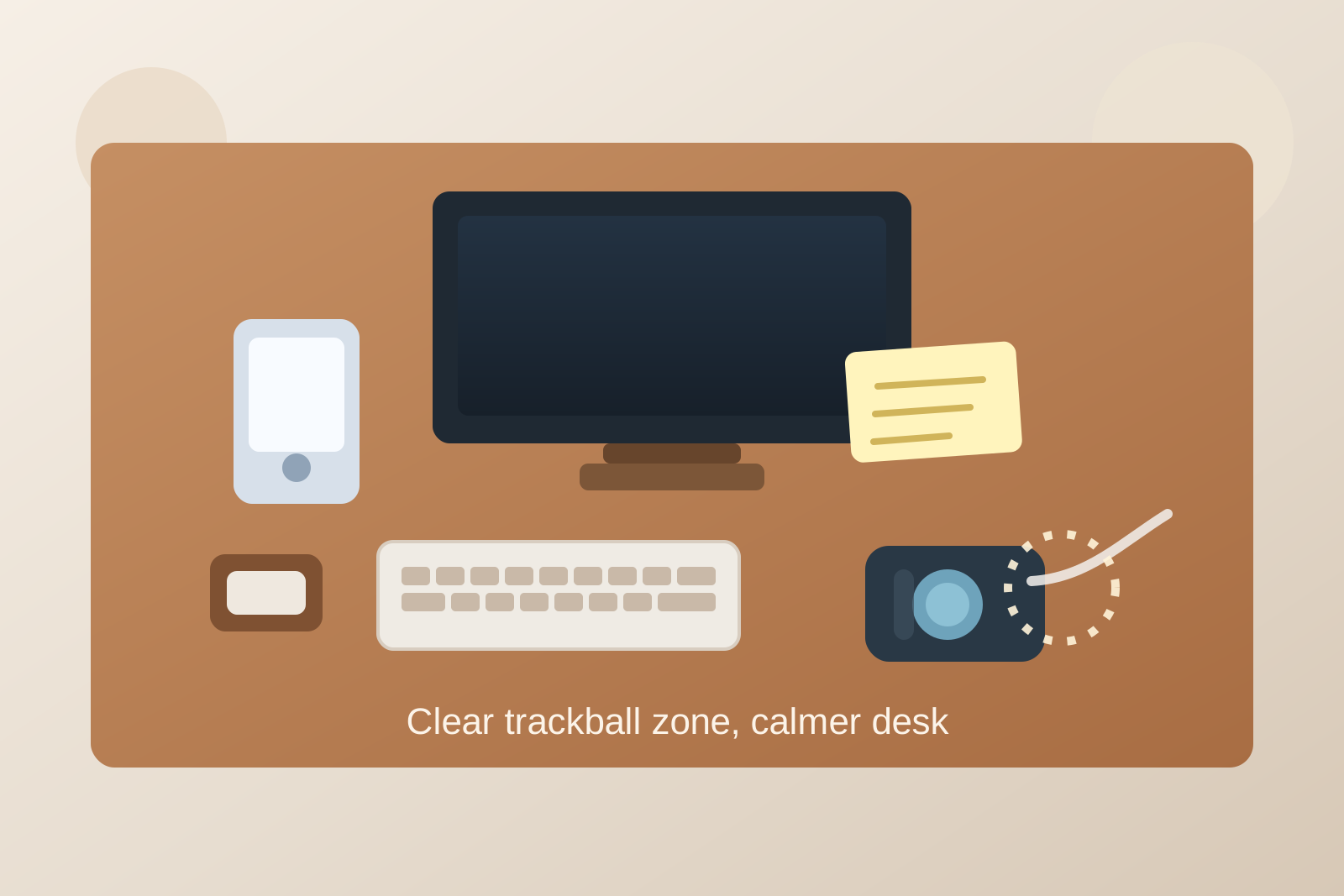
But then the opposite thing often happens. Because the trackball does not move, the space around it starts looking available. A charging cable gets dropped there. A sticky note lands beside the thumb ball. A snack wrapper, badge, pen, or USB drive ends up parked in the same spot because it feels close at hand. Pretty soon, the one area that needs the cleanest, most repeatable hand motion becomes a small clutter trap.
If you want better desk organization around a trackball mouse, the goal is not only keeping the device on the desk. The goal is protecting a fixed control zone so the trackball keeps feeling precise instead of crowded.
Quick answer
To organize a desk around a trackball mouse, keep one clear control radius around the device, move temporary items away from the same side cluster, give notes and small tools their own nearby landing spot, and treat the trackball area like an active hand zone instead of free storage. A trackball works best when the desk around it stays boring.
Why trackball setups get cluttered differently
A normal mouse spreads clutter across a lane. A trackball concentrates clutter into one pocket.
That is why the mess can sneak up on you. The desk may still look mostly tidy from a distance, yet the trackball side keeps feeling annoying in use. Your thumb or fingers need the ball to spin freely. Your palm needs a stable resting angle. Your other hand may still need room for a notebook, keyboard shortcut card, or quick task list. Small objects do not have to cover much space to make that arrangement feel cramped.
This is also why trackball clutter tends to come from tiny items instead of big ones. The real problems are often:
- note scraps
- cable slack
- earbuds
- flash drives
- pens
- authentication tokens
- crumbs or drink condensation
None of those seem serious alone. Together, they make the control spot feel less reliable.
Protect one control radius around the device
A trackball does not need a large sliding pad, but it does need breathing room.
Imagine a small invisible ring around the device. That ring should stay free enough that your hand can land, operate, and leave without touching anything unrelated. If the ball is a thumb-operated model, keep space on the thumb side and front edge especially clear. If it is a finger-operated model, protect the upper surface and the area where your hand settles behind it.
The exact measurement matters less than the rule: if an object makes you adjust your hand before using the trackball, it is too close.
Stop using the trackball side as the drop zone
Many desks develop a habit where one side becomes the place for quick temporary items.
That habit is worse with a trackball because the device looks self-contained. People assume the remaining inches nearby are spare space. They start dropping things there between tasks:
- a phone during a call
- a charging cable between plug-ins
- a badge after walking in
- a receipt from lunch
- one tool that will supposedly move in a minute
That is how the trackball side turns into a mixed-purpose corner.
A better rule is simple: the trackball side is for cursor control first. If you need a drop zone, create it one step away, not inside the same hand area.
Give small active tools their own home nearby
If little items keep landing beside the trackball, the problem is usually not carelessness. It is missing micro-storage.
The fix is not a giant organizer. It is one compact home for the small things you reach for often. Depending on your setup, that might be:
- one pen cup behind the monitor line
- one shallow tray on the non-mouse side
- one small dish for USB drives or tokens
- one note card holder for the current task
What matters is that the nearby tools stay reachable without sitting inside the same space your hand uses for pointer control.
Keep cable slack out of the control pocket
Trackball setups often attract cable mess from nearby devices.
A keyboard cable may loop toward the same side. A phone charger may drape into the hand path. A headset line may get set down beside the trackball because that is where there was room last time. Unlike a regular mouse, a trackball does not move away from those intrusions. It just becomes harder to use comfortably.
Try to keep the cable rule very plain:
- no cable should cross in front of the trackball hand
- no spare loop should rest against the base
- no charging line should use the trackball area as a temporary parking spot
If the desk has to support several devices, route the cables behind the keyboard line or along the rear edge instead of letting them settle around the pointer zone.
Separate pointer work from note work
A lot of trackball frustration is really note-placement frustration.
When the trackball stays fixed, people often start placing task notes beside it because that side feels operational. Then the note gets joined by a pen. Then another note partly overlaps it. Soon the pointer zone and the note zone are fighting for the same inches.
A cleaner layout gives notes one of their own roles:
- above the keyboard line
- on the opposite side of the keyboard
- on a small upright holder near the monitor
The best place depends on how you work, but the principle is the same: the trackball should support pointing, not become the anchor for your reminder system.
Decide whether the trackball is your only pointer or a task-specific pointer
Some people use a trackball all day. Others bring it in for long editing sessions, tight desks, or ergonomic reasons and switch back to another device later.
That distinction affects the setup.
If the trackball is your full-time pointer, build a stable permanent zone around it and keep that side of the desk consistently clear.
If it is a task-block tool, give it one repeatable landing spot and one off-desk home when the task ends. What usually fails is the half-state where the trackball remains out all day, but the desk around it is never truly organized for it.
A quick reset that keeps the zone usable
Trackball desks usually improve with a very short reset:
- remove anything resting inside the control radius
- move notes back to their note position
- pull cable slack out of the hand path
- wipe away crumbs, dust, or cup rings near the device
- check that your hand can land naturally without dodging objects
That reset takes less time than a full desk cleanup, but it often fixes the exact friction you feel first.
Where TidySnap helps
If your desk looks fine in a wide photo but still feels awkward during real work, TidySnap can help you spot the true problem area. A single image often makes it obvious that the issue is not the whole desk. It is one overworked control pocket where your trackball, notes, cables, and small leftovers are all competing for the same space.
Final thought
A trackball mouse should make a desk feel more controlled, not more crowded.
When the pointer zone stays clear, small tools have a separate home, and temporary items stop landing beside the device, the whole desk usually feels easier to use. The win is not a perfect setup photo. It is being able to reach the trackball and start working without clearing a path first.