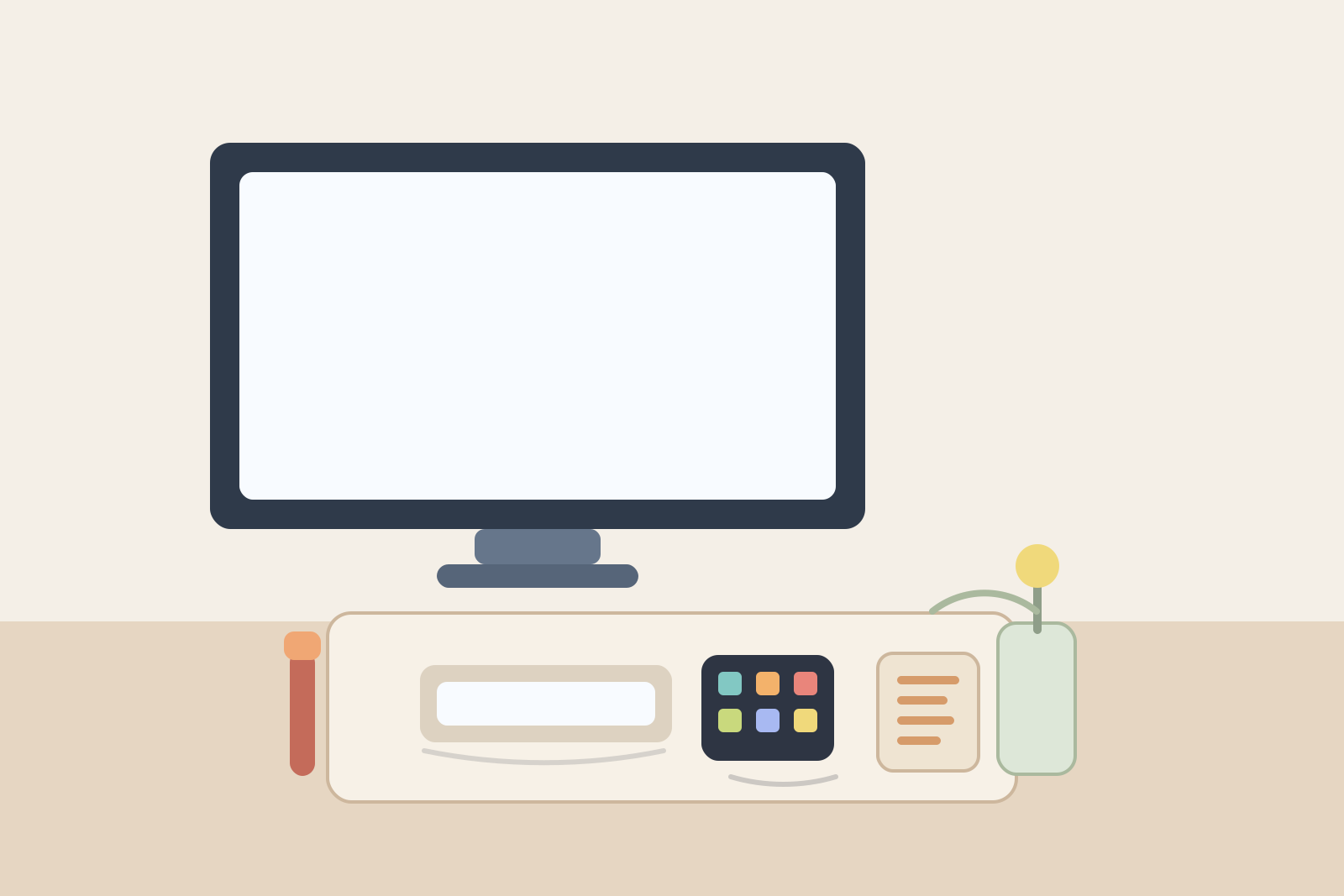
Desk Organization Around a Stream Deck Without Growing a Side-Control Cluster
A Stream Deck looks small enough that it should not affect the rest of your desk much.
Then the area around it starts changing.
A shortcut card gets left nearby because you are still learning a profile. A charging cable stays out because one more device now needs power. A microphone mute control, camera note, SD card, or tiny adapter starts living beside the buttons because it all feels connected. Before long, one compact controller has turned the side of your desk into a mini command corner that keeps spreading into the mouse lane, notebook space, or monitor base.
If you want better desk organization around a Stream Deck, the goal is not hiding the controller. The goal is keeping its shortcuts fast and visible without letting the supporting clutter around it become a permanent side-control cluster.
Direct answer
Organize a desk around a Stream Deck by giving it one fixed operating position, keeping only live shortcut-related tools beside it, moving cheat sheets and spare accessories out of the same reach zone, and protecting your normal mouse or writing lane from control-panel creep. The device should speed up work, not create a second pile of little tools that never fully resets.
Why Stream Deck setups get messy in a specific way
A Stream Deck creates a kind of clutter that does not look dramatic at first.
Unlike a printer or a monitor, it does not claim a lot of visible space. The problem is that it attracts support items from several workflows at once. Depending on how you use it, the same button deck may touch:
- meeting controls
- recording or streaming tasks
- editing shortcuts
- lighting or camera scenes
- app launching
- timers and quick automations
That mix makes people treat the area around the device like flexible support space. Then the surrounding clutter starts to grow:
- one printed shortcut list
- one charging lead
- one adapter you only need sometimes
- one notebook page for button changes
- one extra control tool that feels related
The deck itself is not the mess. The messy part is the little support ring that forms around it.
Decide whether the Stream Deck is a full-time tool or a task-block tool
This is the choice that clears up the layout fastest.
If you use it all day
Treat it like core equipment. It should have a stable position that works with your keyboard, mouse, and monitor every day.
If you only use it for certain tasks
Treat it like a deployable tool. It can still live on the desk, but it should return to one parked position when you are done with calls, editing, or recording blocks.
Many desks get crowded because the Stream Deck sits in the middle ground. It is always present, but not fully integrated. So the accessories around it never settle either.
Give it one operating lane, not a vague side corner
A Stream Deck works better when it has a clear lane instead of a loose corner.
That lane only needs room for:
- the deck itself
- your hand approach to the buttons
- enough visual space to read the screen without crowding it
It should not also become the place for:
- sticky notes
- earbuds cases
- spare cables
- card readers
- snack wrappers
- random adapters
The simplest test is practical: if you have to move something before you can comfortably tap a shortcut, that object does not belong in the Stream Deck lane.
Keep the deck out of the mouse fight
One common failure is putting the Stream Deck exactly where your other hand still needs to work.
That often means:
- too close to the mouse pad
- partly inside the writing area
- blocking the corner where a notebook opens
- sitting under the monitor where cables and small tools already collect
A better setup is to place it near enough for quick taps but far enough from your main movement path that it does not create constant little collisions. For many desks, that means the deck sits just beyond the keyboard edge or just beside the monitor stand, not in the center of the active work lane.
Separate live controls from setup leftovers
A Stream Deck area usually gets messy when active controls mix with support leftovers.
Your live set might be:
- the Stream Deck
- one cable if it truly stays connected
- maybe one nearby device that the shortcuts directly control during active work
Your leftovers are things like:
- printed key maps from an old profile
- spare USB adapters
- old labels
- backup cables
- memory cards
- tiny tools from a one-time setup session
Those leftover items make the area feel technical and crowded even when you are not using them. If they matter, keep them nearby but not inside the same button-tap zone.
Stop profile changes from turning into paper clutter
A lot of Stream Deck mess is really note clutter.
When people are testing profiles, renaming buttons, or trying new shortcuts, they often leave scraps of paper, sticky notes, or handwritten button maps beside the device. That makes sense during setup. It creates drag during normal work.
If you still need reminders, keep them in one cleaner format:
- a single note card in a stand behind the monitor
- one digital reference in your notes app
- one short update session instead of constant little edits during the workday
The goal is to stop the deck from carrying a permanent training halo around it.
Do not let related gear stack onto the same patch of desk
A Stream Deck often lives near other gear-heavy tools.
That can include:
- a desktop microphone
- webcam accessories
- a speakerphone
- a USB hub
- a charging puck
- a small light or camera remote
The mistake is treating all of that as one family that should live together.
Related does not always mean co-located. If the same small square of desk has to hold your shortcut deck, audio controls, spare adapters, and call notes, the setup will feel busy no matter how tidy the cables are. Keep the Stream Deck near the workflow it supports, but give each support category its own boundary.
Build a reset that returns the desk to normal mode
The best Stream Deck setup does not stay in half-production mode all day.
After a call block, recording session, or editing stretch, reset the area by clearing:
- temporary notes
- one-off adapters
- extra cables you pulled forward
- any tool that was only needed for that task block
This matters because Stream Deck clutter is often quiet clutter. It accumulates in little layers, and each layer feels reasonable when it appears. A short reset prevents the controller from becoming the center of a permanent side pile.
A simple layout that works for many desks
If you want an easy default, try this:
| Zone | What belongs there | What stays out |
|---|---|---|
| main work lane | keyboard, mouse, one active notebook | controller accessories and setup leftovers |
| Stream Deck lane | the deck and clear hand access | loose paper, backup cables, random dongles |
| support zone | spare adapters, labels, and uncommon setup tools | items you need to tap during normal work |
That structure is usually enough to make the desk feel more readable without adding more containers.
Final thought
A Stream Deck should remove friction, not create a new kind of it.
If the device is helping but the side of your desk keeps getting busier, the answer is usually not a bigger desk or more accessories. It is a tighter boundary around what the Stream Deck zone is actually for. When the controller has one operating lane and the leftovers stop camping beside it, the whole workspace feels easier to use.