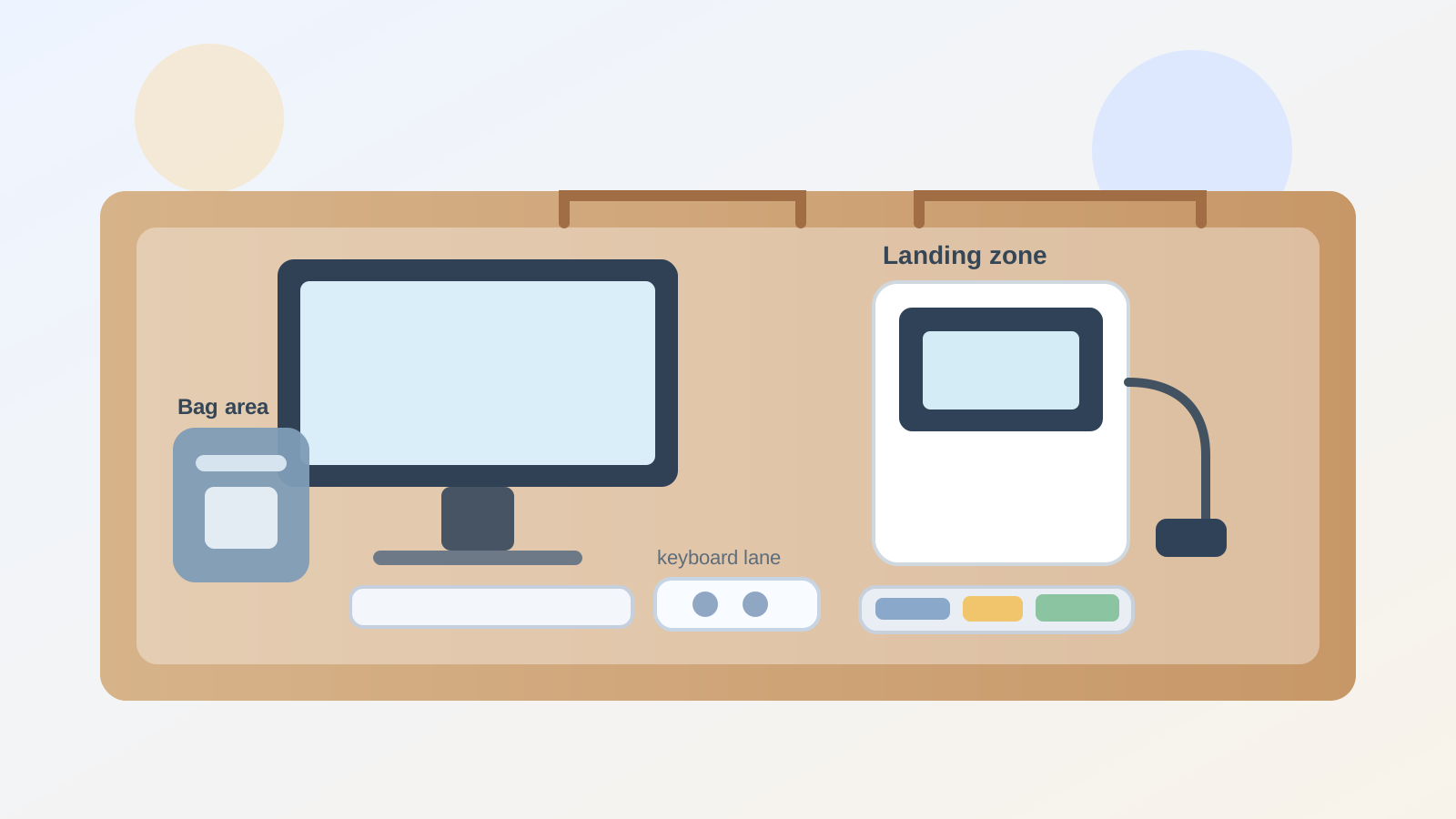
Desk Landing Zone Organization for a Laptop You Unplug Every Day
Some desks are not messy because too much work happens there.
They get messy because the desk has to keep switching states.
You plug in for the day, spread out just enough to work, then unplug for a meeting, a commute, shared office seating, or the trip home. The laptop leaves, but the charger brick stays crooked behind the monitor. The badge ends up by the keyboard. The adapter lands near the mouse. Your notebook sits open because you might still need it tomorrow. By the next morning, the desk is not exactly cluttered, but it already looks half packed and half active.
If you want to organize a desk for a laptop you unplug every day, the goal is not making the setup perfectly minimal. The goal is giving departure and return items one consistent landing zone so the work surface stays usable, the reconnect path stays obvious, and daily transitions stop spreading small tech across the whole desk.
Quick answer
To organize a desk landing zone for a laptop you unplug every day:
- give unplugging items one fixed side zone instead of letting them scatter across the desk
- separate stay-at-desk gear from travel gear before you organize cables
- keep the laptop connection path short and repeatable
- store the items that leave together as one kit, not as loose objects
- leave the main writing and keyboard lane intact even during pack-up
- make the desk easy to reset when the laptop returns
This works because the real problem is usually not the laptop itself. It is the transition layer around it.
Why daily unplugging creates a special kind of clutter
A desk that supports daily laptop removal has more moving parts than a desk with a permanently parked computer.
You may be dealing with:
- the laptop itself
- a primary charger
- one dock or short adapter chain
- a badge or security key
- a notebook used during travel or meetings
- headphones or earbuds
- one laptop sleeve or work bag
- one or two small accessories that leave only sometimes
None of those items seems large on its own. The clutter comes from the fact that they do not all belong to the same state.
Some items should stay on the desk. Some should always travel. Some should wait in a ready position near the edge. When all three categories mix together, the desk starts looking like a checkout counter for your own workday.
Start by separating stay items from go items
A lot of people try to solve this by neatening cords first. It works better to sort by movement.
Use three simple groups:
| Group | What usually belongs there | Why it matters |
|---|---|---|
| stays at desk | monitor, lamp, desktop tray, pen cup, full-size keyboard, reference material | keeps the desk stable even when the laptop leaves |
| always goes | laptop, badge, primary notebook, earbuds, work phone if applicable | prevents daily travel items from hiding in random desk zones |
| waits in landing zone | charger tip, adapter, sleeve, one cable end, one small ready tray | supports departure and return without taking over the center |
This matters because many desks feel messy simply because people never decided which items are actually supposed to leave.
Build the landing zone beside the work lane, not inside it
A laptop landing zone should support transitions without becoming the new center of the desk.
The best place is usually:
- on the less-active side of the desk
- near the cable entry point
- close enough to grab while standing up
- outside the main keyboard and writing lane
What usually fails is letting the landing zone form wherever you happen to unplug.
That leads to:
- charger ends hanging in different places
- adapters left in front of the monitor
- badge clips mixed with paper near the keyboard
- the laptop sleeve taking over the one clear corner you needed for notes
A stronger layout keeps the transition gear near one side edge so the middle of the desk still belongs to active work.
Keep the reconnect path shorter than you think
Many daily-unplug desks feel harder to manage because reconnecting requires too much little fiddling.
You sit down and have to find:
- which cable is the charger
- where the adapter went
- which end belongs to the dock
- where the badge or security key ended up
- whether yesterday’s notebook is under the sleeve or behind the keyboard
That is what turns a simple return into a mini reset.
A better setup keeps one obvious reconnect path:
- laptop lands in one spot
- charger or dock lead reaches that same spot every time
- badge or notebook lives in one adjacent mini-zone
- small accessories return to one tray or pouch instead of free-floating
The easier it is to reconnect without searching, the less the desk accumulates transition debris.
Stop treating the sleeve or bag like part of the desk layout
A lot of daily-laptop clutter is really bag clutter in disguise.
The laptop sleeve, backpack flap, or shoulder bag becomes temporary desk storage for chargers, notes, receipts, adapters, and pens. Then those objects spill back onto the desk during the next setup.
Instead:
- the bag holds travel items during movement
- the landing zone holds only the few things needed for departure or return
- the desk itself keeps only active work items in sight
If the bag has to stay nearby, give it one off-surface home if possible. The desk works better when the bag is not acting like an open drawer beside the keyboard.
Give the landing zone one support format only
Do not overbuild this area.
Usually one of these is enough:
- one slim tray
- one shallow side shelf
- one small docking corner
- one vertical stand plus one tray for accessories
The important part is not the container. It is the limit.
The landing zone should hold only the departure sequence, such as:
- charger tip or dock lead
- one adapter you truly use
- badge or security key
- earbuds or headset case
- one notebook used with the laptop
It should not become home for:
- backup chargers
- extra unopened cables
- random mail
- loose sticky notes from other tasks
- tools that only relate to the laptop once a month
Once the landing zone starts absorbing unrelated items, it stops helping with transitions and starts becoming another clutter corner.
Protect the keyboard zone during pack-up
One reason these desks feel visually tiring is that the laptop often gets packed on top of the active work lane.
The unplug sequence happens over the keyboard, over today’s notes, or across the mouse path. Then one quick departure creates a desk-wide mess even if the rest of the day was organized.
A better rule is simple: pack from the landing zone, not from the middle.
That means:
- disconnect cables near the side support area
- return small go-items to the tray or pouch before standing up
- keep the keyboard lane readable until the last moment
- avoid stacking the sleeve, badge, and charger across the center of the desk
When the main lane stays clear, the desk is easier to return to later without feeling abandoned mid-task.
Use a two-state reset instead of a perfect all-day setup
A daily-unplug desk does not need to look identical in every moment.
It only needs to work well in two states:
plugged-in state
- laptop in its working position
- charger or dock connected
- one notebook or current paper in the main lane
- landing-zone items reduced to what is still relevant
leaving state
- laptop disconnected from one predictable side point
- charger end returned to the landing zone
- badge, earbuds, and notebook gathered together
- center surface left mostly clear for the next return
That is usually more realistic than trying to keep the desk styled the same way all day while tools keep coming and going.
Common mistakes that make this setup worse
A few habits create most of the friction:
- keeping travel items spread across several desk corners
- letting the charger route cross the front work edge
- parking the laptop sleeve on the main writing surface
- leaving backup adapters visible “just in case”
- mixing desk supplies into the same tray as departure items
- making the landing zone too large, so it becomes overflow storage
Most daily-unplug desks do not need more accessories. They need fewer mixed signals.
A simple layout that works in most offices
If you want a fast default, try this:
- center: keyboard and current work lane
- monitor line or rear edge: stable cables that stay put
- one side: landing zone tray or docking corner
- off-surface or under-side: work bag or sleeve when possible
- one notebook only: either active on the desk or packed with the laptop kit
That setup works because it keeps the desk useful even when part of your workflow has to leave.
Where TidySnap helps
A daily-unplug desk often looks almost fine until you notice how many little transition items never settle. One photo can show whether the real issue is the charger path, the bag living too close to the desk, a tray that has turned into overflow, or a keyboard lane that disappears during pack-up.
TidySnap can help you spot which items should stay anchored, which ones should travel as a kit, and where the landing zone should sit so the desk supports both working and leaving.
FAQ
What should stay on a desk if I take my laptop away every day?
Usually the stable items: monitor, keyboard, lamp, reference materials, and one small landing zone for departure accessories. Travel items should not stay spread across the desk.
Where should I put my laptop charger if I unplug every day?
Keep the charger or dock lead returning to one consistent side area near the laptop’s usual position, not draped through the center of the desk.
Why does my desk still look messy even when I pack up my laptop every night?
Because the clutter often comes from the transition items around the laptop, not from the laptop itself. Adapters, badges, sleeves, and notebooks need one shared landing zone.
Final thought
The best desk for a laptop you unplug every day is not the one with no visible gear. It is the one that makes leaving and returning feel obvious.
When travel items have one landing zone, stay-at-desk tools stop mixing with go-items, and the reconnect path stays short, the desk feels calmer in both directions. That is what turns a daily unplug routine from low-grade clutter into a repeatable workflow.